EasyManua.ls Logo

Voxx SB10MD1 - Voxx Link App Operation

Voxx SB10MD1
29 pages
Print Icon
To Next Page IconTo Next Page
To Previous Page IconTo Previous Page
Loading...
18
VOXX LINK CONTINUED
18:00
80%
VOXX
LINK
Google Play
VOXX LINK
Kevin_Android_R&D
Tools
INSTALL
18:00
80%
Personal Hotspot
18:00
80%
VOXX
LINK
VOXX
REAR SEAT INFOTAINMENT
AVAILABLE NETWORK
SB10MD1_1a144
SCREENOFF
DVD
SmartStream
USB
SD
DUAL SCREEN WIFI DUAL SCREEN
APPS
SETUP
SCREENOFF
HDMI
SmartStream
USB
SD
DUAL SCREEN WIFI DUAL SCREEN
APPS
SETUP
᱘᱘
᱘᱘
SCREENOFF
WIFI
VOXX LINK
WFMM
IR TRANSMITTER
LANGUAGE
ABOUT DEVICE
RESET
SCREENOFF
Scan Searching...
TP-LINK_72DA
Secured with WPA/WPA2
TP-LINK_363C
Secured with WPA/WPA2
Thomas_S9
Secured with WPA/WPA2
TP-LINK_565A
Secured with WPA/WPA2
You must connect to WiFi first
SCREENOFF
ScanThomas_S9 Connected
TP-LINK_72DA
Secured with WPA/WPA2
TP-LINK_363C
Secured with WPA/WPA2
Thomas_59
Secured with WPA/WPA2
TP-LINK_565A
Secured with WPA/WPA2
Device Name: SB10MD1_1a44
SCREENOFF
DVD
SmartStream
USB
SD
DUAL SCREEN WIFI DUAL SCREEN
APPS
SETUP
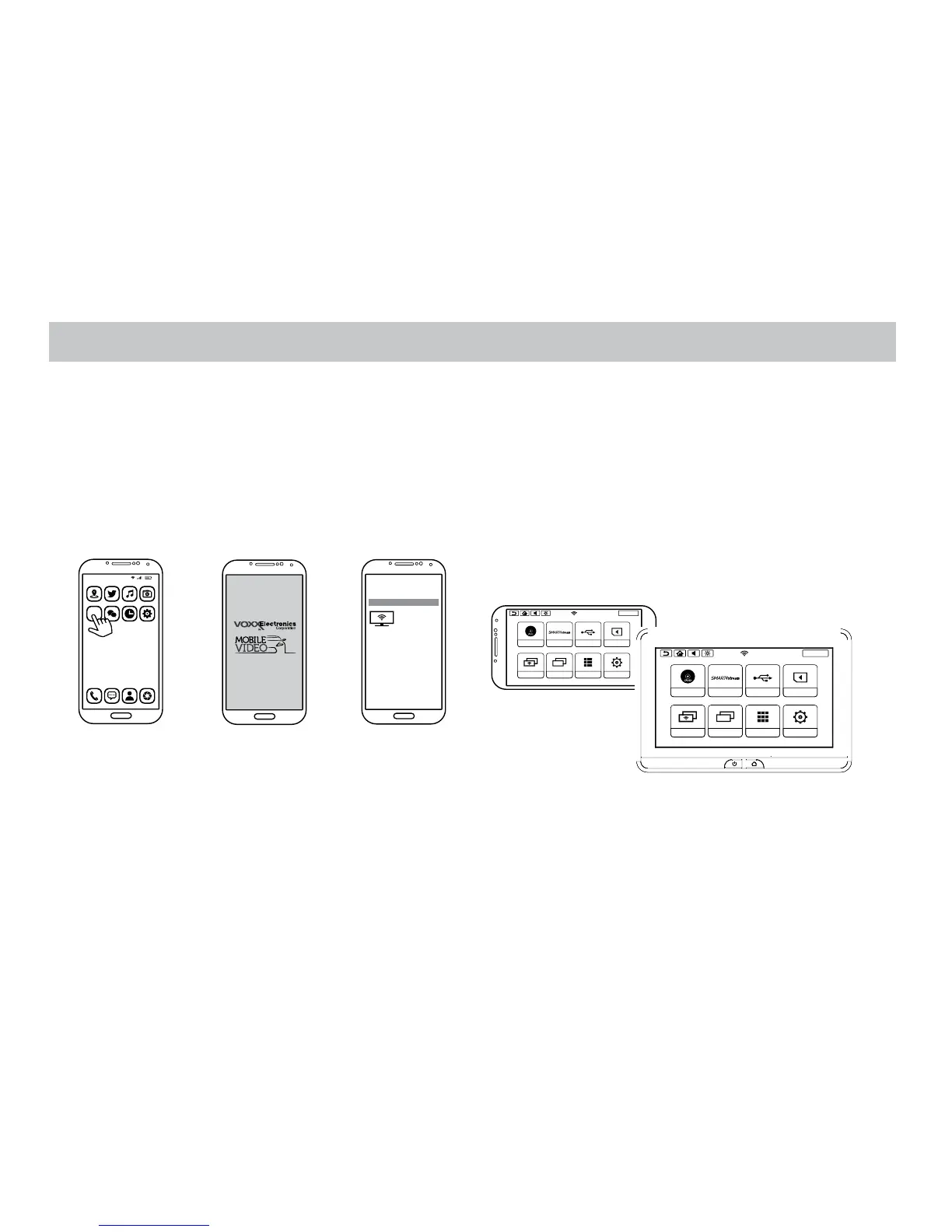
7. Open VOXX LINK app.
8. Logo image will display on the Smartphone screen.
9. After the logo image display, available device page will appear on the Samrtphone screen. And connected available device name will appear on the
Smartphone screen.Touch on the device name to connect the VOXX LINK to the avalable device and start the App control.
10. After connected the VOXX LINK to the monitor the Smartphone will mirror what is play on the monitor and this will allow you to full control.

Related product manuals