22 Trail Tech Voyager
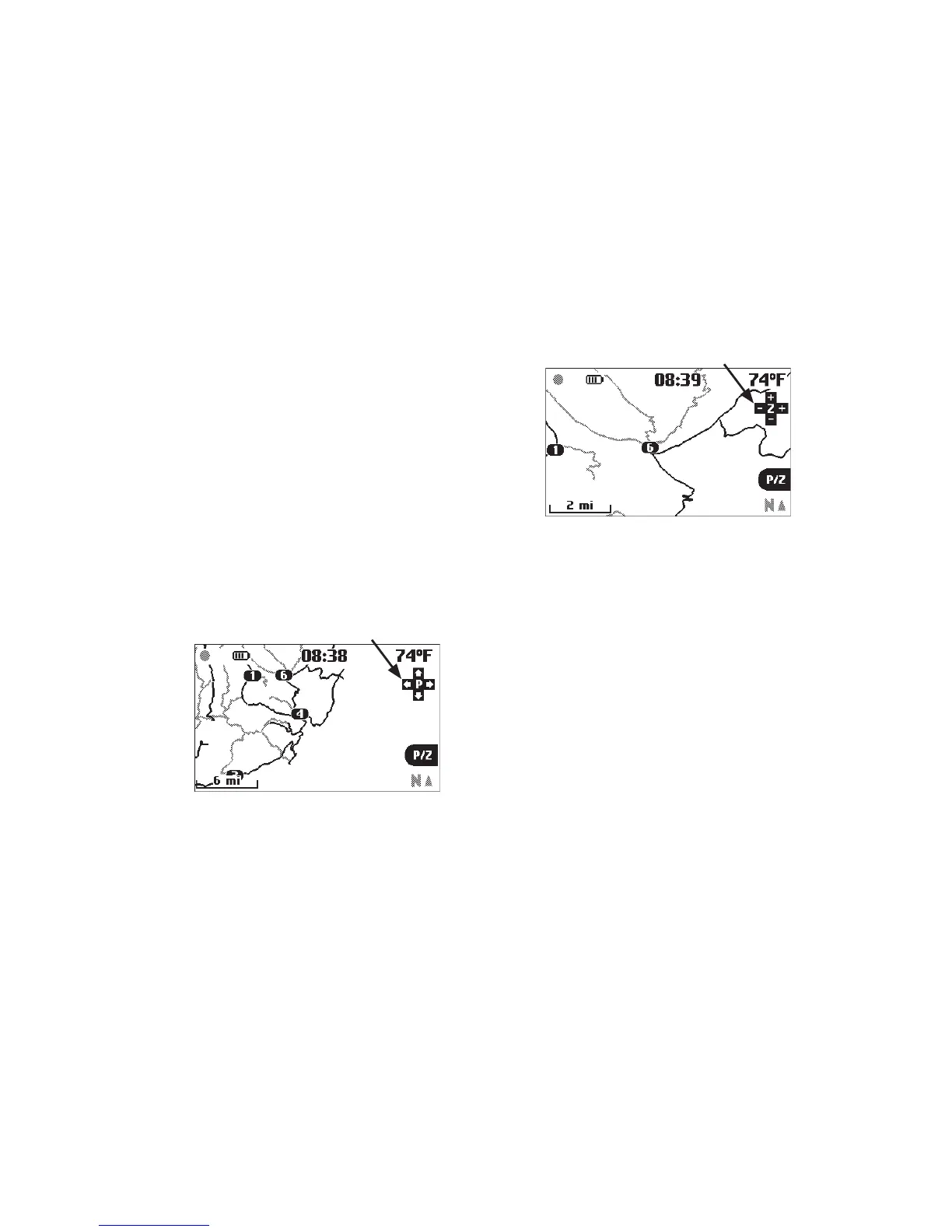
Map Pan Mode
Map Zoom Mode
Pan Mode Indicator
Zoom Mode Indicator
Press ENTER to change
between pan and zoom modes (indicated by the
+ icon in the upper right corner of the screen.)
Press BACK
to go back to
the Map Tab.
Press MENU to add waypoints, pause/resume
the trip, etc.
Zoom/Pan Timeout
By default the Map Pan and Zoom Screens have
a timeout function to keep you on the proper
Map Screen. By default the timeout is set for 30
seconds and then reverts you back to the Map
Screen. To adjust the length of the timeout:
Set > Map Settings > P/Z Timeout
Press ENTER to change
between pan and zoom modes (indicated by the
+ icon in the upper right corner of the screen.)
Press BACK to go back to the Map Tab.
Press MENU to add waypoints, pause/resume
the trip, etc.


 To Next Page