10
Contents Index
10
IndexContents
10
IndexContents
SETTING UP INTUOS PRO
CONNECTING INTUOS PRO TO YOUR COMPUTER
A USB cable for connecting the Intuos pro to your computer is provided.
• Connect the USB cable to the Intuos pro as shown.
• Connect the other end of the cable to a USB port on your computer. When the connection is complete,
the Status LEDs will light (white).
• Touch the active area of the Intuos pro with your pen or your finger. The Status LEDs will brighten.
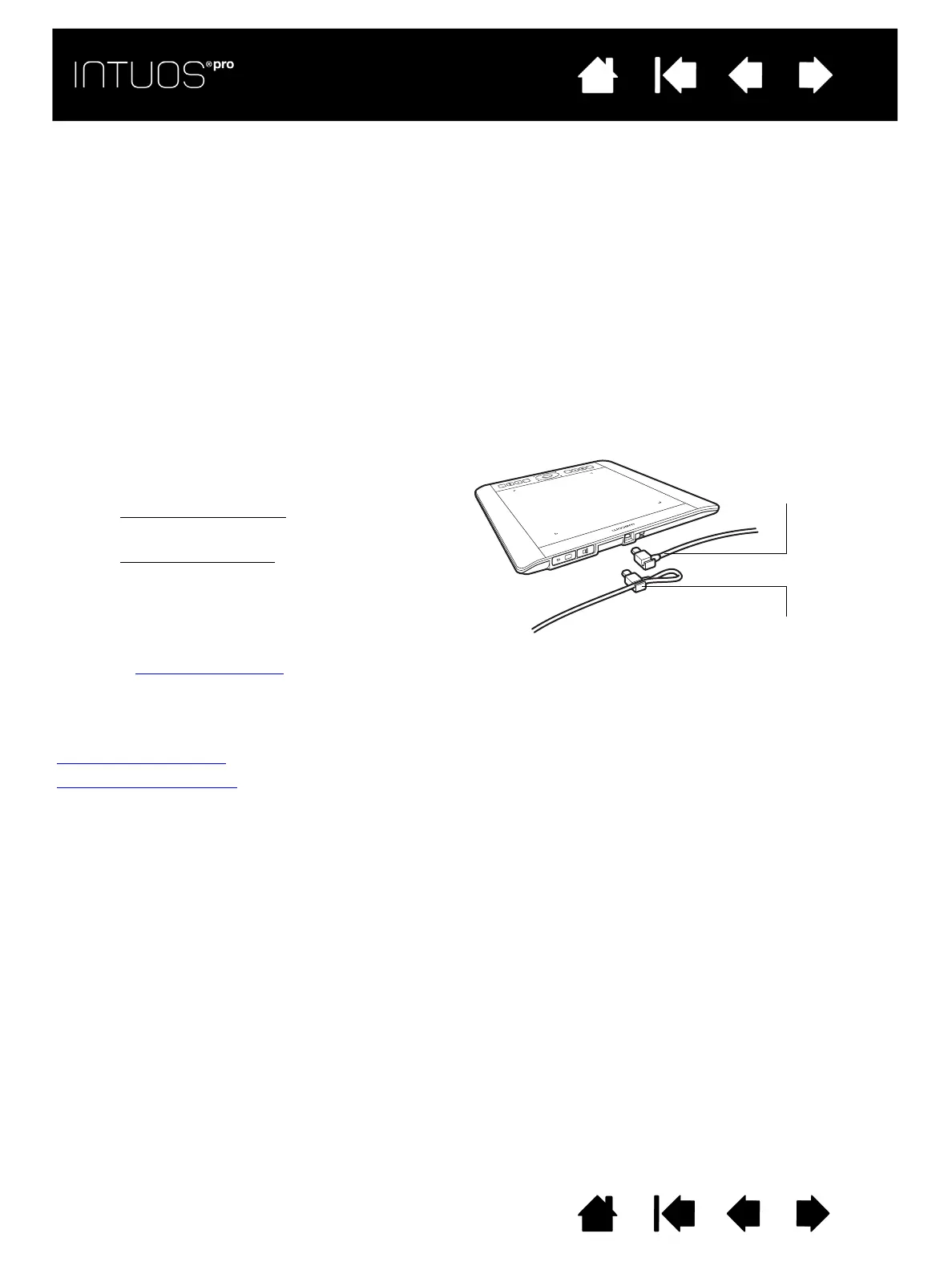
USB CABLE INSTALLATION
The tablet active area
Control panel overview
1. The USB cable can be connected to suit your
preferred handedness.
• For right-handed use
, connect the USB
cable to the tablet as is.
• For left-handed use
, make a loose loop
and press the cable into the looping clip
located on the USB plug.
2. Connect the other end of the cable to your
computer.
See also Installing the driver
.
Right-handed use
Left-handed use









 To Next Page