English - 18 -
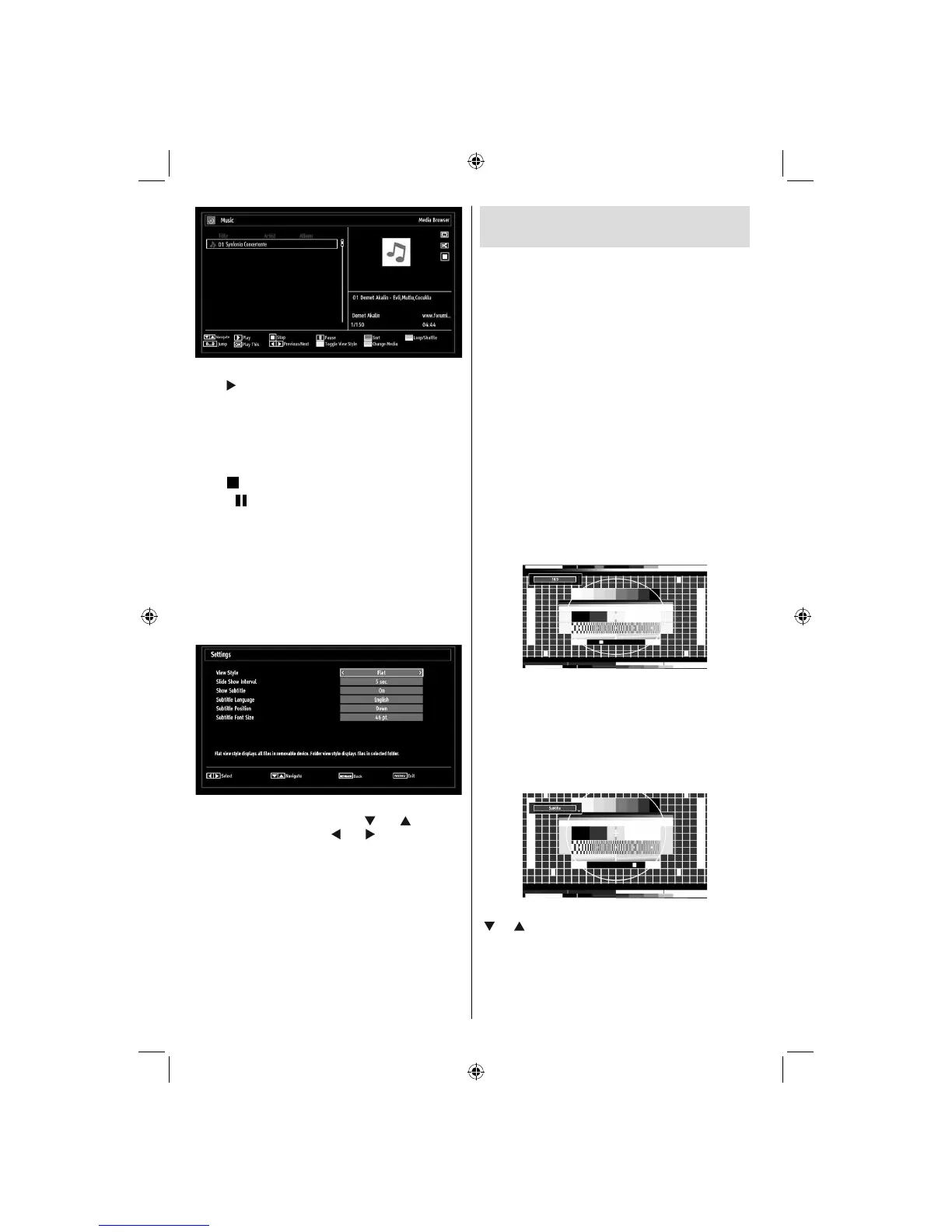
Up/Down: Navigate.
Play (
button): Plays all media fi les starting with
the selected one.
0..9 (Numeric buttons): The TV will jump to the
fi le starting with the letter you input via the numeric
buttons on your remote control.
Play This (OK button): Plays the selected fi le.
Stop (
button): Stops playback.
Pause (
button): Pauses the selected playback.
Previous/Next (Left/Right buttons): Jumps to
previous or next fi le to play.
RED Button: Sorts fi les by Title,Artist or Album.
Note: If the Viewing Style is set to Folder in Media
Browser Settings, Music folder will be displayed as
sorted and there is no need to sort fi les again by
pressing RED button.
Media Browser Settings
You can set your Media Browser preferences by
using the Settings dialog. Press “ ” or “ ” button to
highlight an item and use “ ” or “ ” button to set.
View Style: Sets default browsing mode.
Slide Show Interval: Sets slide show interval time.
Show Subtitle: Sets subtitle enabling preference.
Subtitle Language: Sets supported subtitle
language.
Subtitle Position: Sets subtitle position as up or
down.
Subtitle Font Size: Sets subtitle font size (max.
54pt).
Changing Image Size: Picture
Formats
You can change the aspect ratio (image size) of •
the TV for viewing the picture in different zoom
modes.
Press • “SCREEN” button repeatedly to change
the image size. Available zoom modes are listed
below.
Auto
When AUTO is selected, the aspect ratio of the screen
is adjusted by the information provided by the selected
source(if available).
The format being displayed in AUTO mode is
completely independent of WSS information which
could be included in the broadcast signal or the signal
from an external device.
Note: Auto mode only will be available in HDMI, YPbPr
and DTV sources.
16:9
This uniformly stretches the left and right sides of a
normal picture (4:3 aspect ratio) to fi ll the wide TV
screen.
For 16:9 aspect ratio pictures that have been •
squeezed into a normal picture (4:3 aspect ratio),
use the 16:9 mode to restore the picture to its
original shape.
Subtitle
This zooms up the wide picture (16:9 aspect ratio)
with subtitles to the full screen.
Note: You can shift to screen up or down by pressing
“ ” / “ ” buttons while picture zoom is selected as
panaromic, 14:9 Zoom, Cinema or Subtitle.
14:9
This zooms up the wide picture (14:9 aspect ratio) to
the upper and lower limits of the screen.
01_MB60_[GB]_(01-TV)_woypbpr_1910UK_IDTV_NICKEL16_24940LED_10075239_50199287.indd 1801_MB60_[GB]_(01-TV)_woypbpr_1910UK_IDTV_NICKEL16_24940LED_10075239_50199287.indd 18 20.09.2011 16:36:4920.09.2011 16:36:49



 To Next Page