English-5-
TVswitchesintostandbymodeadialoguewindowwill
bedisplayed.IfyoudonotpressanybuttontheTV
willswitchintothestandbymodeafterawaitingperiod
ofabout5minutes.YoucanhighlightYesandpress
OKtoswitchtheTVintostandbymodeimmediately.
IfyouhighlightNo andpressOK,theTVwillremain
on.YoucanalsochoosetocanceltheAuto Power
Down functionfromthisdialogue.HighlightDisable
andpressOK,theTVwillremainonandthefunction
willbecancelled.Youcanenablethisfunctionagainby
changingthesettingoftheAuto Power Downoption
fromtheSettings>System>Moremenu.
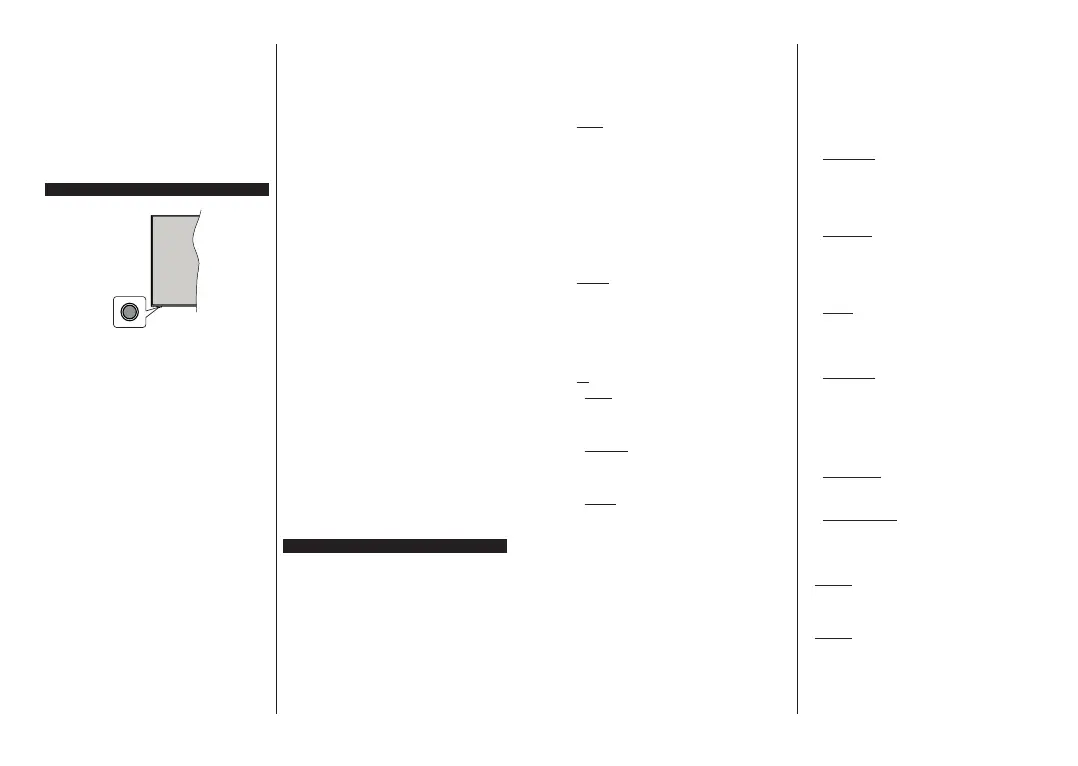
TV Control Button & Operation
Note: The position of the control button may differ depending
on the model.
YourTVhasasinglecontrolbutton.Thisbuttonallows
youtocontroltheStandby-On/Source/Programme
andVolumefunctionsoftheTV.
Operating with the Control Button
Press thecontrol button todisplay the function
optionsmenu.
Then pressthe button consecutivelyto move the
focustothedesiredoptionifneeded.
Pressand holdthebutton forabout2 secondsto
activatetheselectedoption.Theiconcolourofthe
optionchangeswhenactivated.
Pressthebuttononceagaintousethefunctionor
enterthesubmenu.
Toselectanotherfunctionoption,youwill needto
deactivatethelastactivatedoptionfirst.Pressand
holdthebuttontodeactivateit.Theiconcolourof
theoptionchangeswhendeactivated.
Toclosethefunctionoptionsmenudonotpressthe
buttonforaperiodofabout5seconds.Thefunction
optionsmenuwilldisappear.
To turn the TV off:Pressthecontrolbuttontodisplay
thefunction options menu,the focuswill be onthe
Standbyoption.Pressandholdthebuttonforabout
2secondstoactivatethisoption.Theiconcolourof
theoptionchanges whenactivated.Thenpress the
buttononceagaintoturntheTVoff.
To turn on the TV:Pressthecontrolbutton,theTV
willturnon.
To change volume:Pressthecontrolbuttontodisplay
thefunctionoptionsmenuandthenpressthebutton
consecutively tomove the focusto Volume +or
Volume -option.Pressandholdthebuttonforabout
2seconds toactivatethe selectedoption.The icon
colour ofthe option changeswhen activated. Then
pressthebuttontoincreaseordecreasethevolume.
To change channel:Press the control buttonto
displaythefunctionoptionsmenuandthenpressthe
buttonconsecutivelytomovethefocustoProgramme
+orProgramme -option.Pressandholdthebutton
forabout2seconds toactivatetheselectedoption.
Theiconcolouroftheoptionchangeswhenactivated.
Thenpressthebuttontoswitchtothenextorprevious
channelinthechannellist.
To change source:Pressthecontrolbuttontodisplay
thefunctionoptionsmenuandthenpressthebutton
consecutively tomove the focusto Source option.
Press andhold the buttonfor about 2 secondsto
activate thisoption. Theicon colour of theoption
changeswhenactivated.Thenpressthebuttononce
againto display thesources list. Scrollthrough the
available sourcesby pressing thebutton. TV will
automaticallyswitchtothehighlightedsource.
Note: Main menu OSD cannot be displayed via the control
button.
Operation with the Remote Control
Press theMenu button onyour remote controlto
displaymainmenu.Use thedirectionalbuttonsand
OKbutton tonavigateand set.PressReturn/Back
orMenubuttontoquitamenuscreen.
Input Selection
Onceyouhaveconnectedexternalsystemstoyour
TV,youcanswitchtodifferentinputsources.Pressthe
Sourcebuttononyourremotecontrolconsecutively
toselectthedifferentsources.
Changing Channels and Volume
Youcanchangethechannel andadjustthevolume
byusingtheProgramme+/- andVolume +/-buttons
ontheremote.
Using Main TV Menu
WhentheMenubuttonispressed,themainTVmenu
willappearonthescreen.Youcannavigatethrough
themenuitemsusingthedirectional buttonsonthe
remote.Toselectanitemorseethesub-menuoptions
ofthehighlightedmenupressOKbutton.Whenyou
highlightamenuoptionsomeofthesub-menuitems
of thismenu may appearon the upper sideof the
menubarforquickaccess.Touseaquickaccessitem
highlightit,pressOKandsetasdesiredusingtheLeft/
Rightdirectionalbuttons.WhenfinishedpressOKor
Back/Returnbuttontoexit.
You can alsosee information onlocation, weather,
timeanddateonthemainTVmenuscreen.Thegreen
English-6-
smalliconsindicatethecurrentstatusfortime,network
andsyncforapps.Iftheseiconsappearingreen,it
meansthatthetimeinformationisupdated,network
is connectedand sync iscompleted in success.
Otherwisetheiconswillappearinwhite.
PressExitbuttontoclosethemainmenu.
1. Home
When mainmenu is openedHome menu bar will
behighlighted.Thecontent oftheHomemenucan
becustomisedbyaddingoptionsfromothermenus.
JusthighlightanoptionandpresstheDowndirection
buttonontheremote.IfyouseeAdd to Homeoption
you canadd it tothe Home menu. Sameway you
candeleteorchangethepositionofanyiteminthe
Home menu.Press the Downdirection button and
selectDelete orMoveoptionandpressOK.Inorder
tomoveamenuitemusetheRightandLeftdirection
buttonstoselectthepositionthatyouwanttheitem
tomovetoandpressOK.
2. Search
You can searchfor Channels, Guide,TV menus,
Applications, Web,YouTubeand Videos usingthis
option.PressOKandenterakeywordusingthevirtual
keyboard.Thenhighlight OKandpress OKtostart
thesearch.Resultswillbedisplayedonthescreen.
Highlight thedesired result usingthe directional
buttonsandpressOKtoopen.
3. TV
3.1. Guide
Youcanaccesstheelectronicprogrammeguidemenu
using thisoption. Refer toElectronic Programme
Guidesectionformoreinformation.
3.2. Channels
YoucanaccesstheChannelsmenuusingthisoption.
Refer toUsing the Channel List section formore
information.
3.3. Timers
Youcansettimersforfutureeventsusingtheoptionsof
thismenu.Youcanalsoreviewthepreviouslycreated
timersunderthismenu.
ToaddanewtimerselecttheAdd Timertabusingthe
Left/RightbuttonsandpressOK.Setthesub-menu
optionsasdesiredandwhenfinishedpressOK. Anew
timerwillbecreated.
Toeditapreviouslycreatedtimer,highlightthattimer,
select theEdit Selected Timertab and pressOK.
Changethesub-menuoptionsasdesiredandpress
OKtosaveyoursettings.
To cancelan already settimer, highlightthat timer,
selectDelete Selected Timertaband pressOK.A
confirmationmessagewillbedisplayed.HighlightYes
andpressOKtoproceed.Thetimerwillbecancelled.
Itisnotpossibletosettimersfortwoormoreevents
thatwillbroadcastedindifferentchannelsatthesame
timeinterval.Inthiscaseyouwillbeaskedtochoose
oneofthesetimersandcancelothers.Highlightthe
timeryouwanttocancelandpressOK, Options menu
willbedisplayed.ThenhighlightSet/Cancelandpress
OKtocancelthattimer.Youwillhavetosavechanges
afterthat.InordertodothatpressOK,highlightSave
ChangesandpressOKagain.
3.4. Recordings
You canmanage yourrecordings usingthe options
ofthis menu.Youcan playback,edit, deleteorsort
previouslyrecordedevents.Highlightatabbyusing
theLeftorRightdirectionbuttonandpressOKtosee
availableoptions.
3.. More Apps
In orderto manage theapps installed on yourTV,
youcanusethisoption.HighlightandpressOK.You
canaddaninstalledapptoHomemenu, launchor
removeit.HighlightanappandpressOKtoseethe
availableoptions.
3.6. Market
You canaddnew appsfrom theapplication market
usingthisoption.Highlight andpressOK.Available
apps willbe displayed.Youcan alsoaccess the
applicationmarketfromwithintheMore Appsmenu.
3.7. Reset Apps
YoucanresetyourcustomisationsontheHomemenu
todefaultsusingthis option(availabilitydependson
TVmodelanditsfeatures).HighlightandpressOK.
Aconfirmation messagewillbe displayed.Highlight
YesandpressOKtoproceed.Notethatyouwillnot
beabletoperformthisoperationagainwithinthenext
fewminutes.
3.8. Accessibility
Youcanaccesstheaccessibilitysettingsmenudirectly
usingthisoption.
3.9. Privacy Settings
You can accessthe privacy settingsmenu directly
using thisoption. Thisoption may not beavailable
dependingonthemodelofyourTVandtheselected
countryduringthefirsttimeinstallationprocess.
4. Settings
You can managethe settings ofyour TV usingthe
optionsofthismenu.RefertoSettings Menu Content
sectionformoreinformation.
. Sources
Youcanmanageyourinputsourcepreferencesusing
theoptionsofthismenu.Tochangethecurrentsource
oruseyourTVasawirelessdisplaydevicehighlight
oneoftheoptionsandpressOK.








 To Next Page