English-17-
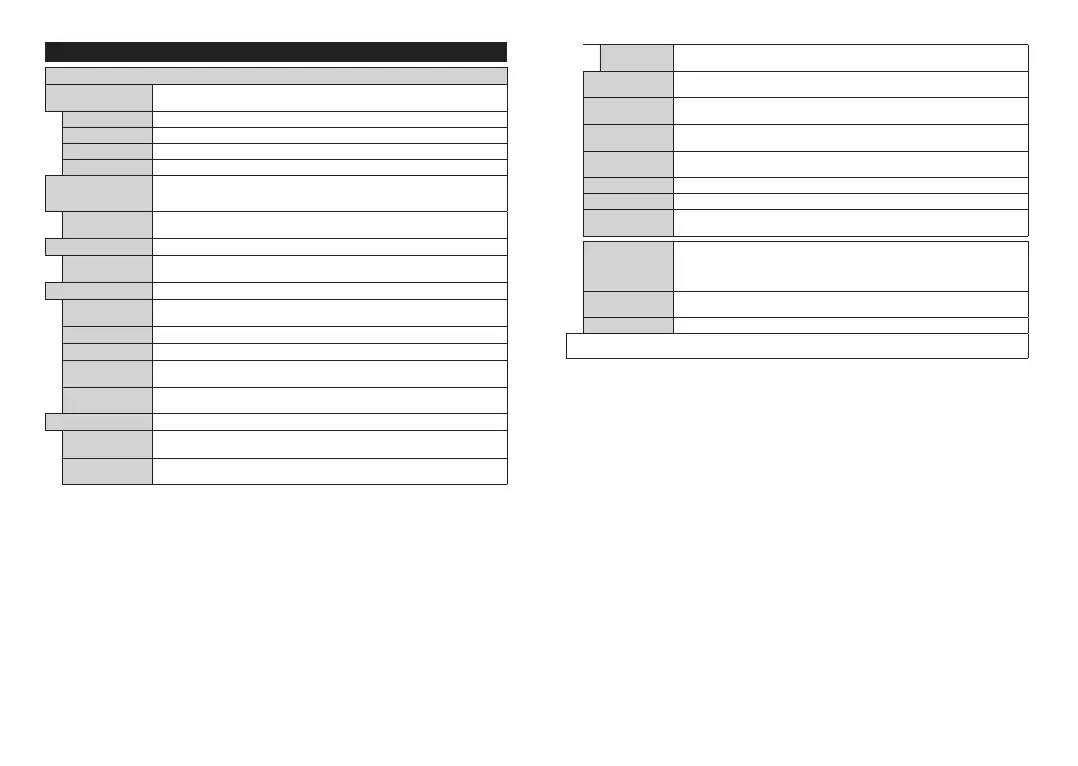
Settings Menu Content
Picture Menu Content
Mode
Youcanchangethepicturemodetosuityourpreferenceorrequirements.Picturemodecan
besettooneoftheseoptions:Cinema,Game(optional),Sports,Dynamic andNatural.
Contrast
Adjuststhelightanddarkvaluesonthescreen.
Brightness
Adjuststhebrightnessvaluesonthescreen.
Sharpness
Setsthesharpnessvaluefortheobjectsdisplayedonthescreen.
Colour
Setsthecolourvalue,adjustingthecolours.
Energy Saving
For setting the Energy SavingtoCustom, Minimum,Medium, Maximum, Auto,
Screen OfforOff.
Note: Available options may differ depending on the selected Mode.
Backlight
Thissettingcontrolsthe backlight level.Thebacklightfunctionwillbeinactive if the
Energy SavingissettoanoptionotherthanCustom.
Picture Zoom
Setsthedesiredimagesizeformat.
Picture Shift
ThisoptionmaybeavailabledependingonthePicture Zoomsetting.Highlightand
pressOK,thenusedirectionalbuttonstoshiftthepictureupwardsordownwards.
PC Position
AppearsonlywhentheinputsourceissettoVGA/PC.
Autoposition
IftheimageisnotcenteredinVGAmodeusethisoptiontoautomaticallyadjustthe
positionoftheimage.PressOKtostarttheautoadjustment.
H Position
Thisitemshiftstheimagehorizontallytotherighthandsideorlefthandsideofthescreen.
V Position
Thisitemshiftstheimageverticallytowardsthetoporbottomofthescreen.
Dot Clock
DotClockadjustmentscorrecttheinterferencethatappearasverticalbandingindot
intensivepresentationslikespreadsheetsorparagraphsortextinsmallerfonts.
Phase
Dependingontheinputsource(computeretc.)youmayseeahazyornoisypictureon
thescreen.Youcanusephasetogetaclearerpicturebytrialanderror.
Advanced Settings
Dynamic
Contrast
Youcanchangethedynamiccontrastratiotodesiredvalue.
Colour Temp
Setsthedesiredcolourtemperaturevalue.Cool,Normal,WarmandCustomoptions
areavailable.
English-18-
White Point
IftheColour TempoptionissetasCustom,thissettingwillbeavailable.Increasethe
‘warmth’or‘coolness’ofthepicturebypressingLeftorRightbuttons.
Blue Stretch
Whitecolourenhancementfunctionthatmakeswhitecolourmorecoolerinorderto
makemorebrightpicture.SetasOntoenable.
Micro Dimming
Low,Medium,HighandOffoptionsareavailable.WhileMicro Dimmingisactive,it
willenhancecontrastlocallyforeachdefinedzone.
Noise Reduction
Low,Medium,HighandOffoptionsareavailable.Ifthesignalisweakandthepicture
isnoisy,usetheNoise Reductionsettingtoreducetheamountofnoise.
Film Mode
Filmsarerecordedatadifferentnumberofframespersecondtonormaltelevisionprogrammes.
Turnthisfeatureonwhenyouarewatchingfilmstoseethefastmotionscenesclearly.
Skin Tone
Skintonecanbechangedbetween-5and5.
Colour Shift
Adjustthedesiredcolourtone.
Colour Tuner
Openscolourtunersettings.SettheColour TunerasenabledtoadjusttheHue,Colour
andBrightness valuesmanually.
Gamut Mapping
YoucanusethisoptiontosettherangeofcoloursdisplayedonyourTVscreen.When
setasOn,coloursaresetaccordingtothesourcesignal.WhensetasOff,theTV’s
maximumcolourcapacityisusedbydefault(recommendedoption).
Note: This option may not be available depending on the TV model and its features.
HDMI Full Range
WhilewatchingfromaHDMIsource,thisfeaturewillbevisible.Youcanusethisfeature
toenhanceblacknessinthepicture.
Reset
Resetsthepicturesettingstofactorydefaultsettings(exceptGamemode).
While in VGA (PC) mode, some items in Picture menu will be unavailable. Instead, VGA mode settings will be added to the Picture menu
while in PC mode.



 To Next Page