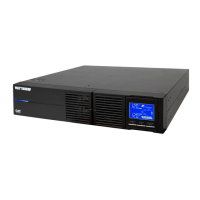
WB-OVRC-UPS-1100/1500/2000 Owner’s Manual
pg.5
CONNECTING TO WATTBOX OVRC DEVICE
The WB-OVRC-UPS series is designed specically for use with WattBox IP power surge protectors featuring a UPS link port. Connect the power
cable from the outlet of the UPS to the power inlet of the wattbox, and connect a network cable between the UPS Link ports.
Once the UPS has been connected to the WattBox, it will appear in the setup menu of the WattBox IP interface. Refer to the WB-OVRC-UPS Web
Conguration Manual on the product support tab for further instructions.
Cat5e+ to WB-OVRC
UPS Link
Connect to WB-OVRC
power inlet
Closed
Outlets ON
Open
Outlets OFF
EPO
Circuit
EMERGENCY POWER OFF (EPO)
The EPO feature uses a simple open/closed circuit that, when opened, causes the UPS to immediately shut off power to all outlets. By default, a
metal jumper is placed between the contacts of the EPO connector. Remove the jumper and wire a normally closed switch to the connector to use an
installed EPO switch.
EPO Reset
To restore normal operation after engaging EPO, the UPS must be turned off and then back on using the front panel LCD buttons.
USB/RS-232 PC CONNECTION
For easy monitoring and conguration of the UPS, plus the ability to shut down the connected computer before the battery depletes.
Connect to computer
USB port.
Setup Instructions
1. Install the UPS software on your computer, either from the CD or from the zip download le found on the product page’s Support tab. Versions
are available for most Windows, Linux, and Mac operating systems.
2. Connect the computer to the UPS using either the included USB cable (recommended) or an RS232 serial cable.
3. Launch the software. Documentation for the software can be found on the product page’s support tab, on the included CD, or in the software by
navigating in the top menu to “Help.”.



 To Next Page
 Loading...