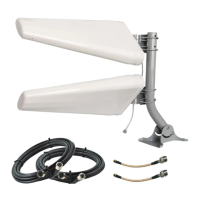
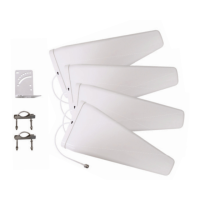
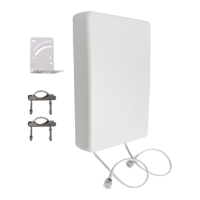
Once you’ve identied the best position for your QuadPro, it’s time to hook everything up.
Don’t drill any holes in your walls yet! Start with a temporary install and test performance rst.
Keep your QuadPro at the position you’ve identied, but move your router indoors and
perform a nal round of tests to make sure everything is performing optimally.
If you purchased your QuadPro as a complete kit, follow the steps below to assemble and
install your kit. If you only purchased the QuadPro, your assembly may look a little different.
Getting the Complete Kit Set Up
Refer to the diagram to the right as needed.
1 Place your QuadPro near the best position you found in section 2.
2 Connect your QuadPro to your UltraFlex-Quad cable and run the cable into your
building.
If you don’t want to drill holes into your walls or roof to route your cables, install your
Coax Window Entry cable in a window, and connect it to your QuadPro and/or
UltraFlex-Quad cables.
3 Connect your cables to your router’s cellular antenna ports and hand-tighten the
connections.
If your cellular router only has internal U.FL ports, install the included U.FL pigtail
adapters, and connect them to your UltraFlex-Quad cable.
4 Restart your cellular router, wait for it to reconnect, then perform 1-2 speed tests to
verify that you are happy with your system’s performance.
• Before attempting to route the cables through your building, lay the UltraFlex-Quad cable out at to
straighten it. This will make it easier to work with.
• A nger-tight connection is sufcient to secure the connectors. Tools are not required to tighten them
and may cause damage.
• Unsure how your cables connect to your router? Refer to your router’s manual, our device-specic guides
at waveform.com/hotspot-guides, or reach out to us for assistance.
Install Tips
03
Connecting Your System
8



 To Next Page