Need help?
Do you have a question about the Waves VOCAL RIDER and is the answer not in the manual?
Introduction to the Waves Vocal Rider plugin and user guide.
Details the purpose and benefits of Waves Vocal Rider as an automatic vocal level control tool.
Explains vocal production stages and the two main components Vocal Rider uses.
Lists the four different plugin components available for Waves Vocal Rider.
Describes the function of the WaveSystem toolbar for managing presets and settings.
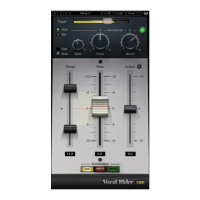
Visual layout of the Vocal Rider and Vocal Rider LIVE plugin interfaces with labeled controls.
Introduction to the various controls and their functions within the Vocal Rider plugin.
The Waves Vocal Rider is an innovative mix tool designed to automatically adjust vocal track levels, eliminating the need for manual fader riding or tedious drawing of level changes in a Digital Audio Workstation (DAW). It is part of Waves' pioneering series of mix tools, aimed at streamlining the mixing process and achieving consistent vocal levels without introducing unwanted coloration.
The primary function of Vocal Rider is to maintain consistent vocal and dialogue levels automatically within a mix. Unlike traditional compressors, it achieves this by dynamically adjusting the vocal volume in real-time, ensuring that the vocal stays within a user-defined target range relative to the rest of the mix. This process helps to create an open-sounding mix by reducing the reliance on heavy compression, which can sometimes flatten dynamics and alter the sound character.
Vocal Rider operates by splitting the mix into two main components: "Vocal" and "Music." The "Vocal" component encompasses all vocal tracks, with or without effects, as defined by the user. The "Music" component refers to the rest of the mix, excluding the vocal tracks. The plugin intelligently adjusts the vocal level based on the dynamics of the music tracks, ensuring that the vocal sits appropriately in the mix at all times.
A key feature of Vocal Rider is its real-time operation, meaning it introduces zero latency and does not require any pre-scanning. This makes it suitable for both studio recording and live performance environments, as well as broadcast and post-production applications. The plugin can also write its automatic riding movements to an automation track in the host application, allowing for further fine-tuning and manual edits if desired.
To use Vocal Rider, the user typically inserts it as the last plugin on their vocal or vocal group track. Instrumental tracks are then sent, post-fader, to a bus, similar to a headphone mix, and this instrumental bus is assigned as the sidechain input for Vocal Rider.
The workflow begins by playing the song and setting the Vocal Sensitivity and Attack controls. Vocal Sensitivity controls the vocal detector's responsiveness, helping it differentiate vocal content from noise floor, spill, and ambient sounds, and accurately identify the beginnings and endings of words. Its range is -12 to +12 dB, with a default of 0. The Vocal Activity Display indicates when vocal activity is detected, showing "Ride" when active and "Idle" when not.
The Attack control sets the vocal detection attack behavior, influencing both the detection timing and the speed at which the fader rides. Options are "Fast" and "Slow," with "Slow" being the default.
The Target control is crucial for setting the reference range for vocal mix positioning. It defines the "0" calibration point for the Rider Fader, re-focusing the correct level range. Its range is 0 to -42 dBFS, with a default of -21. The user moves a transparent screen to the vocal range peak to set this control.
The main Rider Fader is the automatic control that moves according to the internal detectors' algorithm to level out the vocal. Its movement mimics manual fader riding. The range of the Rider Fader is -12 to +12 dB, with its default value determined by the Idle Arrow setting. If the Rider Fader is manually adjusted with the mouse, it will continue automatic riding once released. When using a control surface, a "Manual" button can be pressed to override the Rider Fader for manual riding.
The amount of automatic gain change can be limited by setting the Range Min and Range Max faders. Range Min sets the lower boundary of the Rider Fader's movement, determining the maximum possible attenuation (range: -12 to +11 dB, default: -6). Range Max sets the upper boundary, defining the maximum possible gain (range: -11 to +12 dB, default: +6). The Effective Range display shows the total gain range available for automatic riding, from 1 to 24 dB, with a default of 12.
The Idle Arrow sets the Rider Fader value when no vocal activity is detected. Typically, it is positioned in the middle of the range to prevent drastic gain changes between words (range: -12 to +12, default: 0).
To correlate the vocal level with the instrumental level, the Music Sensitivity control is used. This determines how much Vocal Rider adapts to changes in instrumental levels (range: -12 to +12 dB, default: 0). For this control to function, the instrumental mix bus must be assigned to the Vocal Rider side-chain input. The Music Sensitivity LED indicates when and how much Vocal Rider is affected by instrumental levels, glowing from soft green to bright green as the effect increases.
For live situations, the Spill control is available in Vocal Rider Live components. This feature helps differentiate between the vocal signal and unwanted ambient stage noise, leading to better tracking. If the fader moves when no vocal signal is present, adjusting the Spill control can help (range: -12 to -48 dBFS, default: -48).
The Automation Mode controls the Rider Fader's operation regarding automation. When set to "Off," the Rider Fader uses its internal engine and does not send or read automation. In "Write" mode, all Rider Fader movements are sent to the host application's automation lane. The DAW host automation must be enabled in write/touch/latch mode, and the Rider Fader must be armed for automation. In "Read" mode, the Rider Fader follows the automation lane, disregarding Vocal Rider's internal engine. This allows users to arm their host to write automation, press "Automation Write" to send the Rider Fader movements to an automation edit lane, make manual edits, and then press "Read" to play back the edited automation.
Finally, the Output fader trims the vocal output gain post-auto riding (range: -12 to +12 dB, default: 0). A Clip LED indicates when the output is clipping, allowing for final adjustments to find the "sweet spot" and trim the output.
The Waves Vocal Rider, like other Waves plugins, benefits from the WaveSystem Toolbar located at the top of the plugin window. This toolbar provides standard plugin maintenance features such as saving and loading presets, comparing settings (A/B comparison), undoing and redoing steps, and resizing the plugin interface. These features help users manage their settings, experiment with different configurations, and revert to previous states if needed, ensuring a smooth and efficient workflow.
Users are encouraged to maintain a free Waves account at www.waves.com to manage their licenses, track products, renew their Waves Update Plan, and stay informed about important updates and bonus programs. The Waves Support pages (www.waves.com/support) offer technical articles on installation, troubleshooting, specifications, and company contact information, providing resources for any issues or questions that may arise. Regular software updates, managed through the Waves account, ensure that the plugin remains compatible with the latest operating systems and DAWs, and benefits from any performance enhancements or bug fixes.
 General
| Operating Systems | Windows, macOS |
|---|---|
| Automation | Yes |
| User Interface | Graphical |
| Presets | Yes |
| Supported Formats | VST, AU, AAX |
| Controls | Target, Range, Sensitivity |
| Platform | DAW Plugin |
| Inputs | Mono, Stereo |
| Outputs | Stereo or Mono |
| Manufacturer | Waves Audio |
| Function | Automatically adjusts vocal levels in real-time |

 To Next Page