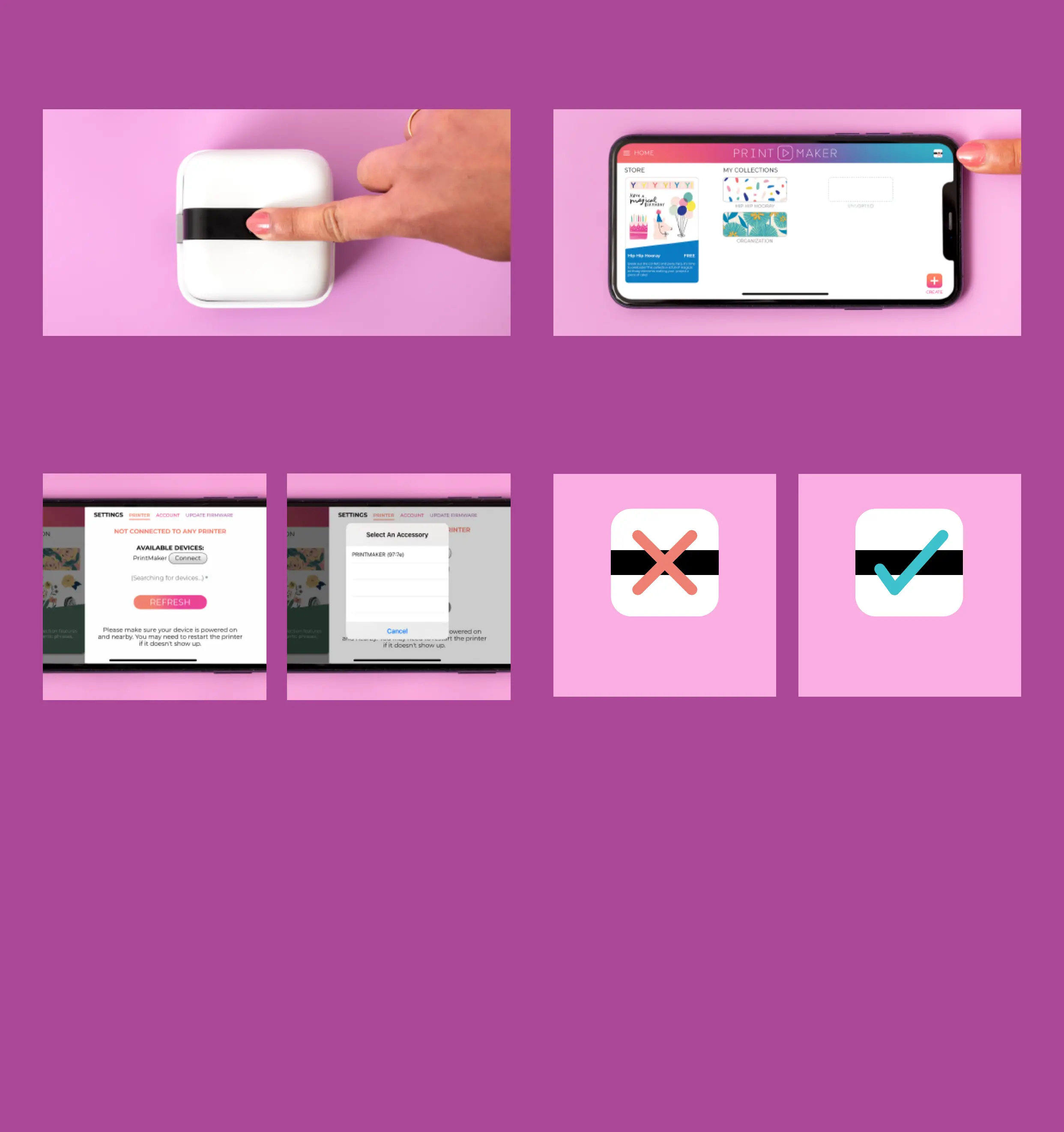
PAIRING WITH THE APP
1 Make sure the PrintMaker™ is turned on
by pressing the Action Button & holding for
3 seconds. Also confirm that your mobile
device Bluetooth is turned on.
23 Open the PrintMaker™ App. Tap on the
printer icon in the top right corner and select
“connect a printer”.
4 Tap “Connect” once it appears next to your
device, then choose the name of your device
from the pop-up list (it may take a few
moments to appear).
1 Your mobile device is listed in the list of compatible devices.
2 Your mobile device bluetooth is turned on.
3 The Printmaker™ is charged and powered on.
4 The PrintMaker™ is not connected to another mobile device.
5 If the problem persists, try reseting the PrintMaker™ by following the steps
under Troubleshooting. Restarting your mobile device may also be necessary.
5 Once connected the printer icon in the
upper right corner of the app will display a
teal check mark.
NOT CONNECTED CONNECTED
TROUBLE CONNECTING?
Please ensure the following for a quick connection.



 To Next Page