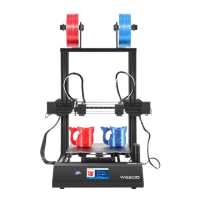
Need help?
Do you have a question about the WEEDO TINA 2 and is the answer not in the manual?
Details the purpose and scope of the user manual for the 3D printer.
Essential safety guidelines and warnings for operating the 3D printer.
Recommendations and warnings regarding filament usage and compatibility.
Specifies the optimal environmental conditions for printer operation.
Instructions for connecting the printer's power supply unit.
Step-by-step guide for loading filament into the printer.
Procedure for performing an initial test print.
Overview of basic menu navigation and common functions.
Adjusting print parameters like temperature, speed, and filament during operation.
Details on the Wiibuilder slicing software and its system requirements.
Instructions for installing the mobile app and configuring network settings.
Adding, connecting, and managing printers via the mobile application.
How to select models, start prints, and monitor the printing process through the app.
 General
| Layer Resolution | 0.1-0.4 mm |
|---|---|
| Filament Diameter | 1.75 mm |
| Nozzle Diameter | 0.4 mm |
| Supported Materials | PLA |
| Technology | FDM |
| Frame Material | Plastic |
| Heated Bed | No |
| Connectivity | USB, SD card |
| Display | 2.4-inch Touchscreen |
| Bed Temperature | No |

 To Next Page