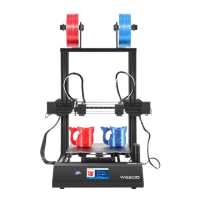
Need help?
Do you have a question about the WEEDO F192 and is the answer not in the manual?
Details the purpose and scope of the instruction book, emphasizing careful reading for safe operation.
Provides critical safety warnings regarding nozzle temperature, ventilation, high voltage, and proper usage.
Recommends using company-provided consumables to prevent nozzle blockages and printer damage.
Specifies operating temperature range and filament storage advice to prevent moisture absorption.
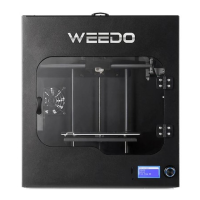
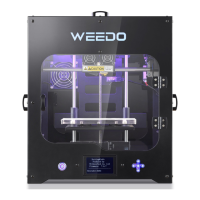
Introduces the front view of the 3D printer, highlighting key external components.
Details printer specifications for printing, machine, consumables, and software parameters.
Explains the necessity of installing Python for ReplicatorG and provides installation steps with screenshots.
Guides the user through installing the ReplicatorG software, including screenshots of the wizard.
Details the installation process for Cura software, including driver setup and software configuration.
Provides instructions on how to connect the external 24V power supply to the 3D printer.
Guides on assembling the filament support and loading filament into the printer's feed inlet.
Instructs on preparing for printing by inserting the SD card and powering on the printer.
Explains how to select and start printing a model from the SD card via the operation panel.
Details safe removal of the printed model from the build plate using a scraper.
Introduces the basic interface of the Cura software and its key components.
Explains how to access and use the Preference menu in Cura for settings adjustments.
Guides on configuring machine settings in Cura, including dual-extruder setups.
Details how to adjust printing parameters in Cura, covering quality, speed, temperature, and support settings.
Covers the process of converting 3D models for printing in Cura.
Describes how to load a 3D model into Cura for slicing and processing.
Explains how to adjust the loaded 3D model using rotation, zoom, and mirroring tools in Cura.
Details the process of generating G-code and X3G files from a 3D model in Cura.
Provides an overview of the ReplicatorG software, its interface, and functionalities.
Introduces the basic interface of the ReplicatorG software and its main components.
Details functions in ReplicatorG's menu bar: File, Edit, GCode, and Machine options.
Describes ReplicatorG toolbar functions for printing and file management.
Explains using ReplicatorG's Control Panel for XYZ axes, build plate, and nozzle management.
Details the tools available within the ReplicatorG Control Panel.
Explains rotating and changing views of the 3D model in ReplicatorG preview.
Details moving and positioning the 3D model using the Move panel in ReplicatorG.
Describes rotating the 3D model in ReplicatorG using the Rotate panel.
Explains mirroring the 3D model along X, Y, or Z axis in ReplicatorG.
Details scaling the 3D model in ReplicatorG to adjust print size.
Guides on generating G-code with slicing profiles, raft/support, and parameter settings in ReplicatorG.
Explains converting G-code to X3G files and saving them for the printer.
Introduces common scripts like Filament Change and Plate Leveling available in ReplicatorG.
Introduces the touch screen operation panel and its menu structure for printer control.
Details common operations that can be performed via the printer's touch panel.
Explains selecting and starting print jobs from the SD card via the operation panel.
Details settings on the operation panel: print, speed, and temperature adjustments.
Provides access to adjustment functions on the operation panel.
Guides on automatically leveling the printer's build plate via the Adjust menu.
Explains when and how to adjust the nozzle gap, referring to daily maintenance.
Details manual filament replacement: retreat and insertion procedures.
Describes how to monitor the printer's real-time status.
Explains using Jog mode for debugging and controlling axis movement.
Instructs on restoring the printer to its factory default settings.
Provides access to equipment information and version details.
Provides access to running time statistics, last print time, and filament length.
Displays equipment version, model, and firmware information.
Covers print settings specifically for dual-extruder printers.
Guides on adding and configuring dual-extruder machine settings within Cura.
Details preparing and merging models for two-color printing in Cura.
Explains two-color print parameters in Cura: dual extrusion and filament flow.
Outlines regular maintenance tasks including nozzle cleaning, sticker replacement, and checks.
Provides instructions for cleaning the printer nozzle to prevent blockages and ensure quality.
Guides on replacing the printer platform sticker for good model adhesion.
Details replacing air filtration core components after 500 hours of use.
Explains importance of platform checks and leveling for model molding quality.
Guides dual-extruder users on adjusting X/Y nozzle offsets for accurate color printing.
Details maintenance for guide rails and screw rods, recommending silicon grease lubrication.
Covers maintenance procedures for the printer's extruder.
Provides steps for cleaning the extruder's nozzle and motor gear.
Details disassembly and installation for replacing the printer's nozzle.
Provides information on appliance disposal according to environmental regulations.
Clarifies when filament replacement operations should be performed.
Advises on safely removing printed models after cooling, warning against immediate manual removal.
Troubleshoots power indicator light issues, checking connections and switch status.
Provides solutions for models not sticking or moving, checking temperature and flatness.
Troubleshoots nozzle blockages, providing cleaning and replacement steps.
Addresses G-code generation errors, suggesting checks for Python and ReplicatorG installation.
Troubleshoots connection issues after driver installation, checking USB and software settings.
Addresses 'Could not create the java virtual machine' errors, suggesting configuration and memory checks.
Explains using Netfabb for model dimension viewing and error correction.
Lists all spare parts with their corresponding numbers for easy identification.
 General
| Brand | WEEDO |
|---|---|
| Model | F192 |
| Category | 3D Printers |
| Language | English |

 To Next Page