Red Box is Model Rotation Setting. Click the rotation button, and then hold the left
key of mouse, and drag the ring shape edge frame around the model to adjust the
model, it can perform rotation adjustment to the model from three directions of “X,
Y, Z”.
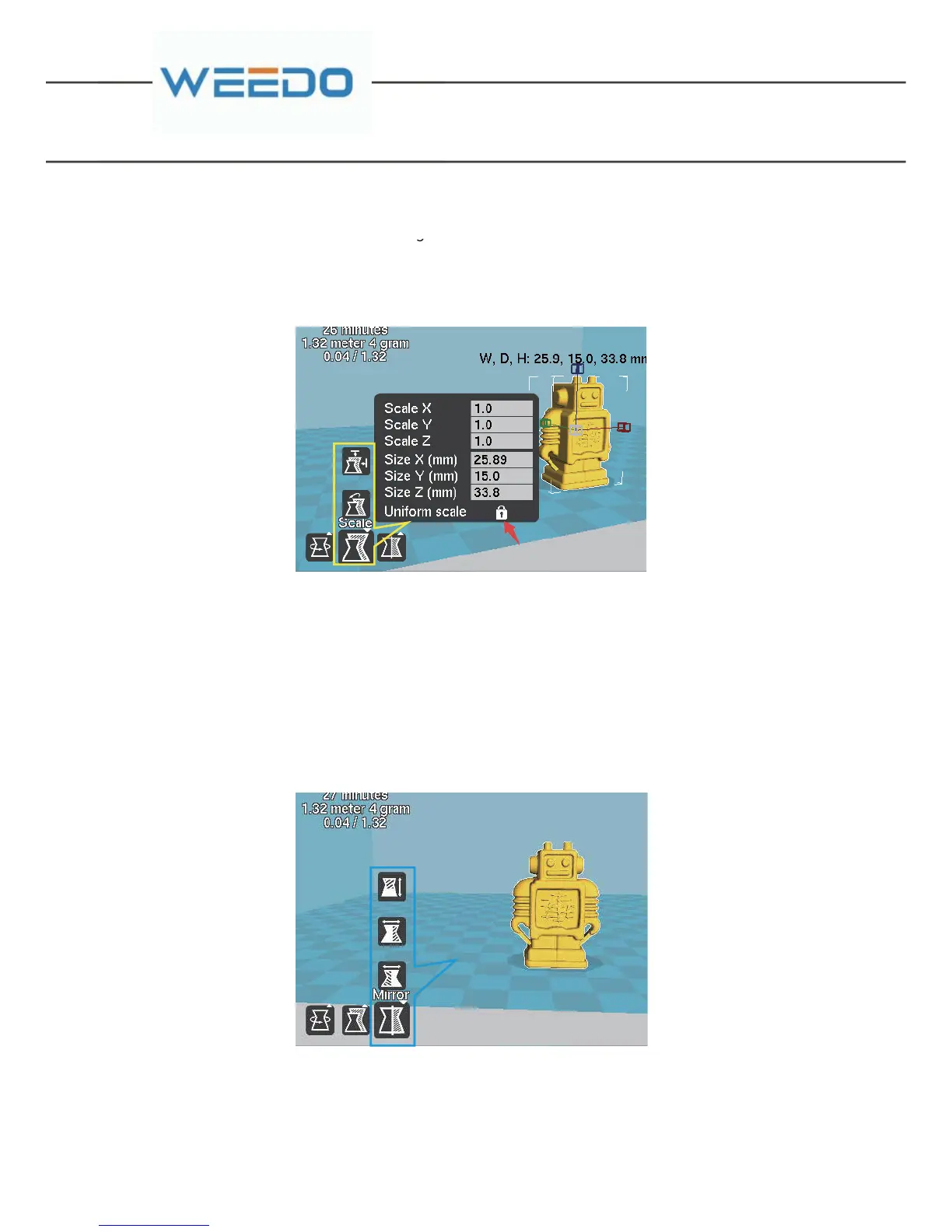
Yellow Box is Model Zoom Setting. Click on the zoom button, and pop up model
zoom scale and model size dialogue window. In the item of “Scale”, it inputs the
proportion factor needed with zoom to adjust the model size. When the icon “” red
arrow pointing is at the lock-out state, any direction zoom would perform the zoom
to the model entity; When the icon “” is at the open state, it can perform the single
direction zoom to the model.
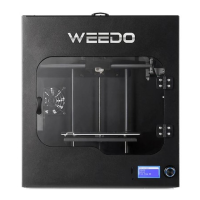
Blue box is model mirror image, click the mirror image button, three buttons would
pop up and they represent the mirror images of three directions of Z, Y, X
respectively.
Red Box is Model Rotation Settin


 To Next Page