5
2.3.2 Connector COM1[RS485] , COM3[RS485] and COM3[RS232]
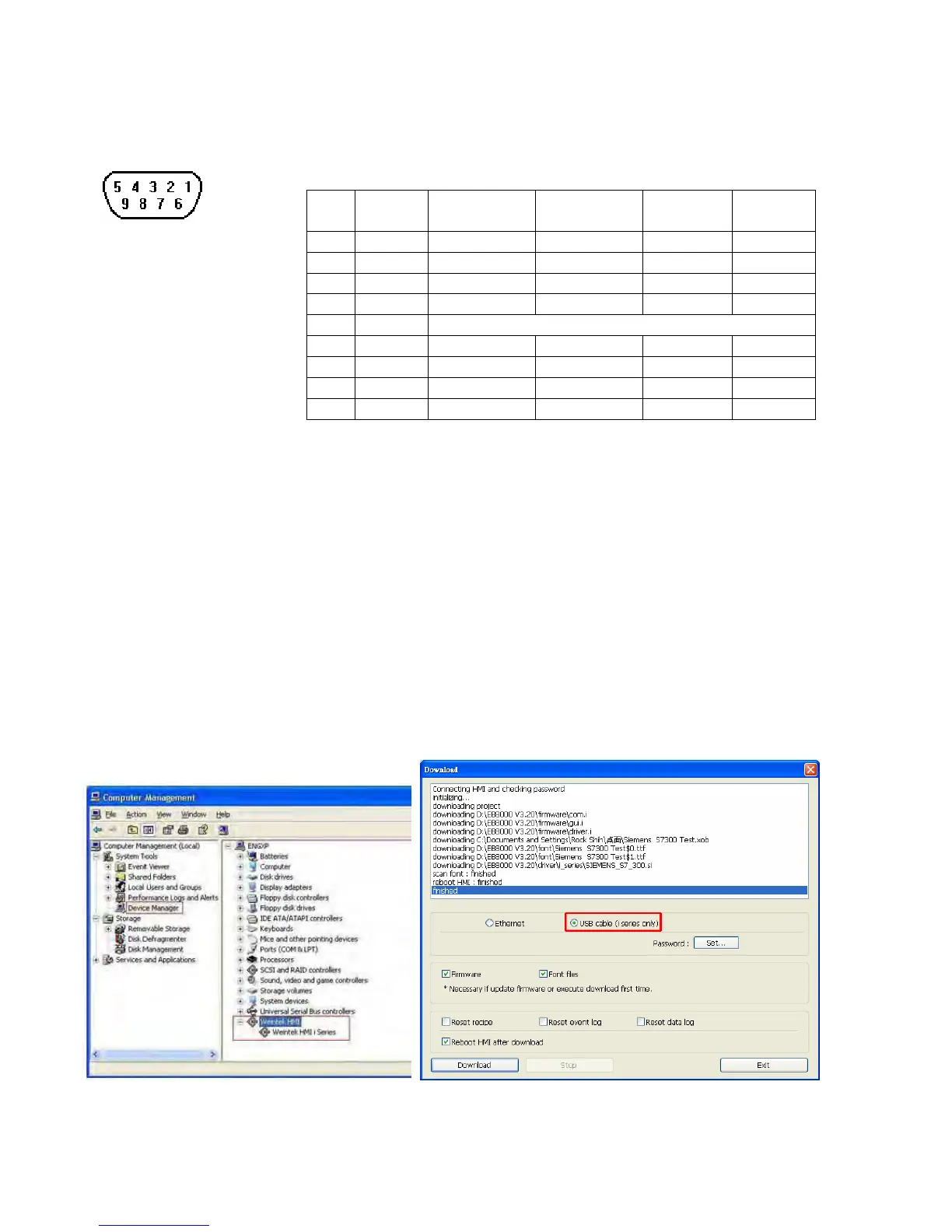
The 9 Pin, Female, SUB-D, COM1 [RS-485] , COM3 [RS-485] and COM3 [RS-232] Port on the back
of the unit is the RS-232 and RS485/422 communications port for connecting to a controller.
Connection
Pin Designations
COM1 [RS-485]
COM3 [RS-485]
COM3 [RS-232]
Pin assignment of the 9 Pin, Female, SUB-D COM1 [RS-485], COM3
[RS-485] and COM3 [RS-232] Port
Pin# Symbol Com1
[RS485]2w
Com1
[RS485]4w
Com3
[RS485]
Com3
[RS232]
1 Rx- Data- Rx-
2 Rx+ Data+ Rx+
3 Tx- Tx-
4 Tx+ Tx+
5 GND Signal Ground
6 Data- Data-
7 TxD Transmit
8 RxD Receive
9 Data+
Data+
2.3.3 USB Host port
Support various devices with USB 1.1 Host interface, such as mouse, keyboard, USB stick,
printer…etc. It can use Mini USB cable (RZCMT6100) to download projects from PC by the USB 2.0 client
port. Support USB 2.0 client interface. The cable regulation must accord with HI-SPEED USB Revision 2.0
SHIELDED.
How to install USB driver of HMI i series
i Series HMI support the function of using Mini USB cable to download projects from PC. It is necessary to
install USB driver of HMI on PC before at the first time enjoying this function. (The HMI models: MT6050i,
MT6056i, MT6070iH, MT6100i, MT8070iH and MT8100i)
1. Using USB cable mini side plug to HMI and another side plug into PC. The PC will display “Found New
Hardware Wizard” dialog. Select “Install from a list or specific location (Advanced)”.
2. Check “Include this location in the search”, and assign the path to install Weintek HMI i Series driver
from C:\EB8000\usbdriver.
3. If the USB driver successfully be installed, user can check it at Computer Management / Device Manager
to check. Then user can download project to HMI i series through USB cable.
2.3.4 Connecter Wire


 To Next Page