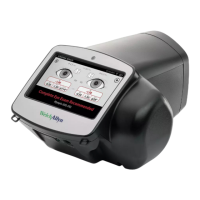
Spot
TM
Vision Screener–Quick Reference
4
System freeze
If the vision screener locks up and becomes unresponsive to the
touch, perform a hard system reset.
CAUTION: This procedure may cause some data loss (for
example any printer configuration or subject information).
1. Press the Power button.
2. If the Power Off screen appears, touch Confirm to shut down
the device.
3. If the Power Off screen does not appear, press and hold the
Power button.
4. Wait one minute, and then restart the device.
For complete instructions, warnings and cautions, please
consult the Directions for use that shipped with your
device.
Third attempt recommendation
• In addition to the recommendations from the second
attempt:
° Have the subject wear non-prescription sunglasses
to shield light, or
° Use sunglasses that wrap to block light from his
or her eyes.
Final recommendation
• Try new, darker environment and repeat the above
recommendations.
• Turn the device out of view from the subject and reactivate
the screen while rotating the device back to the subject.
Wireless issues
1. On the Home screen, verify the network name and IP address
are displayed in the upper-left corner.
2. On the Home screen, verify the wireless icon is gray and
there are vertical bars next to it indicating the strength of the
connection. If the icon is red, restart the system.
3. If the connection does not automatically reconnect, touch
Tools > Network > Security Type and enter the network
information again.
For more information on wireless issues, see the device Directions
for use.
Printer issues
1. Verify the printer is turned on and has sufficient ink or toner.
2. Print a test page directly from the printer.
3. Verify the printer is on a local network by printing to the printer
from a computer on the same network.
4. If all of the above steps have not resolved the issue, restart the
vision screener.
System restart
1. Press the Power button and hold until a confirmation screen
appears.
2. Select Confirm.
3. After the screen turns black, wait 30 seconds and press the
Power button again.
4. Verify the power cord is plugged in.
Welch Allyn Technical Support
www.welchallyn.com/support
Mat. 728906, 80024004 Ver. A
Revision date: 2018-11
© 2018, Welch Allyn, Inc.
All rights reserved


 To Previous Page
 Loading...