Page 12
Westek App
How-To and Feature Guide
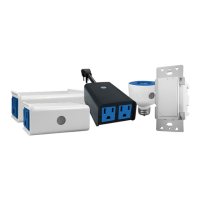
SMARTPLUG1, SMARTPLUG2, SMARTINWALL,
SMARTPLUG2A, SMARTLAMP
250 Boulder Dr.
Breinigsville, PA 18031
610-336-1330
www.amertac.com
Made in China
© 2019 Amertac
™
Integration with Amazon Alexa and Google Assistant
10
1. Earlier,wereviewedtheProlesection.Withintheprolesection,thereisapartoftheappthatincludesinstructionsonhowto
integrateyourdeviceswithAmazonAlexaandGoogleAssistant
2. Inside the Integration screen, it will show you how many devices you currently have loaded in your app that are supported by
bothAmazonAlexaandGoogleAssistant.
3. For the directions, click on the voice control device you have.
a. Connect to Alexa
i.First,ensurethedeviceyouwanttoaddtoAmazonAlexaisasupporteddevice.Youcantouch“Show”toseethelistof
devices.
ii.ModifythedevicenamesoitiseasilyrecognizablebyAmazonAlexa.Goodexampleswouldbe“LivingRoomLamp”or
“Bedroom Light”
iii.GointotheAmazonAlexaappandinthemenubar,goto“Skills”andsearchfor“SmartLife”.
iv.EnabletheskillandthentypeinyourlogininformationfromtheWestekwiSmartapptonishtheaccountlinking.
v.OncethesmartdevicesarerecognizedbyAlexa,youcanusethenameofthedevicefromtheapp(suchas“LivingRoom
Lamp”) and ask it to be turned on or off.
b. Connect to Google Assistant
i. First, ensure the device you want to add to Google Home is a supported device. You can touch Show to see the list of
devices.
ii.ModifythedevicenamesoitiseasilyrecognizablebyGoogleHome.Goodexampleswouldbe“LivingRoomLamp”or
“Bedroom Light”
iii. Go into the Google Home app and in the menu bar, go to “Home Control” to add devices. Click on the “+” button and
search for “Smart Life”.
iv. It may ask for your google account login information. Enter information.
v.ThentypeinyourlogininformationfromtheWestekapptonishtheaccountlinking.ChooseWestekfortheappyouare
using if it asks.
vi. You can assign a room where the smart device is in the house. This adds another way for Google Home to recognize the
device using your voice.
vii. Once the smart devices are recognized by Google Assistant, you can use the name of the device from the app (such as
“Living Room Lamp”) and ask it to be turned on or off.
For additional details on the app features and programming options, please visit www.amertac.com/wi.
Limited Warranty
Under normal use and conditions, AmerTac provides to the original purchaser of this product a one year limited express warranty that is set forth in the Limited Warranty stated in full at www.amertac.com/warranties.
The Limited Warranty is in lieu of all other express or implied warranties or liabilities subject to the exceptions explained fully in the Limited Warranty on the website.
FCC Statement
This equipment has been tested and found to comply with the limits for Part 15 of the FCC rules. These limits are designed to provide reasonable protection against harmful interference in a residential installation.
This equipment generates, uses and can radiate radio frequency energy and, if not installed and used in accordance with the instructions, may cause harmful interference to radio communications.
However, there is no guarantee that interference will not occur in a particular installation. If this equipment does cause harmful interference to radio or television reception, which can be determined by turning the
equipment off and on, the user is encouraged to try to correct the interference by one or more of the following measures:
• Reorient or relocate the receiving antenna.
• Increase the separation between the equipment and receiver.
• Connect the equipment to an outlet on a circuit different from that to which the receiver is connected.
This device complies with part 15 of the FCC rules. Operation is subject to the following two conditions: (1) This device may not cause harmful interference, and (2) this device must accept any interference received,
including interference that may cause undesired operation. Note: Modications to this product will void the user’s authority to operate this equipment.
WiFi_TL_002_0619_How-To
and Feature Guide
REV. 2


 To Previous Page
 Loading...