Page 10
Westek App
How-To and Feature Guide
SMARTPLUG1, SMARTPLUG2, SMARTINWALL,
SMARTPLUG2A, SMARTLAMP
More Options
8
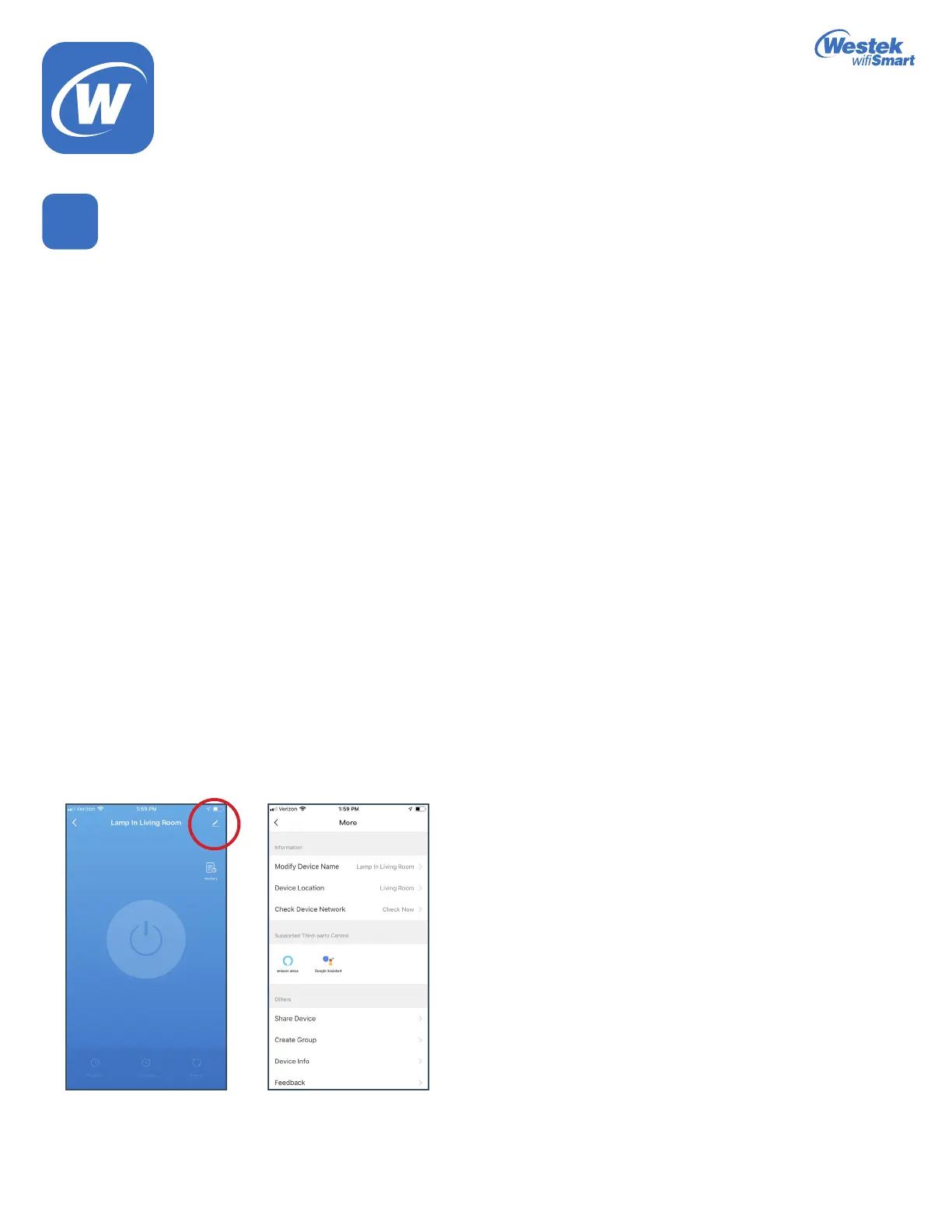
1. On the device’s main screen, there is a pencil edit icon in upper right corner – this is the Menu/More button
2. This provides you with even more device options and information. Let’s take a look:
a. Modify Device Name – When you tap this option, a pop-up window will appear allowing you to type in the name you would
liketorenamethedeviceto.It’susuallyagoodideatonameitwiththeroomitislocatedand/orthexture/applianceitis
controlling so you remember easily when you own multiple devices.
i.Forexample:
1.OfceLamp
2. Bedroom Lamp
3. Kitchen Crockpot
4. Outside Decorations
b. Check Device Network – This test detects the device signal and network access for the device and will provide a status
update if it is in good or poor condition
c. Supported Third Party Control – This shows you what 3rd party items can be used to control this particular device such as
AmazonAlexaorGoogleAssistant
d. Share Device – This was covered earlier in the How-To guide. This is another place where you can share this particular
devicewithanotherfamilymemberorfriendwhohastheWestekwiSmartapp.
e. Device Info – This provides information about your device. This might be helpful to provide if there is an issue with your
device when contacting customer service.
f. Create Group–ThisallowsyoutogrouptogethermultiplelikeWestekwiSmartdevicessoyoucancontrolthematthe
same time.
i.Forexample:ifyouown2wiSmartindoorplugsandtheycontrol2differentlampswithinthesameroom,youmaychoose
to group them together.
ii. This allows to you to schedule 1 set of programs for all the devices within that group, rather than having to do multiple
programs for each device.
g. Feedback – This was covered earlier in the How-To guide. This is another place where you can provide helpful feedback or
askquestionsontheapporWestekwiSmartproducts.
h. Check for Firmware Update–Occasionallyrmwareupdatesmightneedtobemadetotheproducts.Thisiswhereyoucan
checkifthereisarmwareupdate.
WiFi_TL_002_0619_How-To and Feature Guide
Rev. 2


 To Next Page
 Loading...