Page 3
Westek App
How-To and Feature Guide
SMARTPLUG1, SMARTPLUG2, SMARTINWALL,
SMARTPLUG2A, SMARTLAMP
Some helpful tips:
1. Select Electrical Outlet for the Smart Lamp and the Smart Plugs (indoor or outdoor). Select Wall Switch for the In-Wall Switch.
2. Makesurethephoneisconnectedtothesamewinetworkthatthedevicewillbeoperatingin.
3. Iftheitemisnotashingred,youcanclickonMy indicator light is NOT ashing rapidly within the app for tips on how to get the light
toashredrapidly.
4. Ifthelightisashingblue,pressthebuttononemoretimeanditshouldswitchtoashingred.
Adding Devices
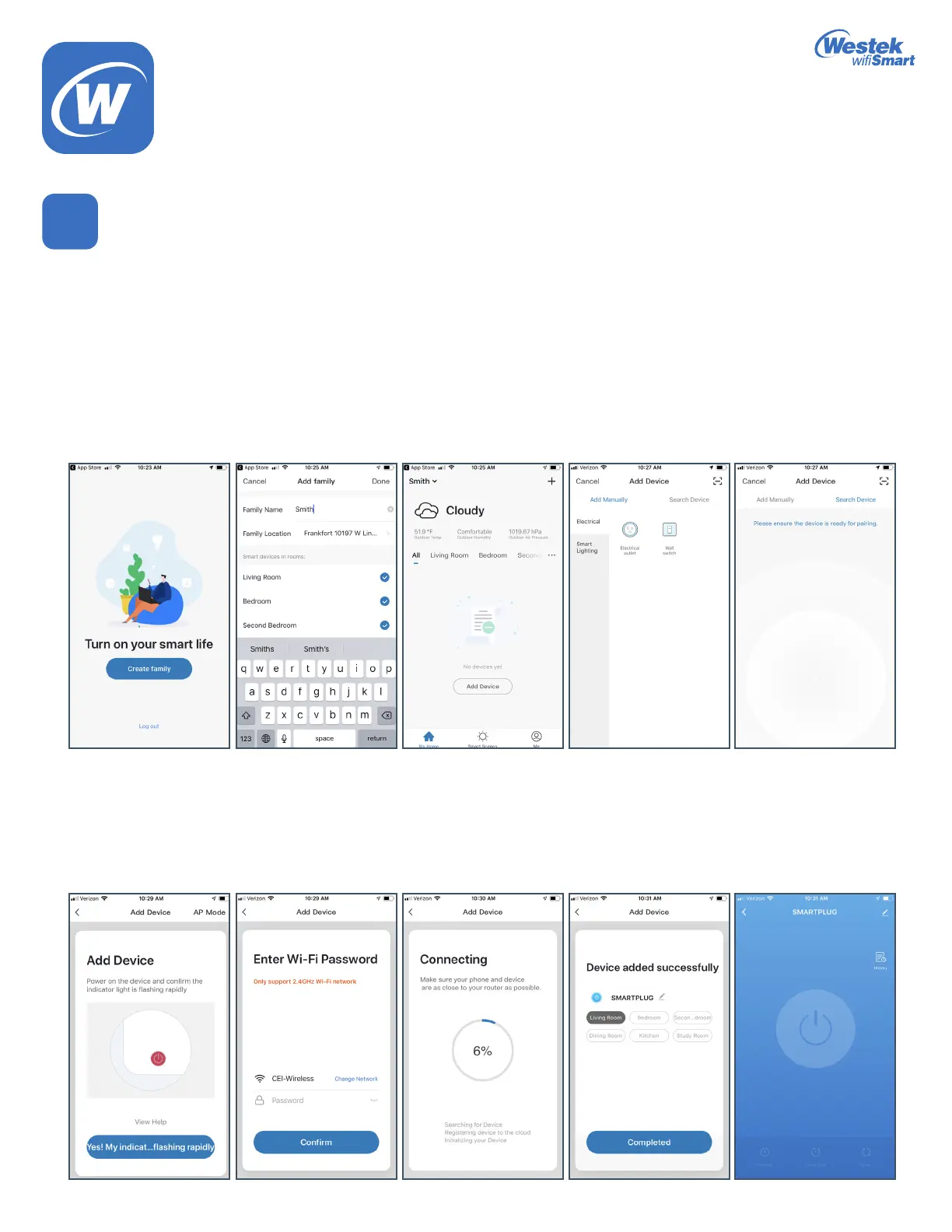
1. Under the Hometab,therstscreenyou’llseeistoTurnonyourSmartLife.ClickCreate Family to begin programming your app.
2. Fill out a family name to easily identify your device.
3. Enter the address of the installed device.
4. Select the room(s) where Westek Smart Devices are installed.
5. Press the Donebuttonintheupperrightcornerwhennished.
6. You’ll return to the home page where you’ll see the weather and your family name in the upper left corner.
7. Click the Add Devices button at the bottom.
8. In the future, if you want to add additional devices, click the + sign button in the top right corner.
9. Follow the instructions in the Quickstart Guidethatcamewithyourproducttogetyourdeviceaddedtoyourwinetworkandapp
account.
4
WiFi_TL_002_0619_How-To and Feature Guide
Rev. 2


 To Next Page