Page 2
Westek App
How-To and Feature Guide
SMARTPLUG1, SMARTPLUG2, SMARTINWALL,
SMARTPLUG2A, SMARTLAMP
Other Profile Features
3
1. Scenes – There will be a section later in this “How To” dedicated to setting scenes.
2. Device Sharing – You can share your device with others that have the Westek app. This allows them to control the device from
their app/account. This is ideal for people in the same household or other family and friends who might need to be able to control
certain devices.
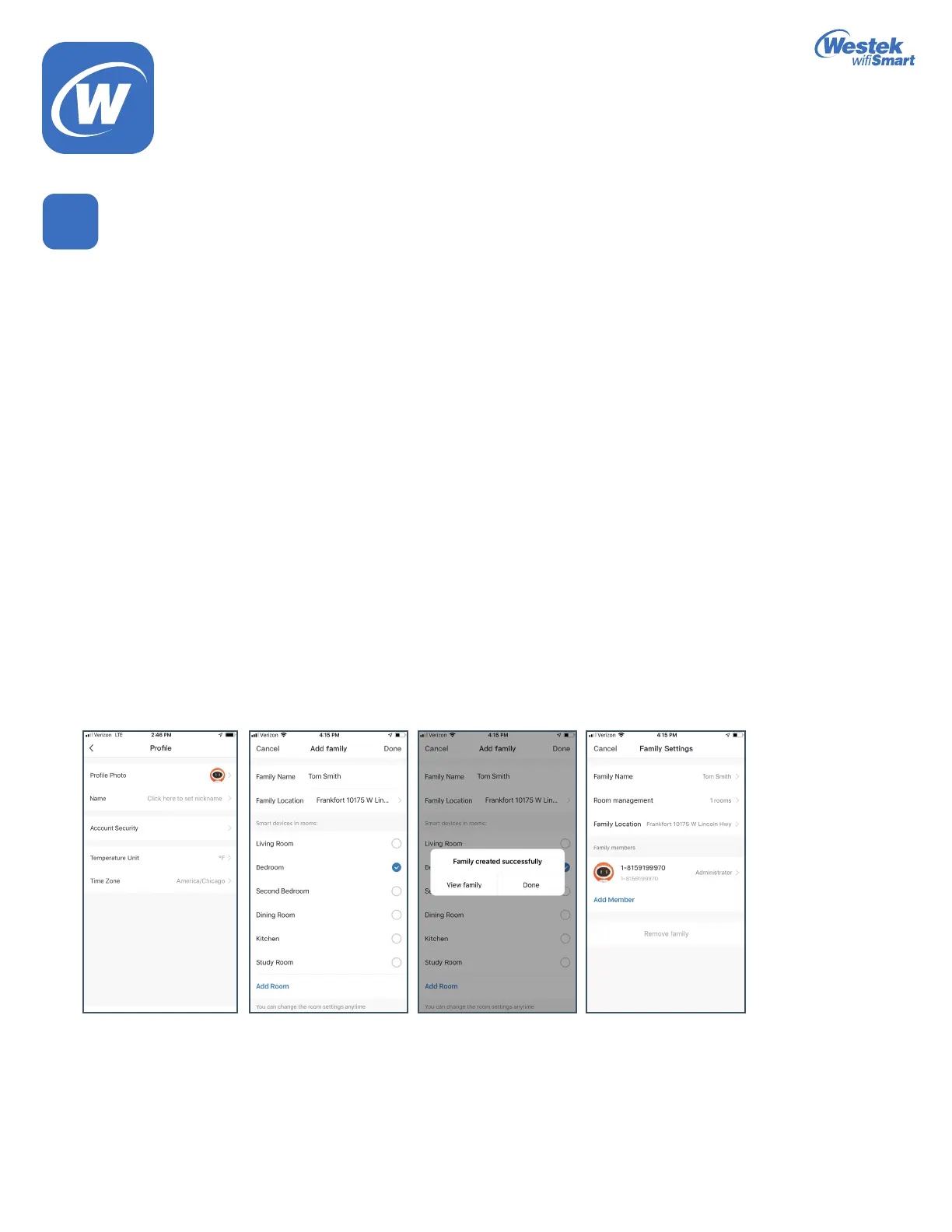
a. To share a device, click the Me tab and select Home Management to enter the family that needs to be set up.
Click Add Members to add family and friends who need to share the device.
c. Choose from the list of connected devices that you would like to share. Touch the Slide button and it will change from grey to
green.
d. Tap Share with New Member at the bottom of the screen
e. Enter the Mobile Number/Email address of the Westek app account holder you would like to share the device with and then
press Conrm.
f. Aconrmationscreenwillappearoncesharinghasbeensuccessful
g. You can either View Family or select Donewhennished
h. A list of users that are sharing your devices will appear under the Sent tab. If someone has shared a device with you,
it will appear under the Received tab.
3. Message Center–Showsmessagesthatadevicemightsendtoyouasanotication.
4. Integration–IncludesinstructionsonhowtointegrateyourdeviceswithAmazonAlexaandGoogleAssistantproducts.
We will cover this later on as well.
5. Scan QR Code–ThisallowsyoutoscanQRcodesfoundontheWestekwiSmartproducts
6. FAQ – Includes helpful information on frequently asked questions
7. Feedback–AllowsyoutosharehelpfulfeedbackoraskquestionsregardingtheapportheWestekwiSmartproducts.Onceyou
submit your feedback or question, a response will be written back to you within the app or will be responded to via an email or
phone call if you provide this information. A phone number or email address is optional.
8. About – Provides information on the latest version of the app and allows you to check for updates.
WiFi_TL_002_0619_How-To and Feature Guide
Rev. 2


 To Next Page
 Loading...