Page 11
Westek App
How-To and Feature Guide
SMARTPLUG1, SMARTPLUG2, SMARTINWALL,
SMARTPLUG2A, SMARTLAMP
Setting up Scenes
9
1. IntheWestekwiSmartapp,youareabletosetupcustomizedscenes.Bysceneswemean,ifonesituation/eventhappens,it
will then trigger an action.
a.Forexample,ifyouwanttohaveadeviceturnonbasedonthesunsetinyourlocation,youcansetupasceneforthis.
b. Or, if you have 2 indoor plugs, you can set a scene so that when one device turns off, the other device turns on.
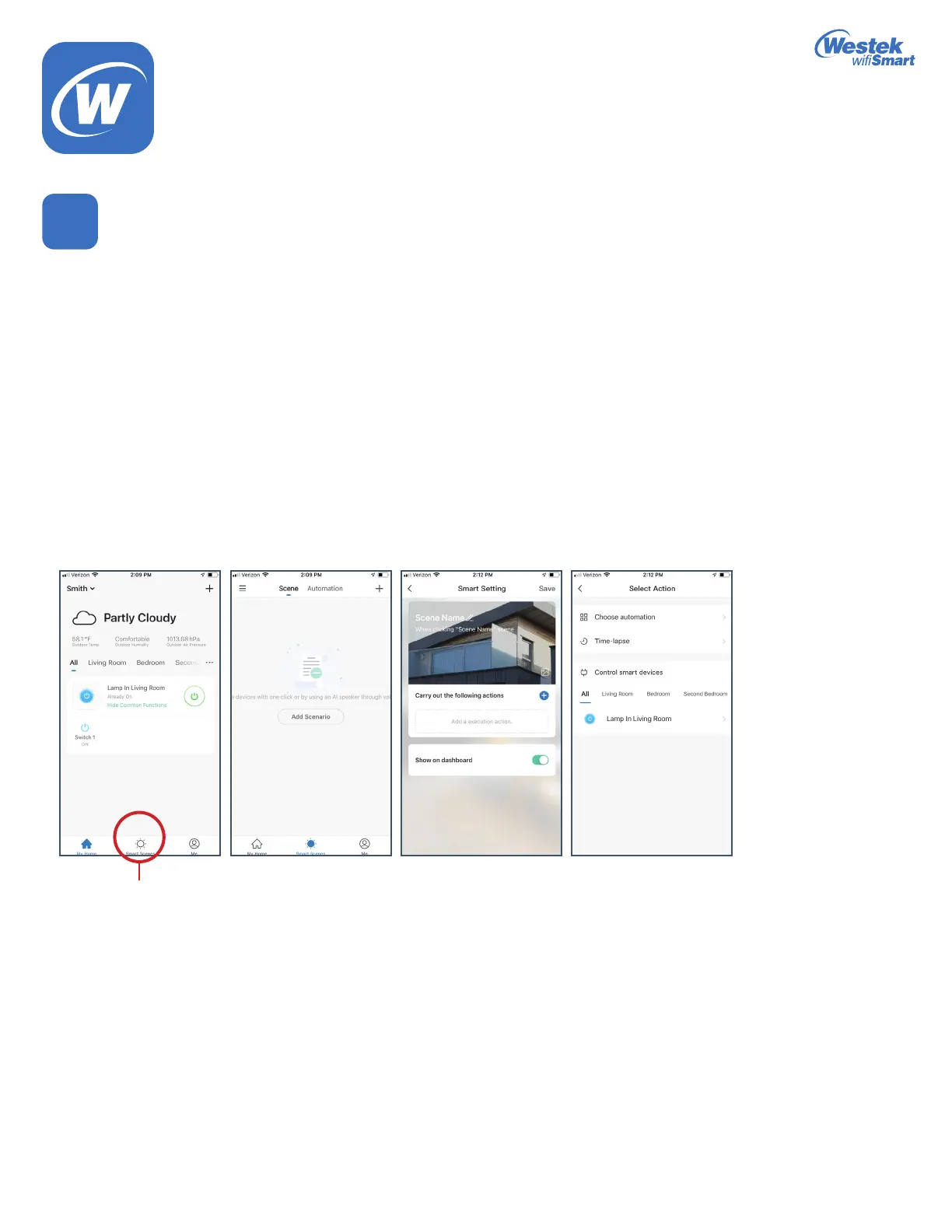
2. Inthehomescreenoftheapp,youwillnd3options:Devices, Scenes and Prole. Touch the Scenes option
3. In the Scenes screen, you will see a few pre-loaded options to give you ideas to start. You can also create your own by touching
the + sign in the upper right corner. Let’s look at a customized scene.
4. First enter a name for the scene
5. Next,addacondition.Touchtheblue+signtochoosefromaselection.
6. Inthenextscreen,youwillhavetheoptiontochoosefromAutomation,Time-lapse,andControlSmartDevices
7. Control Smart Devices will show a list of your connect devices to program. Select your device.
8.Thenextscreenallowsyoutocontrolthefunctionofthatdevice.
9. Once the device is chosen, touch the Switch button and then select whether you want the device to turn on or off. Then hit Save.
10. Hit Save again. The scene you just created is now in your list of Scenes.
11. To delete, you can select the scene you want deleted, then hit the Delete button.
Program
WiFi_TL_002_0619_How-To and Feature Guide
Rev. 2


 To Next Page