Page 4
Westek App
How-To and Feature Guide
SMARTPLUG1, SMARTPLUG2, SMARTINWALL,
SMARTPLUG2A, SMARTLAMP
Customizing Your Device
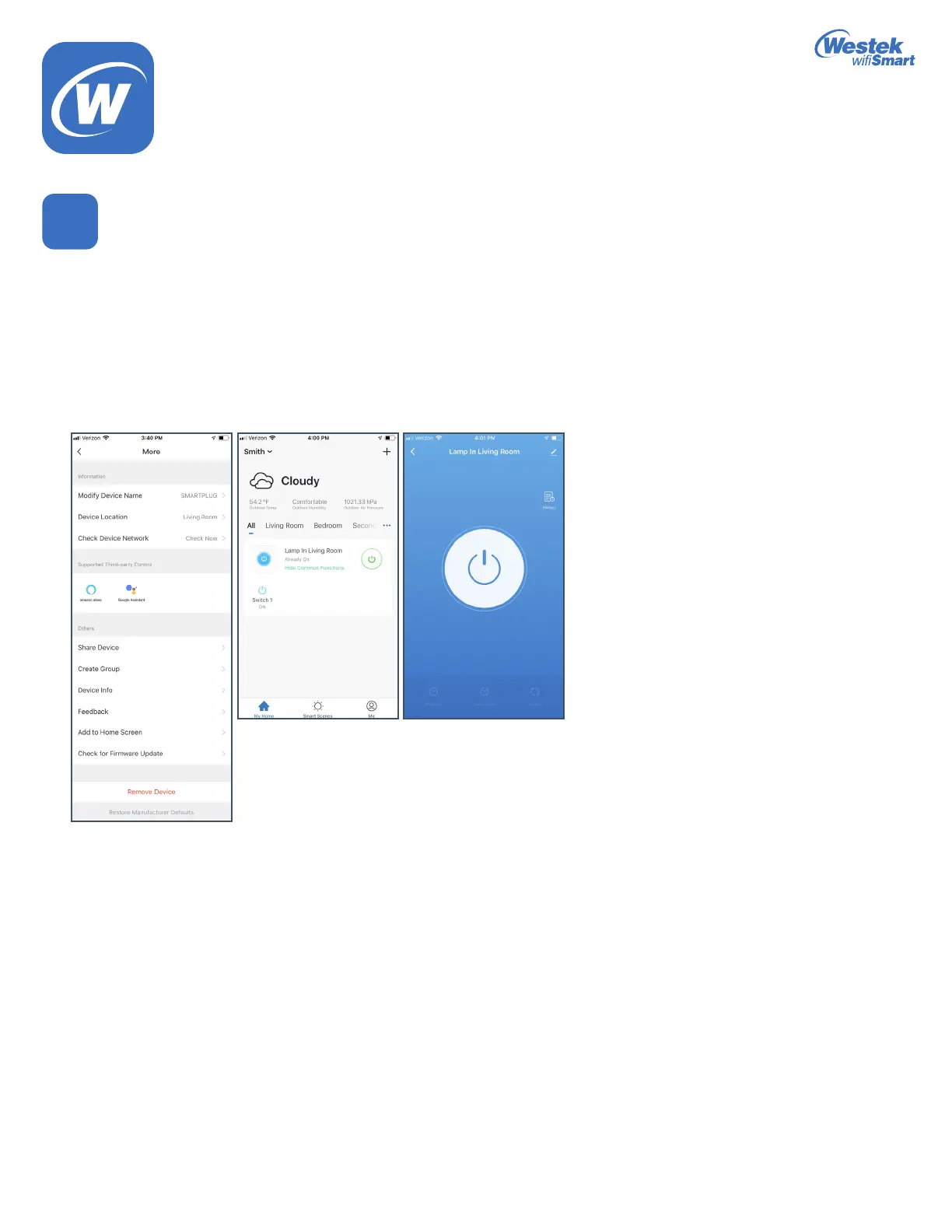
1. A screen will tell you the device has been successfully added.
2. To keep your devices organized (especially if you have more than one), press the pencil icon on the right to rename your device.
Hit Conrm and then Done.
3. Your device will now show up on the main screen of the app. If you add multiple devices, they will appear in a list on the main screen.
4. On this screen, you will see:
a. The current status of the device – whether it is turned on or turned off.
b. A power button to the right, from here you can directly turn the device on or off by touching this button.
c. For more programming options, you will need to touch the device name to get into the different control functions.
5
WiFi_TL_002_0619_How-To and Feature Guide
Rev. 2


 To Next Page