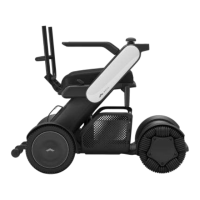
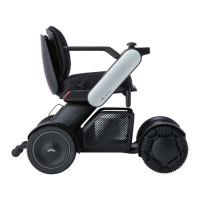
Turn off the device power.
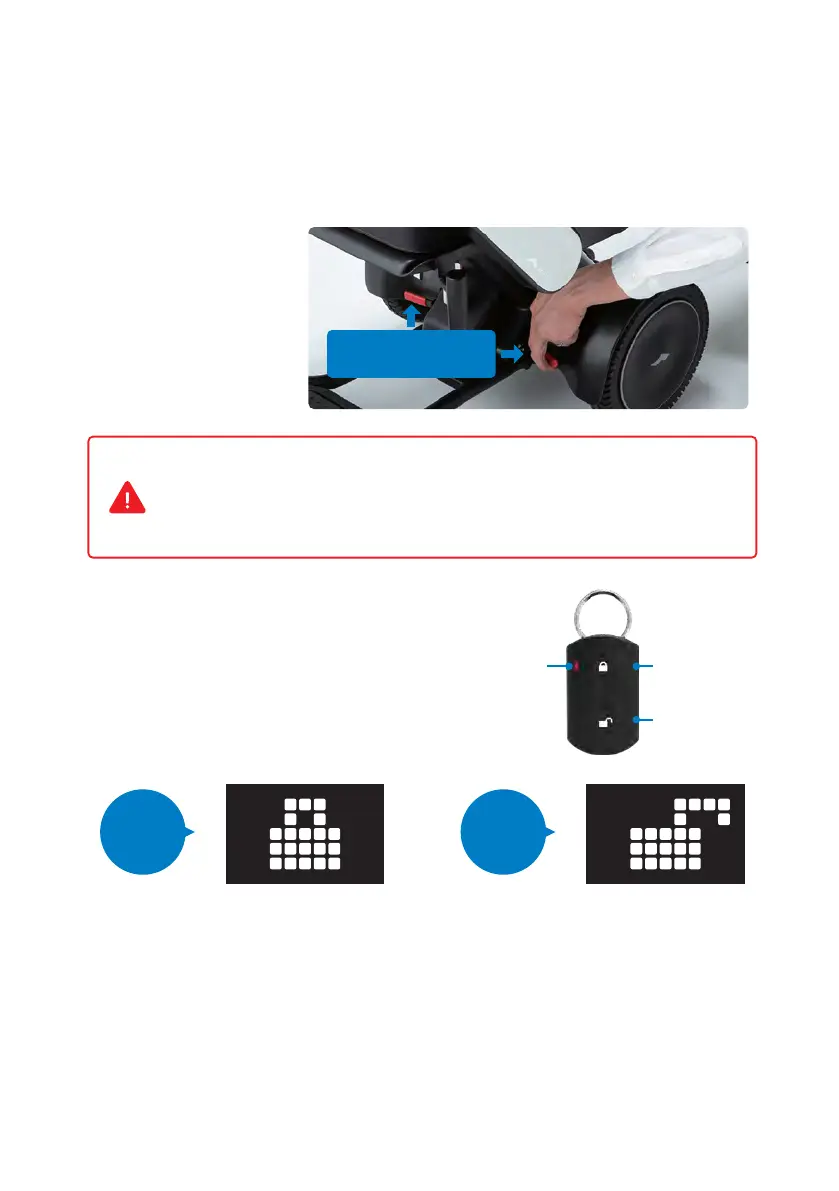
Push down both of the two
brake release levers below
the seat.
Raise both brake release
levers to re-engage the
brakes afterwards.
4
3. Releasing the brakes
Certain situations may require control of the device without powering on and using
the joystick—known as freewheel mode. This can be accomplished using the two
red brake release levers.
4. Using the smart key
The smart key can be used to lock and unlock
the device.
LED Lock button
Unlock button
Levers to engage or
release the brakes
Do not release the brakes on a slope. Be sure to release the brakes only when on a
flat surface and in emergencies after turning off the power. After moving the
device manually with the brakes released, be sure to raise the two brake release
levers to re-engage the brakes.
Press the smart key lock button.
The icon indicating the locked status
will appear on the controller’s display
and make a locking sound. When
attempting to turn on the device when
the device is locked, the icon indicating
the locked status will appear on the
display. The device cannot be turned on.
Press the smart key unlock button.
The smart key LED will illuminate, and
the icon indicating unlocked status will
appear on the display and make a
unlocking sound. The device will be
unlocked.
Locked Unlocked
Sold separately. Equipped with standard items depending on the areas/countries.


 To Next Page