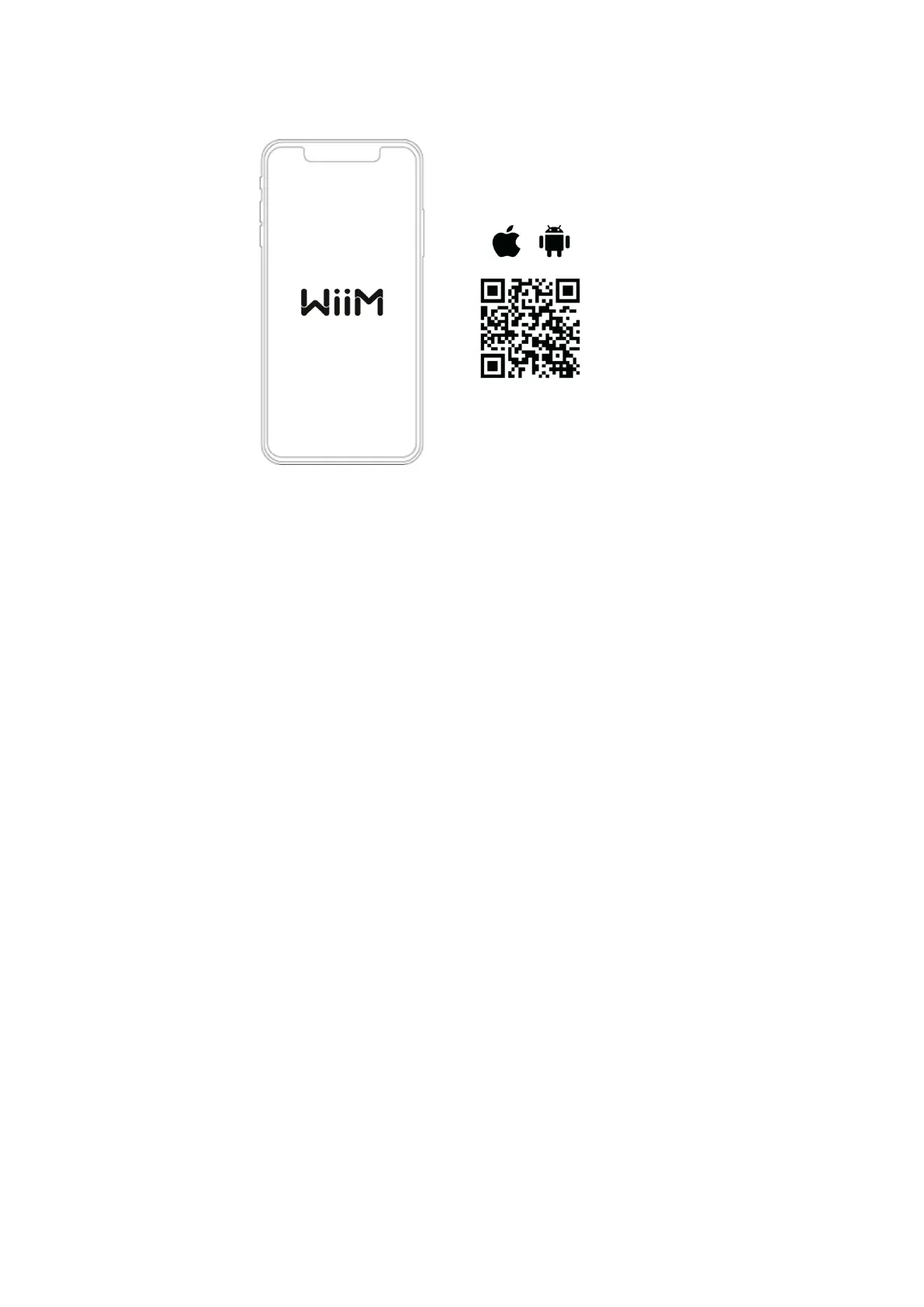
• Power on speaker, audio/video receiver (AVR) or amplifier, or DAC.
• Open the WiiM Home App.
• Click on the device you want to configure.
• Select the network and enter the correct network password.
• Select the maximal bit depth and sample rate for your downstream
audio device if you use digital audio output of WiiM Pro. Please note
some legacy DAC, amplifier or speaker can’t support up to 24-
bit/192k Hz audio via its digital audio interface.
If you are using an iOS system, you can also use Apple Wireless Accessary
Configuration (WAC) protocol or Home App to setup the device.
● SETUP with Apple WAC
● Power on speaker, audio/video receiver (AVR) or amplifier, or computer.
● Open iPhone settings and tap your selected device’s name on the WAC
setup section
● SETUP with Apple Home App
● Tap the Home app located on the home screen of the iOS device.
● Tap the "+" button located at the top-right corner of the screen.
● Tap “Add Accessory.”
● Tap “Don’t Have a Code or Can’t Scan?”
● Tap your selected device which MUST be listed under “Nearby
Accessories.”
5.3 FILL YOUR HOME WITH SOUND
Stream your favorite music, radio stations through Wi-Fi or Bluetooth. Having multiple WiiM
Pro devices, play streaming music the whole house. Or plug in a stereo component—like
an amplified turntable, CD player, or MP3 player—and cast music to multiple WiiM Pro
connected speakers at once.
You can also group with other AirPlay 2 enabled devices, Amazon Echo or Google Home


 To Next Page