41
Notifiatio pael
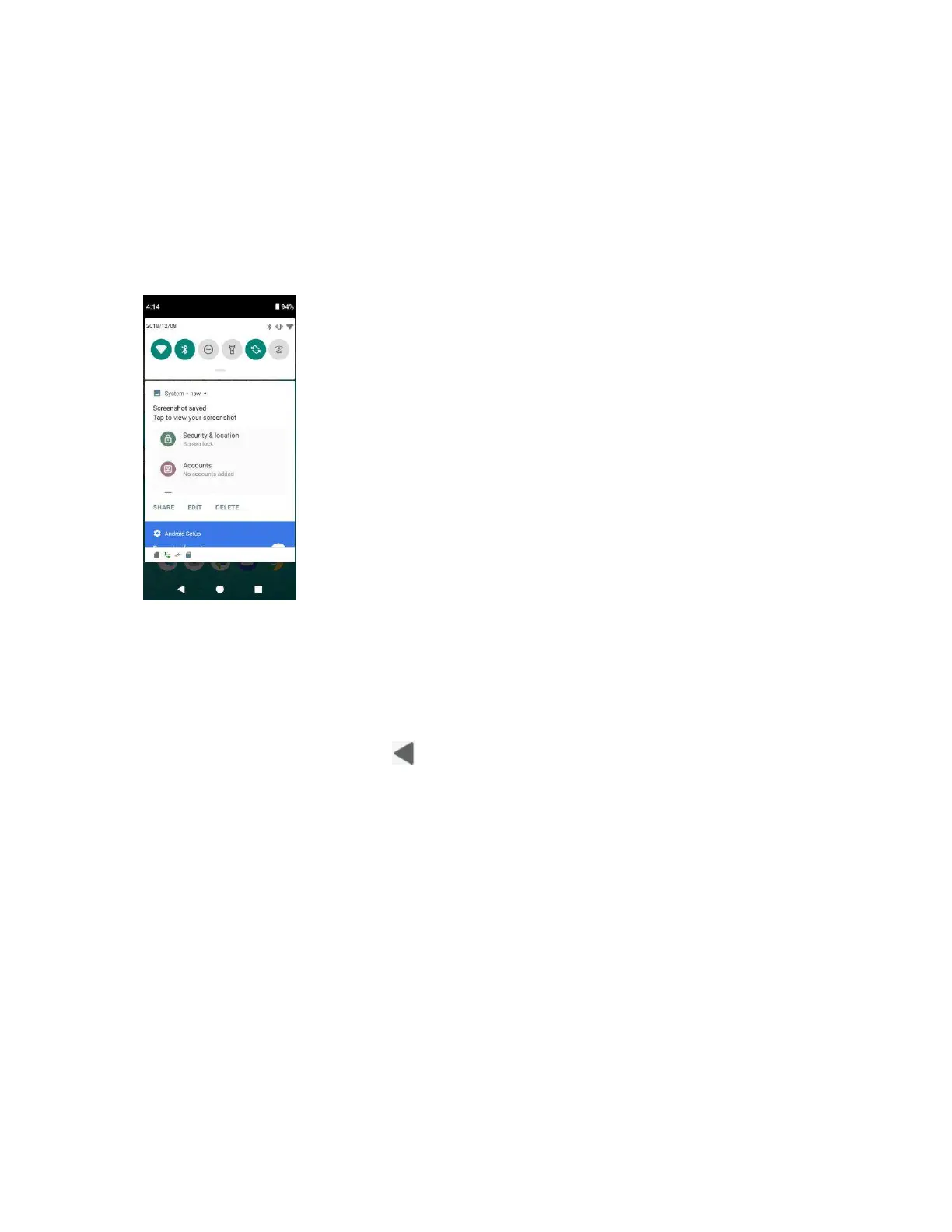
Your phone‟s notifications appear at the left side of the status bar, and you can access the full
notification panel by dragging down the status bar. From there, you can check notifications,
download updates, open messaging apps, use the quick settings menu, and more.
Ope the otifiatio pael
• Drag the status bar down.
The notification panel opens. To check notifications, tap an item in the list.
Close the otifiatio pael
• Swipe up the notification panel to close the notification panel.
• Or you can also tap Back button to close it.
Notifiatio pael laout
The notification panel gives you access to both notifications and the Quick Settings menu.
To access the Quick Settings menu:
1. Drag the Status bar down to display Notification Panel.
2. Drag the Status bar down again to access full Quick Settings menu.


 To Next Page