Version 1.3 | 8.25.20
STEP 1
STEP 2
1
2
PAIRING TO THE CAMERA
SELECT AN APP SUBSCRIPTION
THANK YOU FOR YOUR PURCHASE
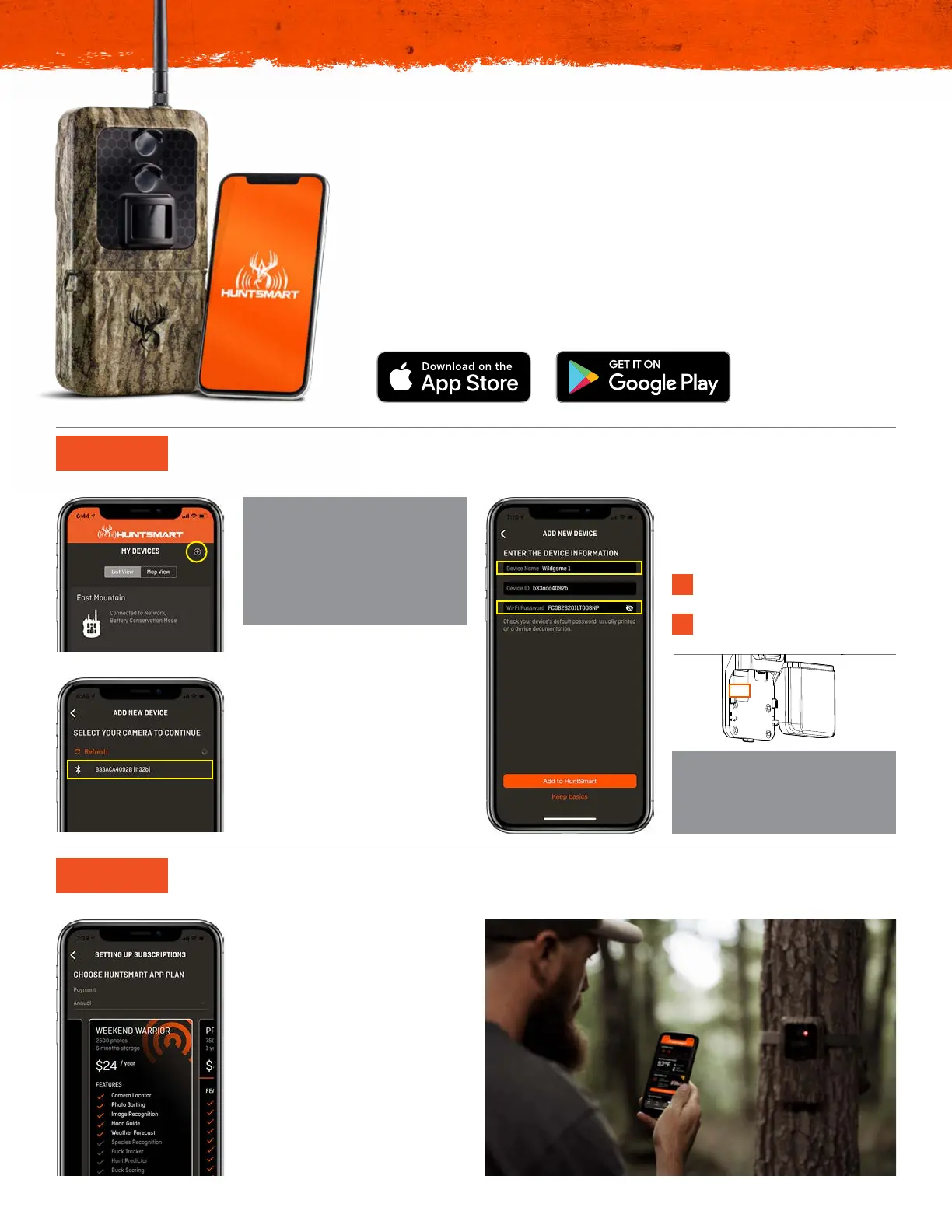
This set up guide will walk you through step-by-step to get your new Insite
Cell™ trail camera up and running. Before we begin pairing to the app,
please make sure you’ve followed the instructions for the initial hardware
setup found in your quick-set-up guide. At this point you should have the
antennas in place, fresh batteries installed and an acceptable SD card in
the device – use a brand new SD card or a freshly reformatted one for best
results.
You’ll also need to make sure you have the HuntSmart™ app downloaded to
your mobile device from the App Store or Google Play.
Now that you’re paired to the device
you can select the HuntSmart app
subscription plan you prefer. This is
your ‘cloud’ data storage where you
can upload images to. It can house
images from any SD card and will
use advanced artificial intelligence
technology to analyze your images.
Upgrade your plan to unlock
features such as Species
Recognition, Buck Scoring and
more!
Next you’ll name your camera
and enter its WiFi password. The
password can be found in two
places:
The last page in your Quick
Set-Up Guide.
In the camera’s battery well
underneath the SD card slot.
From the ‘Cameras’ tab in the footer
navigation, locate the ‘Add Camera’
icon (+ sign) in the upper right hand
corner. The next screen will list
all of the discoverable devices in
range. Reference the serial number
on the back of your camera and
select the matching device. You
may be asked to select the model
type – select Insite Air.
FIRMWARE UPDATES
We are constantly improving the
functionality of our camera’s hardware
and software. Once your camera is
initially set up you may be prompted to
update its firmware. Please execute the
following steps 1-5 and then , if prompted,
perform the necessary camera updates.
WIFI PASSWORDS
The camera’s WiFi password is case-
sensitive and should be in all caps.
Please make sure the password entered
correctly.










 To Next Page