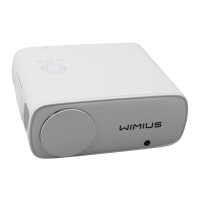
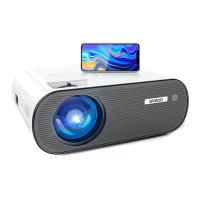
Easy to Screen Mirroring: Default menu interface - iOS Cast - iOS Screen
1 Press "iOS Cast" on the default interface, then click into "iOS Screen".
2 Open the "Screen Mirroring" menu on your iPhone/iPad, find the projector's wifi '
-(icast) ", and click to connect it.
etLink-
3 The iOS Cast is successful.
ips:
.If there is a freeze or delay during playback, you can close the other apps on your
S device. Because too much software running on the phone will affect the smooth-
ess of the projection
Change the projector's "Airplay mode" to make the playback more fluently. HOW:
creen Mirroring - SyncScreen Setting - More Setting - Airplay Mode(Change the
ode to the other numbers, then back to the operation interface)
.Wi-Fi Connection(Wi-Fi Screen Mirroring with the Apps)
ou can connect the projector to your home Wi-Fi network - then make your iPhone
onnect with the same home Wi-Fi network - Open the App in your iPhone - Click the
Screen Sharing" on your App setting. (This function will work when your app has
Screen Sharing" function / Due to the copyright, the Wi-Fi screen mirroring function
oesn't support protected videos.)
Easy to Screen Mirroring with Apps: Screen Mirroring - Wifi-Connect your Home Wifi
- Connect the Same Home Wifi with your iPhone - Open the App on your iPhone -
Click "Screen Share" on the opened App
ll.Wired Mirror Projection
ay goodbye to the hassle of dongles and adapters( like lightning-to-hdmi, mhl-hd-
i,usb-c-hdmi cable , WiMiUS S25 rcfector can connect can realize the function of
07.


 To Next Page