5. USB Multimedia Play
Check if the U disk is fully plugged into the USB
interface.
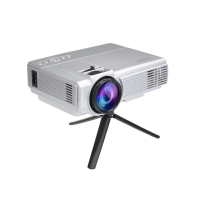
Refer to the “Input Source Selection" section to
select the USB as the signal source. Please select
the corresponding input channel. After gets into
the USB input mode, it will comes out the page
as shown.
Press the Up (▲)/Down (▼)/ Left ( )/Right ( )
button to select the folder you want to see.
Go into the folder and le directory by pressing
the OK button.
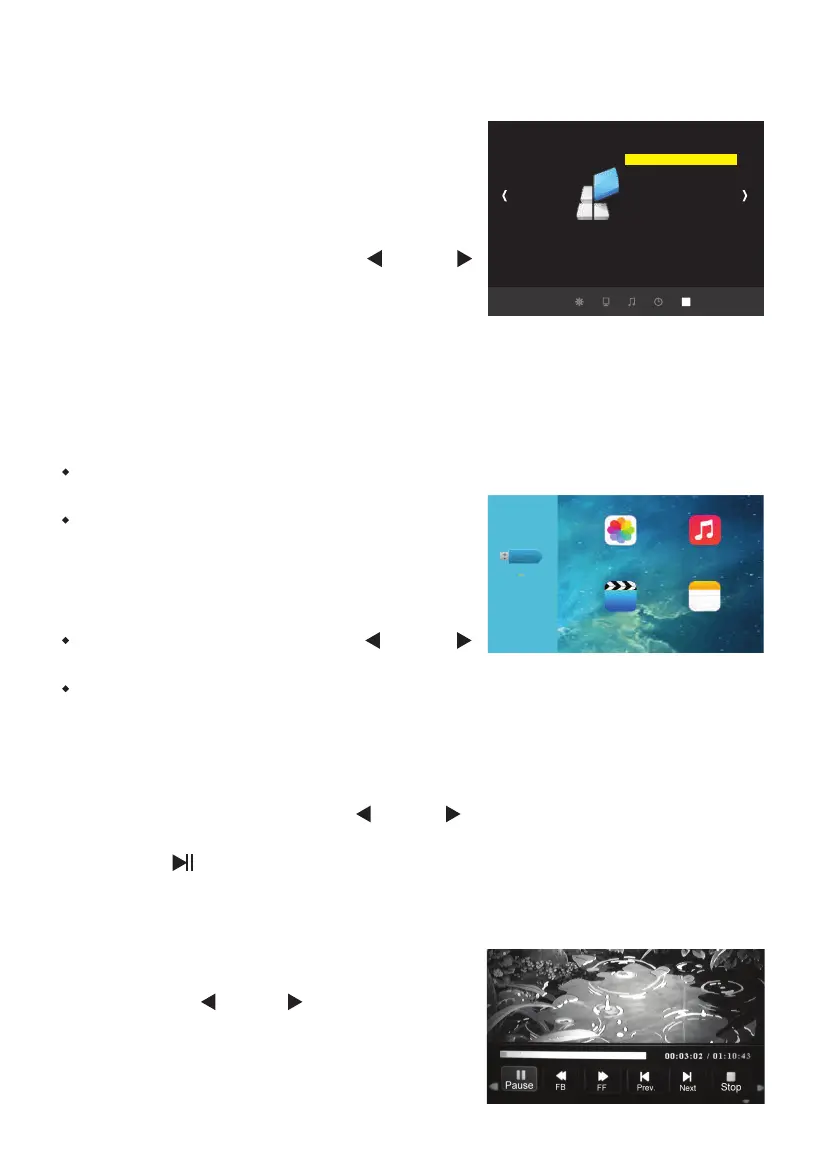
A. Refer to "Menu setting" steps to switch to the
OPTION setting page (as the right picture
shown).
B. Press the Up (▲)/Down (▼) button to select
OSD Language and then press the OK button to
go into the selection screen.
C. Press the Up (▲)/Down (▼)/ Left ( )/Right ( )
button to select the language you want.
D. Press the MENU button to set and exit. Also, you
can wait the system to conrm the current
selection and exit.
⑤ Language Setting
A. Use the Up (▲)/Down (▼)/ Left ( )/Right ( ) button and the OK button to select
les you want to play.
B. Press the ( ) to play.
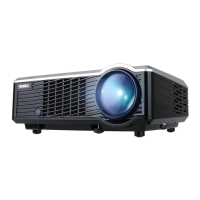
A. When play the video, press the OK button to
call up the operation options as shown.
B. Press the Left ( )/Right ( ) button to select
the option.
C. Press the OK button to set.
D. Press the EIXT button to exit the page of
operation options.
① Video Play
② Play Operation
OPTION
OSD language English
Restore Factory Default
Blending
HDMI CEC
Osd Duration
Software Update
PHOTO MUSIC
VIDEO TEXT
13


 To Next Page