EasyManua.ls Logo

Woodpecker i-Scan - User Manual

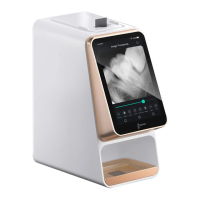
Woodpecker i-Scan
30 pages
Print Icon
To Next Page IconTo Next Page
Loading...

Questions and Answers

Summary

1 Production Introduction

1.1 Product Introduction

Describes key features like resolution, user interface, and display.

1.2 Model

Specifies the product model name.

1.3 Configuration

Details the equipment composition and packing list.

1.4 Structure and Components

Lists the main unit, IP plate, power adapter, and other parts.

1.5 Scope of Application

Outlines intended use for scanning intraoral dental X-ray images.

1.6 Contraindications

Warns about device use by pregnant women and young children.

1.7 Device Safety Classification

Classifies operation mode, shock protection, and water ingress.

2 Product Installation and Function Description

2.1 Schematic Diagram of the Whole Machine

Visual representation of the imaging plate scanner's components.

2.2 Accessories Installation

Instructions for installing the power adapter and tray.

2.3 Installation

General steps for installing the device and software.

2.3.1 PC Configuration Requirements

Specifies necessary computer hardware and operating system for the software.

2.3.2 Dental X-ray Generator Compatibility

Lists compatible dental X-ray generators.

2.3.3 Software Installation

Step-by-step guide for installing the Ai-Dental software.

3 Operation Instructions

3.1 Preparation Before X-ray Photographing

Steps to prepare for taking X-ray images, including software and plate handling.

3.2 Acquire X-ray Images

Procedure for capturing dental X-ray images using the IP plate.

3.3 Read IP Imaging Plate

Process for scanning the IP plate and viewing images on the scanner/computer.

3.4 Erase IP Imaging Plate

Instructions on how to erase image data from the IP imaging plate.

3.5 Software Operation Instructions

Detailed guide for using the Ai-Dental software.

3.5.1 Login Module

Steps to start the server and log into the Ai-Dental client software.

3.5.2 Patient Module

Managing patient records: adding, modifying, and deleting.

3.5.3 Diagnostic Module

Tools for image analysis, enhancement, and processing.

3.5.4 Report Module

Creating, saving, and exporting patient diagnostic reports.

3.5.5 Setting Module

Configuring basic settings, clinic information, and image processing.

3.5.6 Software Upgrade

Information on the automatic software upgrade function.

4 Notes

Important Safety and Operational Notes

Key safety warnings, usage precautions, and general notes.

5 Troubleshooting

Troubleshooting Guide

Lists common faults, possible causes, and solutions.

6 Cleaning, Disinfection and Sterilization

6.1 Cleaning and Disinfection of Scanner and Detachable Parts

Procedures for cleaning the scanner body, cover plate, and tray.

6.2 Cleaning and Disinfection of IP Imaging Plate

Methods for cleaning and wiping the IP imaging plate.

6.3 Cleaning, Disinfection and Sterilization of Storage Box

Procedures for cleaning and sterilizing the IP plate storage box.

7 Storage, Maintenance and Transportation

7.1 Storage and Maintenance

Guidelines for proper storage conditions and device upkeep.

7.2 Transportation

Precautions to take during equipment transportation.

8 Environment Protection

Equipment Disposal and Recycling

Instructions for disposing of the device as electronic waste.

9 After-sales Service

Maintenance and Warranty Information

Details on service, repairs, and warranty coverage.

10 Electromagnetic Compatibility (EMC)

10.1 EMC Emission Guidance

Guidance on electromagnetic emission standards and compliance.

10.2 EMC Immunity Guidance

Guidance on electromagnetic immunity standards and compliance.

10.3 EMC Immunity Guidance

Further guidance on electromagnetic immunity requirements.

10.4 Recommended Separation Distances

Guidelines for safe distances from RF communications equipment.

11 European Authorized Representative

Representative Contact Information

Contact details for the authorized representative in the European Community.

12 Symbol Instruction

Explanation of Symbols and Icons

Defines various symbols used throughout the manual.

13 Statement

General Statement and Modification Rights

Information regarding modification rights of design and technology.

14 FCC Statement

FCC Compliance and RF Exposure

Details on FCC rules, interference, and radio frequency exposure.

Woodpecker i-Scan Specifications

General IconGeneral
TypeIntraoral Scanner
TechnologyOptical
ConnectionUSB 3.0
CompatibilityWindows
WirelessNo
Output FormatSTL

Related product manuals