HANGZHOU WORLDE DIGITAL PIANO CO.,LTD HANGZHOU WORLDE MUSIC ELECTRONIC CO., LTD
WEBSITE: WWW.WORLDE.COM.CN EMAIL:SALES@WORLDE.COM.CN TEL:86 571 88730848
- 21 -
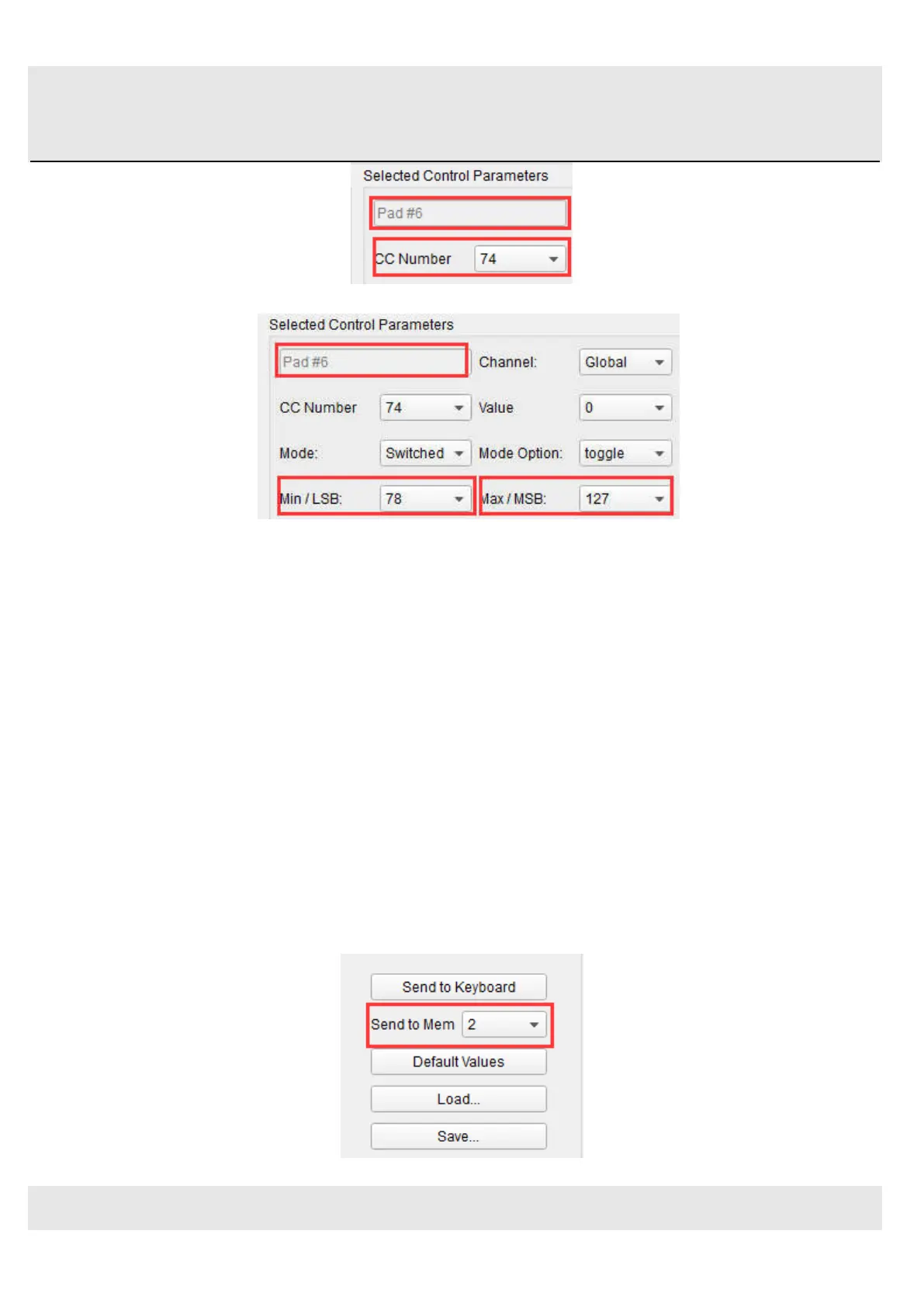
Next we’ll set some minimum and maximum values that might work (adjust them to suit the audio source):
The first press of Pad 6 will send a CC# 74 command with a value of 78, which will close the filter down part way but still let
a lot of the audio pass through. The second press of Pad 6 will send a value of 127, opening the filter completely.
Note: Be sure to check the MIDI Channel assignment to make sure it matches that of the receiving device.
5.1.5 Save the changes to a Preset
So let’s review what we’ve done in section 5.1 so far: The pads have been set up to play kick and snare, toggle the filter
settings, and start / stop the song; one of the encoders is controlling the vibrato rate, and the Mod strip is controlling
Aftertouch. Not bad! There’s a lot more Orca PAD64 can do, but that’s a good start.
So the next thing to do is make sure this configuration is available when you want it. To do that, you need to save these
settings as a group into one of the eight memory locations in the Orca PAD64.
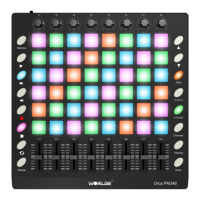
The upper right-hand section of the MIDI Control Center software has a button called “Send to Keyboard”. Right below that
is a pull-down menu that allows you to specify which of the TUNAMINI’s eight memory locations will be the repository for
the Preset you’ve created.
Before clicking the top button, select a location you know is available. We’ll use memory location #2 for this example:


 To Next Page