Owner’s Manual of Lawn Mowing Robot EN
12
a separate location. It is important to leave the necessary length where it connects to the Charging Base so it can be
connected and still remain buried.
6.2 Burying the Boundary Wire
If you are planning to bury the Boundary Wire, it is recommended to first peg it down. This allows you to easily change the
layout if necessary before burying the wire. When the boundary wire installation is complete, have Landroid
®
follow and check
the path by pressing
and . This will allow Landroid
®
to adjust to its new environment.
While observing Landroid
®
you can easily make alterations to the boundary wire to ensure the Landroid
®
's trouble-free
tracking when locating the charging station. Confirm that Landroid
®
docks in the charging station successfully, and bury the
wire if desired.
7. Software update
The software can be updated when new versions become available. The latest software can be our
website www.worxlandroid.com.
Update via USB. See below for download and installation instructions:
(1) Locate the latest software version at: www.worxlandroid.com.
Save the file to an empty FAT32 formatted USB (flash drive).
Delete any other files on the drive and check the format. If the
drive is not formatted in FAT32, please reformat the drive.
NOTE: the software update is downloaded as a zipped file. You
will need to unzip or extract it before proceeding.
(2) Place Landroid
®
on a secure and level surface. Turn the Main
Switch to the “O” position to turn off your Landroid
®
.
(3) Lift the rear of the Landroid
®
to access the underside.
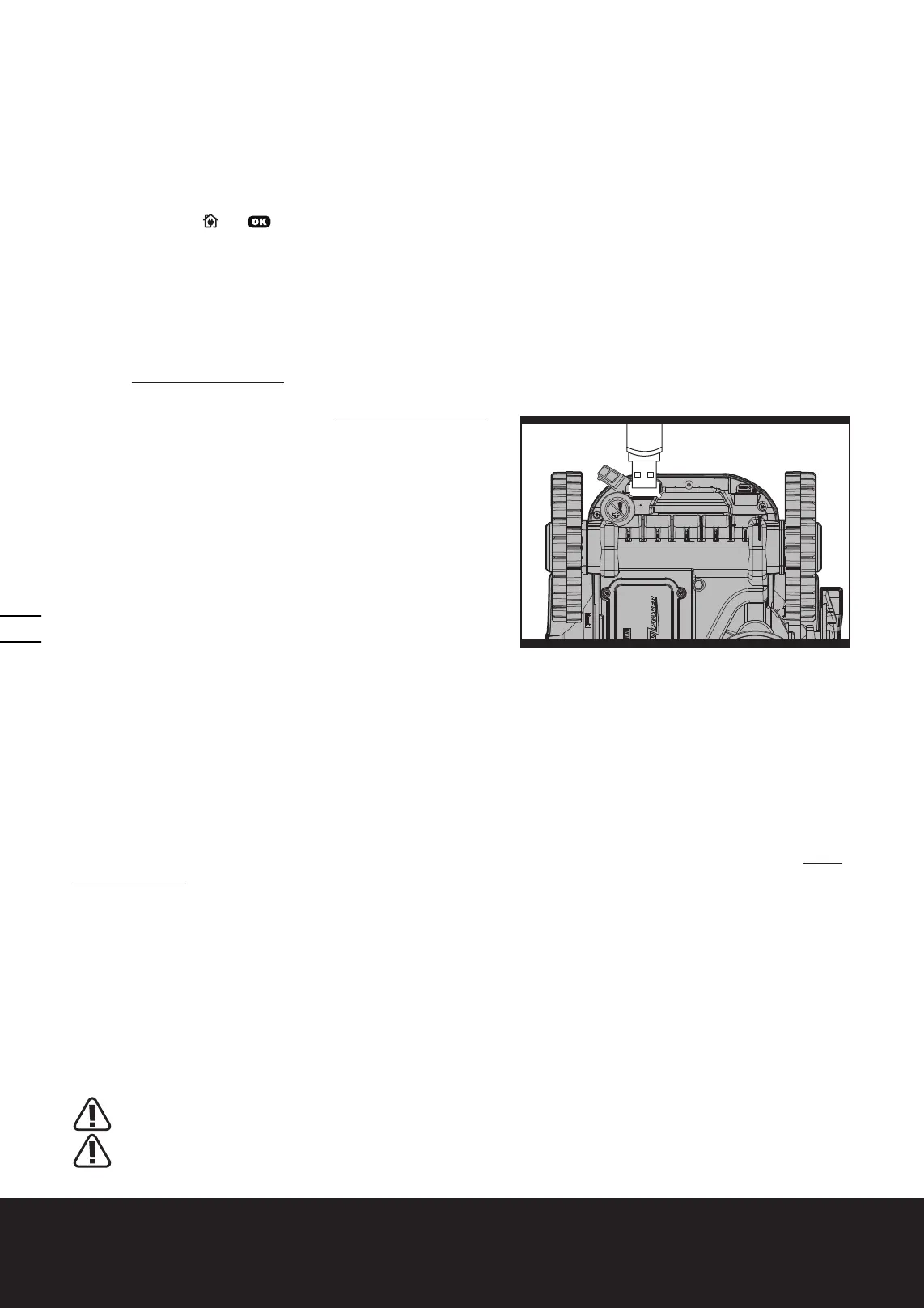
(4) Open the protective rubber cover under the Landroid
®
to access
the USB port.
(5) Insert the USB drive (flash drive) in the port. (See Fig. K)
(6) Place the Landroid
®
on the ground again.
(7) Turn the Main Switch to the “I” position to turn on the Landroid
®
.
(8) The battery indication light will start to pulse. When the error
indication light flashes blue, the file has been copied.
(9) Without lifting the Landroid
®
, remove the USB drive (flash drive).
(10) The update will begin automatically and may take several minutes. The final alert sequence will include a beep, and both
the battery indication light and error indication light will flash. When the error indication light turns off and only the green
battery indication light remains lit, the update is complete.
NOTE: If the Landroid
®
is not inside the boundary wire, the error indication light will flash RED after the update. Please
refer to the manual for more information.
(11) Be sure to tightly and completely close the rubber protective USB port cover.
The manual included with your Landroid
®
is based on the default software at the time of production.Some new features/
functions in the new version may not exist in the manual. If you found some settings not in the manual, please visit www.
worxlandroid.com to download the latest manual.
8. Maintenance
Your Landroid
®
works hard and needs to be cleaned and checked from time to time. Some parts will require replacement
as they become worn. Never use your Landroid
®
with defective main switch.
Switch off the machine before carrying out any service or maintenance.
Here's how to take care of your Landroid
®
.
8.1 Keep it sharp
WARNING: Before cleaning, adjusting, or replacing the Blades, turn your Landroid
®
OFF and
put on protective gloves.
WARNING: When fitting new blades, make sure you replace ALL the blades. Always use new
screws when fitting blades. This is important to ensure blade retention and balance the blade
K


 To Next Page
 Loading...