EasyManua.ls Logo

Xiaomi 70mai - User Manual

Xiaomi 70mai
13 pages
Print Icon
To Next Page IconTo Next Page
Loading...
Thanks for choosing 70mai dash cam
Equipped with a camera chip and image sensor which allows to record
high-quality videos, 70mai dash cam becomes a perfect travel
companion.
Read this manual carefully before using the product.
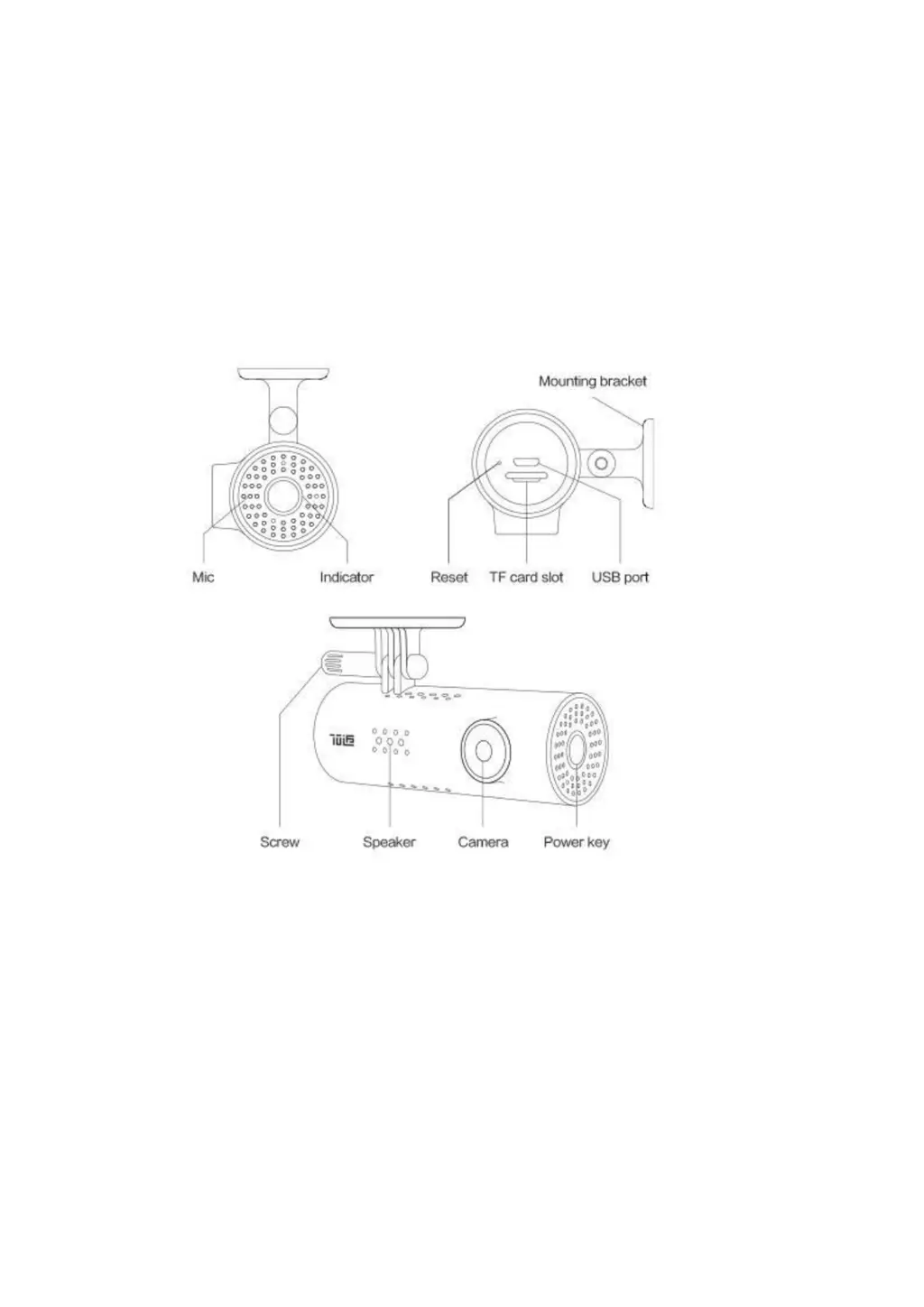
Product overview
Power key
The device has only one physical key, the power key.
When device turned off
Click to power on the device;
When device turned on
Click to open/close Wi-Fi hotspot;
Press and hold to power off the device;

Other manuals for Xiaomi 70mai

Questions and Answers

  • S
    sharon50Aug 16, 2025
    What to do if my Xiaomi 70mai doesn't work?
    • D
      Denise KlineAug 16, 2025
      First, ensure the adapter is securely plugged into the cigarette lighter receptacle and the USB cable is properly connected. Verify that your car's engine is running and the cigarette lighter receptacle is providing power. If the camera still doesn't work, use a pin to press the Reset button located on the bottom to restart it.
  • S
    Sharon PierceAug 19, 2025
    What to do if my Xiaomi Dash Cameras stops recording unexpectedly?
    • S
      Samantha RiceSep 12, 2025
      If your Xiaomi Dash Cameras unexpectedly stops recording, try reformatting your card. If the issue persists, replace the card.
  • O
    Olivia HortonAug 22, 2025
    How to fix incorrect system time on Xiaomi 70mai Dash Cameras?
    • D
      Donna MooreAug 22, 2025
      To correct the system time, connect your phone to the device and adjust the system time using the 70mai dash cam app.
  • E
    Edward SanchezAug 25, 2025
    What to do if my Xiaomi 70mai device doesn’t respond?
    • J
      Jeremy FitzgeraldAug 25, 2025
      If your dash cam is unresponsive, try pressing the Reset button with a pin. Alternatively, press and hold the Power button to switch off the dash cam, then turn it back on.
  • A
    Angela ThomasAug 27, 2025
    Why does my Xiaomi 70mai Dash Cameras reboot after being powered on?
    • M
      Megan SchmidtAug 27, 2025
      Ensure you are using the original accessories provided with the dash cam. Try unplugging the adapter and then plugging it back in.
  • M
    Mr. Charles FerrellAug 30, 2025
    What to do if my Xiaomi 70mai videos aren’t clear?
    • C
      christinemillerAug 30, 2025
      Ensure that your windshield is clean and that nothing is obstructing the dash cam's lens.
  • P
    Paula DeckerSep 2, 2025
    What to do if my Xiaomi 70mai Dash Cameras doesn't start recording after being powered on?
    • A
      Adrienne NewtonSep 2, 2025
      When using the dash cam for the first time, you need to activate it via the 70mai dash cam app. The device won't record videos if it hasn't been activated. If the device is already activated but not recording, verify that your TF card meets the device requirements and is formatted by the device before use.
  • C
    camposrhondaSep 4, 2025
    Why does the electrostatic sticker on my Xiaomi 70mai Dash Cameras fall down?
    • M
      Matthew KellySep 4, 2025
      Ensure your windshield is clean, then attach the electrostatic sticker to the glass, making sure to remove any air bubbles between the sticker and the windshield.
  • A
    Alyssa WashingtonSep 7, 2025
    What to do if my Xiaomi Dash Cameras authorization failed?
    • C
      Candace GarciaSep 7, 2025
      To protect your data, when adding a new dash cam to your app, you'll be prompted to press the power key to accept the connection request from your phone. If you've already added the dash cam but receive an 'Authorization failed' notification, remove the dash cam from the 'My device' list and then add it again.
  • J
    Jacqueline TaylorSep 10, 2025
    What to do if my Xiaomi 70mai video files were corrupted?
    • D
      Donna SmithSep 10, 2025
      If your video files are corrupted, replace the TF card.

Summary

Product Overview

Power Key

Power Key Operation

Details the functions of the dash cam's single physical power key for various operations.

Indicator States

Indicator Light Behavior

Explains the different states and colors of the indicator light based on device status.

Installation Guide

Mounting and Connection

Covers electrostatic sticker placement, mount attachment, and USB cable connection steps.

Device Features

Voice Control Functions

Lists available voice commands for controlling the dash cam's operations.

Initial Activation

Guides on powering on the device and connecting to the 70mai app for the first time.

App Functions

Homepage Operations

Manages connected devices and checks for firmware updates via the app homepage.

Dash Cam Plug-in Features

Preview, Media, and Settings

Accesses real-time preview, photos, albums, settings, and firmware updates.

Personal Center

Profile and Device Management

Manages user profile, connected devices, and app information within the personal center.

Video Recording and Storage

Recording Modes and TF Card Needs

Details video lengths, recording modes, photo capacity, and TF card specifications.

TF Card Management

Storage Capacity and Exceptions

Information on TF card storage amounts and common exceptions or error states.

Power and Battery

Power Source and Battery Usage

Details power source from cigarette lighter, battery function, and handling.

Safety Precautions

General Safety Guidelines

Important warnings and guidelines for safe product usage, handling, and environmental limits.

Xiaomi 70mai Specifications

General IconGeneral
GPSYes
G-SensorYes
Model70mai
Display2.0-inch
StorageMicroSD card
FeaturesLoop recording, Parking mode
BatteryBuilt-in lithium-ion battery

Videos

How to Add XIAOMI 70mai DashCam A800 to the 70mai App – Pair Camera With Phone

How to Connect Rear Camera on XIAOMI 70mai DashCam A800S

How to Turn On XIAOMI 70mai DashCam A800

Related product manuals