8
You may not want live calls to be transferred automatically or you may want to force the
cell phone to disconnect from the XLink.
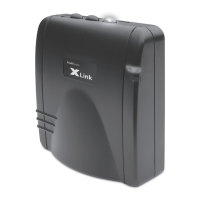
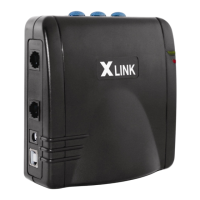
When a line is connected (blue light remains on) pressing the line button will disconnect
that line and the light will turn o once disconnected. Audio will be transferred to the cell
phone and you can continue your call on the cell phone.
When a line is not connected and not searching (blue light remains o) pressing the line
button will put the line into searching mode (blue light ashes slowly). If the cell phone
has been previously paired and is within range the cell phone will connect with the XLink
and the blue light will remain solid.
NOTE:
• Some cell phones will prompt you when you come within range of the XLink. You can
then decide if you want to transfer the call to the XLink.
After connecting one or more telephones to the XLink, the setup test feature can be
used to ensure proper connections.
1. Ensure the green light is on and the red light is not ashing.
2. Simultaneously press and hold the line 1 and line 2 buttons for approximately two
seconds: all telephones connected to the XLink should start ringing.
HINT:
• If an extension telephone does not ring, check that it is powered and that all
cables are properly connected.
MANUAL BLUETOOTH CONNECTION
TESTING THE SETUP

 To Next Page
 Loading...