Support
&
Reference
Direct any questions concerning
proper installation and
operation of the InterView device to:
1.800.513.9744 (Technical Support Only)
(316) 636-5544
Technical Support E-mail Address:
tech@interexinc.com
Web Address: www.xlr8.com
Although InterView is fully automatic, following are a few
instances that may have problems.
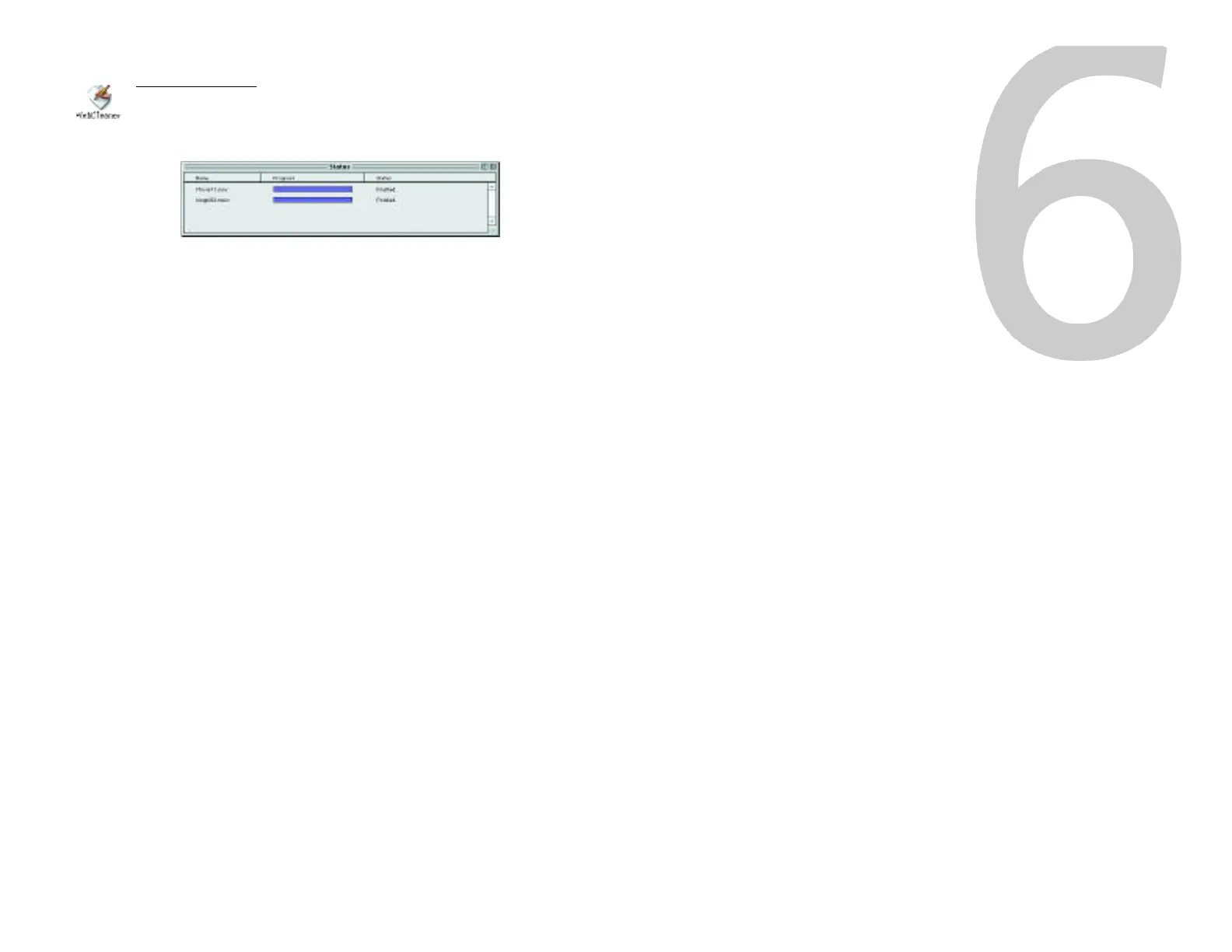
Using WebCleaner
Launch the WebCleaner software in XLR8’s “InterView”
folder on your hard drive.
• You can then drag the movie to be “cleaned” into the
window, or open by selecting the file with the “Open”
command in the File menu.
• Once processed, your file can be “FTP’d” (copied)
up to your web page.
• Users will be able to access your streaming
QuickTime videos with a single click!
Save Options in WebCleaner:
WebCleaner can save the “cleaned” movie in one of
three ways:
• It can create a brand new movie with a ‘.web.mov’ file
name extension
• It can replace the existing movie or
• It can ask where to save each movie after it has been
cleaned
You can select the save method using the “Preferences…”
option in the Edit menu. The default save method is to
create a brand new movie automatically. Look for the new
movie in the same folder as the original after WebCleaner
has finished cleaning it. This is the movie that you will want
to upload to the Web.
Remember: movies that are posted to the Web must have no
spaces in the file name and the file name must end in ‘.mov’.



 To Next Page