EasyManua.ls Logo

Xoro HRM 8760 CI+ - User Manual

Xoro HRM 8760 CI+
38 pages
Print Icon
To Next Page IconTo Next Page
Loading...
User’s Manual (ENG)
HRM 8760 CI+

Questions and Answers

  • T
    Todd TorresAug 17, 2025
    Why is there no picture or sound on my Xoro HRM 8760 CI+?
    • J
      Julie RussoAug 17, 2025
      If your Xoro Receiver shows no picture or sound, there might be several reasons. Ensure the HDMI cable or RCA is correctly connected to the TV input terminal. Also, verify the antenna cable is properly connected. Weak signal could also be the culprit, so check the cable connections and antenna alignment. Finally, confirm that the channel settings are correctly entered.
  • K
    Kyle MartinezAug 19, 2025
    What to do if the remote control is not working for my Xoro HRM 8760 CI+?
    • M
      Meghan YoungAug 20, 2025
      If the remote control for your Xoro Receiver isn't working, first, replace the batteries, as they may be exhausted. If that doesn't solve the issue, fluorescent lights might be interfering with the remote; try switching them off. Also, make sure you're aiming the remote control directly at the receiver.
  • M
    Mitchell DiazAug 22, 2025
    How to restart Xoro Receiver when it is not working?
    • D
      davisjoyceAug 22, 2025
      If your Xoro Receiver is not working, switch it off, remove the power cord, wait a moment, then re-insert the power cord and switch it back on. This can help if the process is down.
  • A
    amywilsonAug 25, 2025
    How to fix the LED on the front panel of my Xoro HRM 8760 CI+ Receiver if it does not light?
    • M
      morrisonmollyAug 26, 2025
      If the LED on the front panel of your Xoro Receiver does not light up, it might be due to the AC power cord being disconnected. Ensure the power cord is properly connected into the power socket.
  • D
    Deborah JohnsonAug 27, 2025
    What to do if my Xoro Receiver shows a black-and-white screen?
    • T
      Thomas MurphyAug 28, 2025
      If you see a black-and-white screen or V-Hold issue on your Xoro Receiver, it could be because your TV mode is different from the broadcasting mode. Try using the same mode on your TV. Also, check the NTSC/PAL converter connection to the receiver and TV.
  • Q
    qpatelAug 30, 2025
    Why is the menu screen distorted on my Xoro HRM 8760 CI+?
    • B
      Belinda RangelAug 30, 2025
      If the menu screen on your Xoro Receiver appears distorted, the brightness and contrast levels of your TV set might be too high. Adjust the brightness and contrast to a lower level.
  • C
    Carrie GreenSep 2, 2025
    What to do if my Xoro TV Receiver has no picture or sound?
    • B
      bowenalyssaSep 2, 2025
      If your Xoro TV Receiver isn't displaying a picture or sound, there might be a few reasons: * Check if the HDMI cable or RCA is correctly connected. * Ensure the antenna cable is properly connected. * Verify the signal strength and cable connections, and adjust antenna alignment if needed. * Confirm that the channel settings are correctly entered.
  • T
    Tami GallegosSep 5, 2025
    Why is my Xoro TV Receiver remote control not working?
    • R
      Ryan DiazSep 5, 2025
      If the remote control for your Xoro TV Receiver isn't working, here are a few things to try: * Replace the batteries. * Try switching off any fluorescent lights that might be interfering with the remote. * Make sure you're aiming the remote directly at the receiver.
  • T
    Tracy BennettSep 7, 2025
    Why is the menu screen distorted on my Xoro TV Receiver?
    • M
      megan82Sep 7, 2025
      If you see a distorted menu screen on your Xoro TV Receiver, it's likely due to the brightness and contrast levels being too high on your TV. Try lowering the brightness and contrast settings on your TV.
  • P
    pmillerSep 10, 2025
    What to do if my Xoro TV Receiver shows a black-and-white screen?
    • M
      Marcus ColeSep 10, 2025
      If you're seeing a black-and-white screen or V-Hold issues with your Xoro TV Receiver, the TV mode might be different from the broadcasting mode. Try using the same mode on the TV. Also, check the NTSC/PAL converter connection to the receiver and TV.

Summary

1 SAFETY ADVICE

MAIN SUPPLY

Operate this product only from the type of power supply indicated on the marking label.

OVERLOADING

Do not overload a wall outlet, extension cord or adapter as this may result in electric fire or shock.

LIQUID

The product should not be exposed to liquid of any kind.

CLEANING

Disconnect the product from the wall outlet before cleaning. Use a light damp cloth (no solvents) to dust the product.

VENTILATION

The slots on top of the product must be left uncovered to allow proper airflow into the unit.

ATTACHMENTS

Do not use any unsupported attachments as these may be hazardous or cause damage to the product.

CONNECTION TO THE AERIAL

Disconnect the product from the mains before connecting or disconnecting the cable from the aerial.

CONNECTION TO THE TV

Disconnect the product from the mains before connecting or disconnecting the cable from the TV.

LOCATION

Place the product indoors to avoid exposing it to lightning, rain or sun.

Power Cord and Plug Safety

Precautions to prevent damage to the power cord and plug, including not modifying or bending it.

Electrical Shock Prevention

Safety measures to prevent electrical shock, such as not opening the main body or touching the plug with wet hands.

Product Damage Prevention

Actions to prevent damage to the product, like not using it when out of order or inserting foreign objects into slots.

2 QUICK SETUP

Check Accessories

Verifying the contents of the product package, including receiver, remote, manual, and batteries.

Connect Receiver to TV

Instructions for connecting the receiver to the TV set for initial setup.

Connect Antenna;Cable

Connecting the receiver to a terrestrial antenna (DVB-T/T2) or cable (DVB-C).

Power On Receiver and TV

Steps for switching on the receiver and TV set for the first time.

Insert Remote Batteries

Guide to correctly inserting batteries into the remote control, ensuring proper pole alignment.

OSD Menu Settings

Initial on-screen menu setup, including language selection and remote control navigation.

4 HOW TO CONNECT YOUR RECEIVER

Connection Guidance

Notes on connecting the receiver, recommending HDMI for HDTV signals and best SDTV quality.

Connecting the Receiver to TV

Detailed diagram and instructions for connecting the receiver to a TV using various cable types (RF, HDMI, RCA, Component).

5 HARDWARE

Remote Control Buttons

Explanation of the functions of various buttons on the remote control, including POWER, MUTE, AUDIO, SUBTITLE, TEXT, STATUS, etc.

Remote Control Navigation

Details on navigation buttons (MENU, EXIT, cursors, OK/ENTER) and function keys (EPG, FAV, REC, CH, Number buttons).

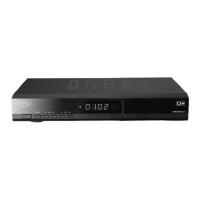
Front Panel Overview

Description of the front panel controls and indicators, including POWER, MENU, VOLUME, CHANNEL buttons, and display.

Rear Panel Connections

Identification and function of rear panel connectors: RF IN, RF OUT, YPbPr, CVBS, R&L, HDMI, USB, COAXIAL, SCART.

6 WATCHING TV

General Watching

Basic operation for watching TV, including channel selection via CH+/-, number input, RECALL, and TV/RADIO toggle.

Channel List Navigation

How to open, navigate, search, and sort channels using the Channel List interface.

Options

Selecting subtitle language and audio tracks, including Stereo/Mono and AC3 sound options.

EPG (Electronic Program Guide)

Activating and navigating the EPG to view program information for current, next, and 7-day forecasts.

EPG Navigation and Recording

Using EPG to program recordings, manage timer reservations, and navigate single EPG view.

EPG-Timer

Programming program reservations (timers) via the EPG interface for recording or other actions.

Teletext

Activating and using the Teletext feature, including page selection and navigation.

PVR Function

Using the receiver as a Personal Video Recorder with an external HDD.

Direct Recording

Starting a direct recording using the REC key, selecting duration and confirming the process.

EPG Recording

Programming timer reservations via EPG for recording purposes.

Timer Recording via Manual Record List

Manually programming recording events via the RECORD List menu.

TimeShift-Function

Using the TimeShift function to pause and resume live TV, with Fast-Forward/Rewind capabilities.

Playback from MyRecord and MediaExplorer

Playing back recorded programs from connected USB HDD via MyRecord and MediaExplorer.

7 MENU OPERATION

Main Menu Structure

Overview of the main menu and its sub-menus: Edit Channels, Installation, User Setup, Multimedia, Smartcard, System.

8 EDITING CHANNELS

Create Channel List

Shaping the channel list according to personal preference, including functions like Lock, Move, Rename, Find.

Edit Favorite Channels

Creating up to 8 favorite channel lists by selecting, adding, deleting, and moving channels.

9 INSTALLATION

Channel Search Options

Performing automatic or manual channel searches for terrestrial or cable signals.

10 USER SETUP

Language Setting

Selecting preferred languages for menu, audio tracks, subtitles, and EPG information.

Time Setting

Configuring time settings, including Summer Time and GMT Offset, in manual or auto mode.

Parental Control

Setting up parental control features, changing PIN code, and enabling menu lock.

A;V Control

Adjusting audio/video signal properties, including TV Type, Aspect Ratio, Display Format, Video Format, and AC3.

OSD Setting

Adjusting display time for info bars and OSD transparency over the live picture.

Automatic Power Down

Configuring the time after which the receiver will automatically go into standby mode.

11 MULTIMEDIA

Record List (Timer)

Programming the receiver to switch on/off and tune to channels for recording or other purposes.

PVR Settings

Selecting default recording duration and configuring padding times for recordings.

HDD Properties

Viewing HDD information, performing speed tests, and formatting the connected hard disk drive.

File List

Navigating subfolders on the USB HDD to play media files, with notes on format compatibility.

12 CI Plus

CI Slot Information

Details on inserting CAM and smart card into the CI slot for subscription and settings information.

13 SYSTEM

Software Upgrade

Updating the system software to maintain optimal receiver performance.

Default Setting

Deleting channels, performing a factory reset, and configuring default settings.

14 TROUBLE SHOOTING

LED Not Lighting

Possible causes and remedies for the front panel LED not lighting up.

No Picture or Sound

Troubleshooting steps for when the receiver displays no picture or sound.

Black-and-White Screen

Addressing issues with a black-and-white screen or V-Hold by checking TV mode and connections.

Remote Control Not Working

Diagnosing and fixing problems with the remote control, such as battery issues or interference.

Distorted Menu Screen

Resolving distorted menu screens by adjusting TV brightness and contrast.

Receiver Not Working

Basic troubleshooting for receiver malfunction, including power cycling.

Limited Warranty

Xoro HRM 8760 CI+ Specifications

General IconGeneral
TypeReceiver
Tuner TypeDVB-S2
HDTV compatibleYes
Resolution1080p
CI+Yes
CI Slot1
ConnectionsHDMI, USB, Ethernet, Scart
HDMI Output1
USB Port1
EthernetYes
Scart Output1
Power SupplyAC 100-240V

Related product manuals