PLAYING WMA, MP3
AND JPEG DISCS
65
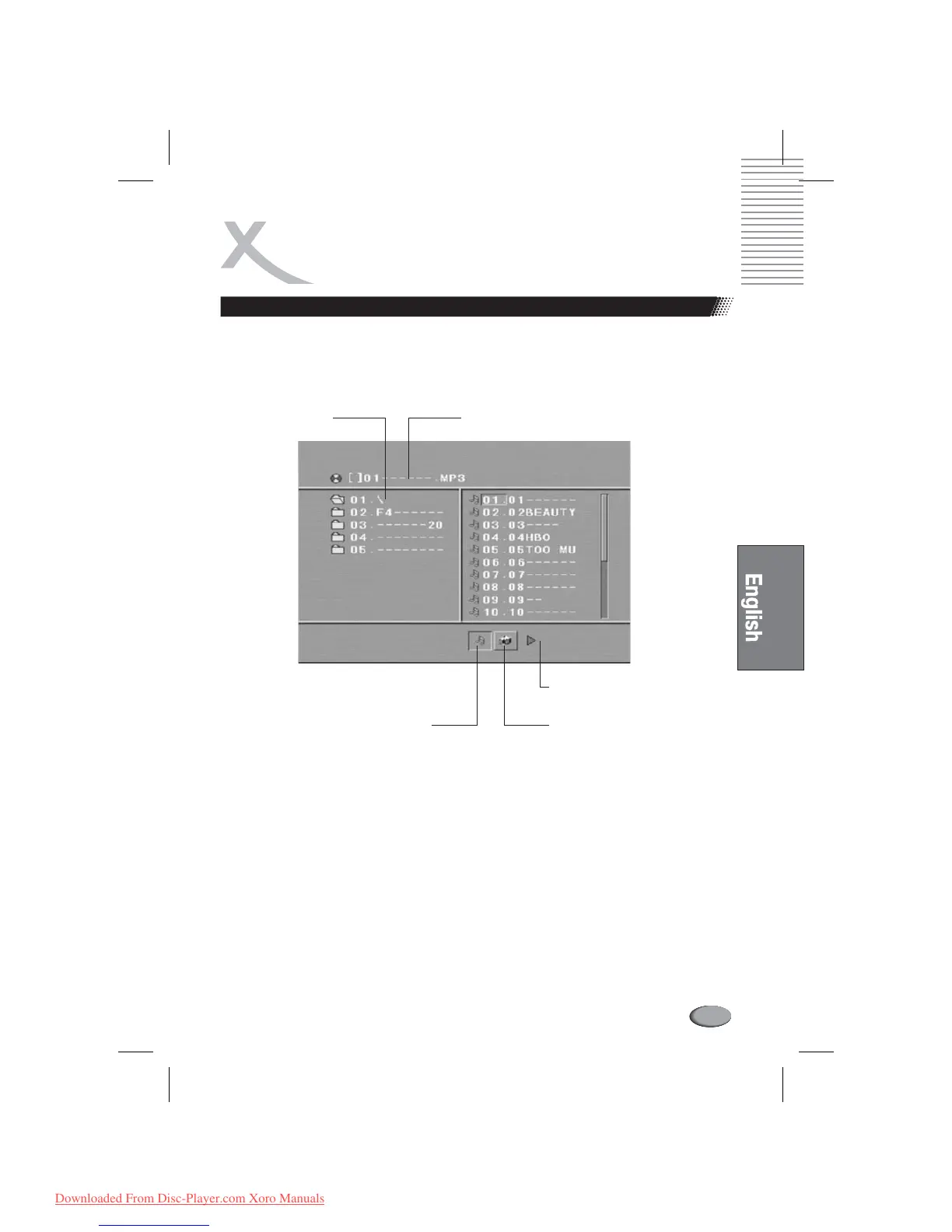
Place a MP3 / JPEG disc into the tray, and the player will auto search the directories saved MP3 /
JPEG files. After searching, it will auto go to the first directory saved MP3 files (to the disc containing
both mp3 and jpeg files; To the disc containing single type of files, it will auto go to the first directory)
and play the first song in the directory (“01:” is highlighted).The screen displays as the picture below:
Use the to enter the Directory Region and highlight the desired directory, then the first
track under it starts playback; Also you can use the to enter the File Region and select
the file you want to play.
Press the and , you can activate Directory Region, File Region and File
Switch Region separately.
The highlight in Directory Region and File Region is shown as the picture above; While it appears
a transparent rectangle in File Switch Region.
In File Switch Region, you can press the and to switch the highlight,
then press Enter; the “M”, “P”, and “G” button is illustrated in the above picture. For example, if a
disc with MP3 and JPEG files but without any NES files is loaded, the color of the letter “M” and “P”
will appear to white and “G” black. If a MP3 file playing, “M” turns darker.
To the disc with WMA, MP3 and JPEG files, when playing a JPEG picture, press the
button to return to JPEG list.
Arrow buttons
Arrow buttons
Left Right arrow buttons
Left Right arrow buttons
RETURN
Notes:
l
l
l
l
Current directory
name
Current MP3/JPEG file name.
If a JPEG file playing, the name should be *.jpg.
The playing file is a JPEG picture.
File Switch Region: Displays
the file type of the playing and
the switching.
The playing file is a MP3 music.
Downloaded From Disc-Player.com Xoro Manuals



 To Next Page