8
Getting Started
Overview of the XSLATE R12 Tablet
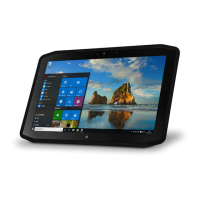
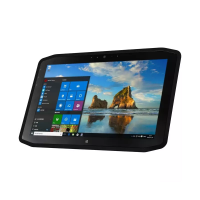
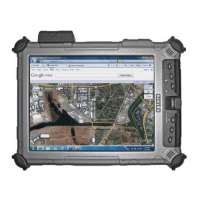
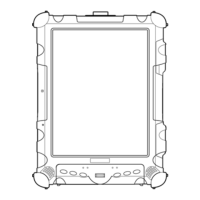
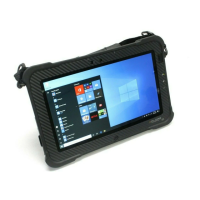
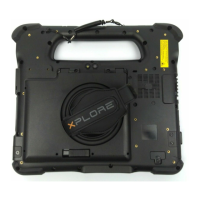
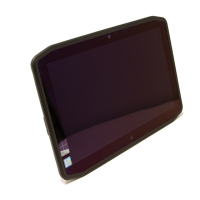
The following photos show the buttons; slots; and ports on the XSLATE R12 Tablet PC.
Front
Press to display the Dashboard; press and hold for Windows® Journal.
Press this button for the xCapture Pro™ application. Press and hold to display
the Pictures directory.
Press for Tablet PC settings or barcode scanner (if equipped with SlateMate).
Press and hold for on-screen keyboard.
Measures the light in your environment and can automatically adjust the
brightness of the display.
Front array microphones that optimize sound detection for speech recognition
and voice recording.
Interact with people online, stream video, or capture color images with a 2MP
web camera.
This light indicates that the web or documentation camera is active.
Opens the Windows Start screen or the Windows desktop.
Use your finger or pen to access all the functions of the XSLATE R12 display.

 To Next Page
 Loading...