Manual upgrade in case the OTA update doesn't work
1) Cancel download!
2) Download the update ZIP le on your computer PC available on Xtreamer Main Site.!
3) Copy the le to the device (from a USB stick or directly from your PC using AirDroid), and move
ZIP le to/sdcard/Download/Firmware/(the folder will already exist if you tried to download
OTA) using File Explorer!
4) Once copied, the Update app will see it and show a "Reboot and Install" button next to
"Download"
Full Firmware Re-installation!
In case you cannot enter the device UI and need to reinstall the rmware from the scratch
1) Download the full rmware le from Xtreamer Main Site and unzip the le using Windows le
manager or a specialized program like Winzip or Winrar.
2) Copy the BIN le to the root of a USB key!
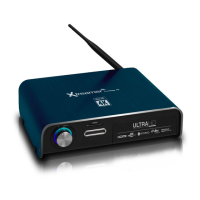
3) Disconnect Xtreamer Prodigy 4K from power
4) Press and hold the POWER button on the device and plug the power cable in at the same time.
5) After 5 to 10 seconds release the POWER button and the device will start and the update
procedure will begin.
IMPORTANT: During the procedure you must not disconnect the device from electricity. This can
lead to a malfunction and will void your warranty.
Reset your Device
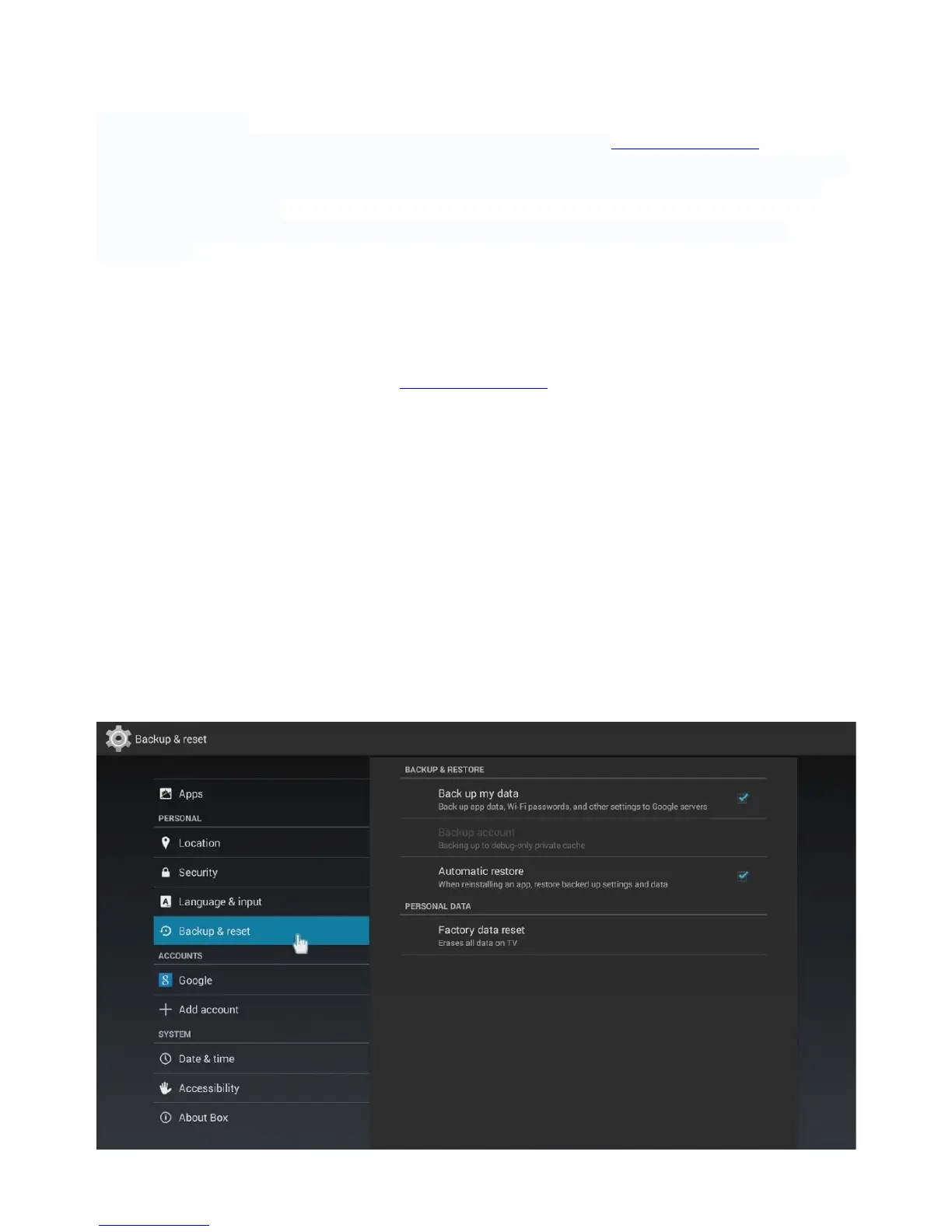
You can reset your Xtreamer from Settings -> System -> Backup & Reset


 To Next Page