EasyManua.ls Logo

Y-cam Black - User Manual

Y-cam Black
66 pages
Print Icon
To Next Page IconTo Next Page
Loading...
ThismanualappliestothefollowingYcamproducts.
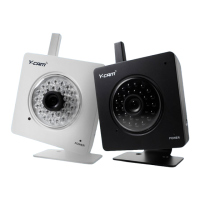
Ycam Black
Y
Featuresandoperationslistedinthis anualdependonthespecificmodel.
Pleasereadthismanualcarefullybeforeattemptingtoinstalloroperatethisproduct.
ThisUser pdated.
v3.25

UserManual
English
camKnight
YcamWhite
m
Eachcamerasmodelnamecanbefoundonthereverseofthecamera.
Pleaseretainthismanualforyourfuturereference.
Manualisaworkinprogressandisconstantlybeingu
Youareinvitedtocheckthewebsiteregularlyforupdatedversions.

Table of Contents

Other manuals for Y-cam Black

Questions and Answers

  • O
    oconnorkrystalAug 16, 2025
    How to fix Y-cam Black when WiFi connectivity doesn’t work?
    • J
      Jennifer Wallace MDAug 16, 2025
      If your Y-cam Security Camera's WiFi isn't working, it could be due to a weak signal. Try relocating the camera closer to your router or removing any obstacles between them. Also, ensure the SSID and encryption settings on your camera match your network settings exactly. Finally, check for any interference from other electronic equipment.
  • D
    Danielle AdamsAug 19, 2025
    What to do if I forgot my Y-cam Security Camera password?
    • A
      Allison OrtizSep 12, 2025
      If you've forgotten your password to access the settings menu on your Y-cam Security Camera, you'll need to press the RESET button. Keep in mind that doing so will erase all of your current configuration settings.
  • B
    Bobby ObrienAug 22, 2025
    What to do if Y-cam Security Camera motion detection triggers unexpectedly?
    • R
      Richard OrozcoAug 22, 2025
      If your Y-cam Security Camera's motion detection is triggering unexpectedly, it might be due to changes in lighting affecting the image. Motion detection is based on changes in pixel in the image. Lowering the sensitivity setting can help avoid these false triggers.
  • R
    robertrichardsAug 25, 2025
    What to do if the motion detection feature of Y-cam Black does not send email alerts?
    • L
      luis57Aug 25, 2025
      If the motion detection feature on your Y-cam Security Camera isn't sending email alerts, first check that the email alert feature is properly configured. It's also possible that the SMTP server used by the camera is filtering emails to prevent spam. Try using a different SMTP server or contact your ISP to see if SMTP access is being blocked.
  • M
    Michael YoderAug 28, 2025
    What to do if the picture viewing interface of Y-cam Black does not appear?
    • C
      Crystal RoseAug 28, 2025
      If the picture viewing interface for your Y-cam Security Camera isn't appearing, ensure that your Internet Explorer settings allow you to download and install ActiveX controls. Also, remember that only a maximum of 16 users can access the camera simultaneously through the network. Network traffic might also be the issue, so wait a while or try refreshing the page.
  • D
    darrell27Aug 31, 2025
    Why is the colour of the picture strange on my Y-cam Black Security Camera?
    • H
      Heather BryantAug 31, 2025
      If the color of the picture on your Y-cam Security Camera appears strange, first confirm that your PC's color setting is set to 16 bits or more. If you have an infrared version of the Y-cam, the infrared LEDs might be altering the image's colors. In this case, try turning the infrared off.
  • J
    James CamachoSep 2, 2025
    How to find the IP address of my Y-cam Security Camera?
    • L
      Lori SchneiderSep 3, 2025
      To find the IP address of your Y-cam Security Camera, you can use the supplied Y-cam Setup program. Alternatively, you can use UPNP (only for XP OS). You can also set up PPPoE IP Notification to send an email to your mailbox. As a last resort, you can reset your Network to the default IP address.
  • V
    Vanessa SalinasSep 6, 2025
    What does it mean if the power LED is flashing green and the Y-cam Black Security Camera is inaccessible?
    • T
      Tamara VaughnSep 6, 2025
      If the power LED on your Y-cam Security Camera is flashing green and the camera is inaccessible, it indicates that a firmware upgrade has been interrupted or the firmware has been damaged. Please contact your place of purchase or Y-cam Technical Support for assistance.
  • M
    Mrs. Emily VasquezSep 8, 2025
    How to fix unreadable characters displayed on Y-cam Security Camera?
    • M
      Mark HawkinsSep 9, 2025
      If unreadable characters are displayed on your Y-cam Security Camera, set the Encoding or the Character Set of the selected language on the web browser.
  • M
    Melissa AtkinsonSep 12, 2025
    What to do if I cannot see the controls of the Live Feed on my Y-cam Security Camera?
    • C
      Cynthia McintoshSep 12, 2025
      If you can't see the controls of the Live Feed on your Y-cam Security Camera because they are underneath the picture, reset your browser's Zoom setting or text size setting. Pressing Ctrl and “0” (zero) at the same time should do this.

Summary

Introduction, Compliance, and Requirements

1.3 Power Supply & 1.6 Minimum System Requirements

Lists power supply approvals and necessary hardware/software for PC/Mac setup and viewing.

Main Features

Easy Setup and Wireless Connectivity

Describes easy installation, UPnP, and 802.11b/g wireless features with encryption.

Core Functionality: Motion Detection and Recording

Explains snapshot/recording, motion detection with email/FTP alerts, and user authentication.

Y-cam at a Glance

Installation

3.1 Connecting to Router;Switch

Explains connecting the camera to a router/switch using an Ethernet cable and power adapter.

Y-CAM SOFTWARE INSTALLATION

4.1 PC Software Installation

Step-by-step guide for installing Y-cam setup software on a PC using the CD-ROM.

4.2 Mac Software Installation

Guide for installing Y-cam setup software on Mac, including OS-specific firewall configurations.

Finding Your Camera

Welcome and Access

Default Login Credentials and Security

Details the login panel and default username/password for accessing the camera.

User Interface (Internet Explorer)

Explanation of Operating Bar Controls

Y-CAM SETTINGS

6.01 Wizard - Easy Setup

Introduces the Wizard for simplifying camera setup for non-technical users.

Security: Changing Admin Password

Emphasizes changing the default administrator password for security.

CAMERA MENU

Stream Setup

Night Vision Setup

Network Menu

6.21 Wireless Setup

Guides on connecting the Y-cam to a wireless network using SSID, security mode, and keys.

TCP;IP Setup

DDNS Setup

UPnP Setup

Viewing your camera externally

Alarm Menu

Alarm Server

Backup and Reset

Firmware Upgrade

System Menu

Reboot Camera

ADVANCED SETTINGS

Resetting to Factory Defaults

Viewing on a Mobile Phone

TROUBLE SHOOTING

Y-cam Black Specifications

General IconGeneral
BrandY-cam
ModelBlack
CategorySecurity Camera
LanguageEnglish

Related product manuals