EasyManua.ls Logo

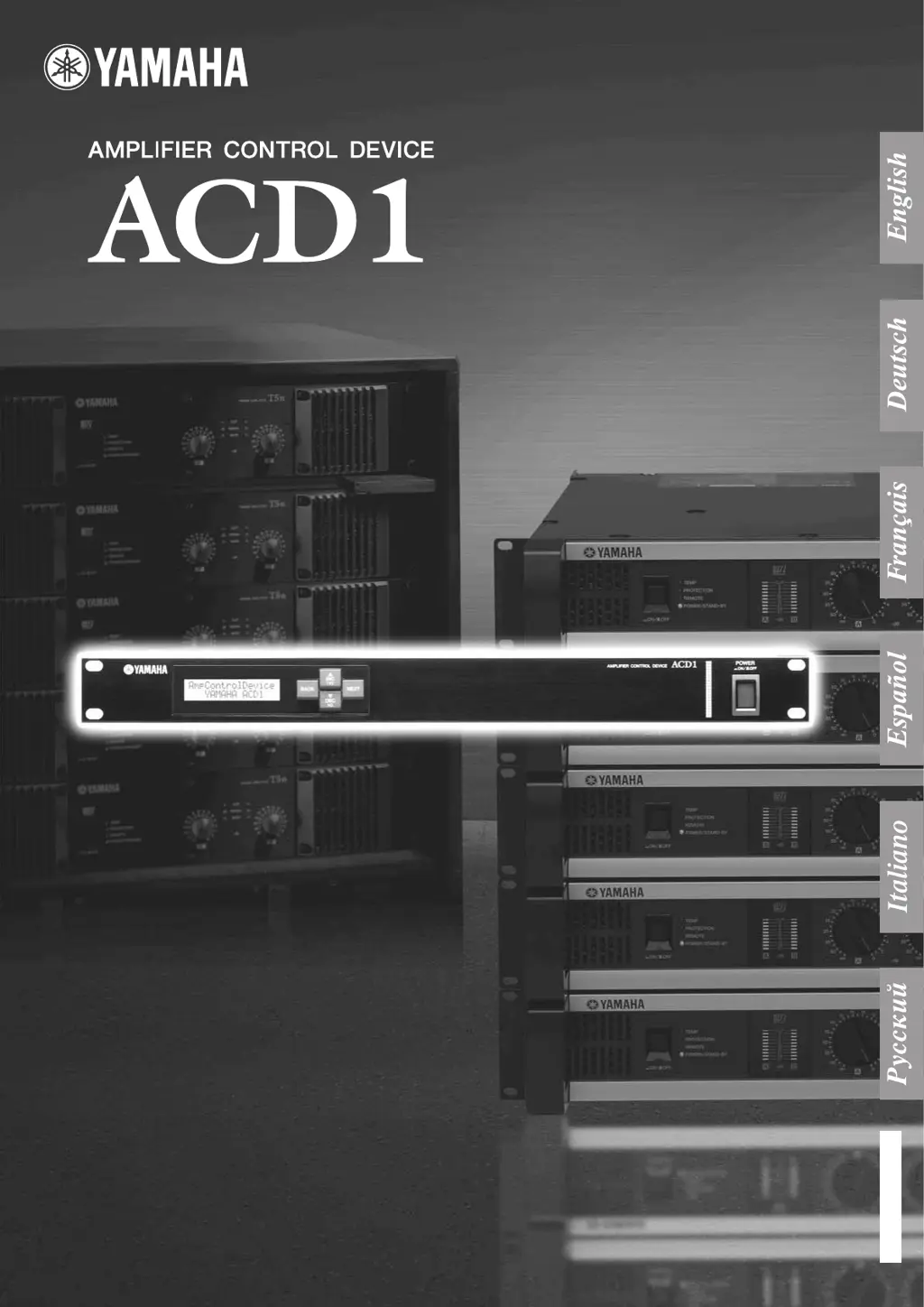
Yamaha ACD1 - User Manual

Yamaha ACD1
20 pages
Print Icon
To Next Page IconTo Next Page
Loading...
IT
RU
ES
FR
DE
EN
Owner’s Manual
Bedienungsanleitung
Mode d’emploi
Manual de instrucciones
Manuale di istruzioni
Руководство пользователя

Other manuals for Yamaha ACD1

Questions and Answers

  • O
    oreyesAug 6, 2025
    What to do if my Yamaha Recording Equipment won't turn on and the display is dark?
    • C
      calvaradoAug 6, 2025
      If your Yamaha Recording Equipment won't power on and the display remains dark, there are a few things to check: * Ensure the power cable is properly connected. * Make sure the POWER switch is turned on. * If the backlight setting is on “Auto OFF”, and you prefer it to stay lit, change the “5. Utility” ? “LCD Backlight” setting to “ON.”
  • B
    Bryan PinedaAug 10, 2025
    Why I cannot edit parameters on my Yamaha ACD1 Control Unit?
    • A
      Amanda RamirezAug 10, 2025
      If you cannot edit parameters on your Yamaha Control Unit, it might be due to Panel Lock being enabled. To solve this, change the “5. Utility” ? “Panel Operation” setting to Normal, or use Amp Editor to disable Panel Operation. Another reason may be that you are attempting to edit a parameter of an amplifier that is not connected or powered on. Ensure the amplifier is connected and powered on.
  • S
    Stanley MoralesAug 15, 2025
    What to do if all scene data saved in the ACD1 Yamaha Control Unit has disappeared?
    • B
      bwarrenAug 15, 2025
      If all scene data saved in your Yamaha ACD1 Control Unit has disappeared, it could be due to a few reasons. One possibility is that the power was turned off while the ACD1’s data was being saved. In this case, synchronize the unit with Amp Editor to transmit the settings from Amp Editor again. Another reason might be that the internal battery has run down. Check the battery status by going to “5. Utility” ? “Battery”. If the indication is “Low Battery” or “No Battery,” contact your Yamaha dealer to have the battery replaced.
  • K
    Kevin RhodesAug 19, 2025
    How to fix Yamaha ACD1 when power will not turn on and display will not light?
    • T
      taylormorenoAug 20, 2025
      If your Yamaha Control Unit's power will not turn on and the display does not light up, ensure the power cable is properly connected and the POWER switch is turned on. Also, check if the backlight setting is set to “Auto OFF”. If it is, and you want the LCD backlight to stay lit, turn the “5. Utility” ? “LCD Backlight” setting “ON.”
  • J
    Jessica HorneAug 23, 2025
    What to do if I can’t monitor or control an amplifier using my Yamaha ACD1 Control Unit?
    • D
      Dawn DayAug 23, 2025
      If you can’t monitor or control an amplifier with your Yamaha Control Unit, check if any cables are disconnected or broken. Also, verify that no cable exceeds the allowable length: the cable connected to the [MONITOR/REMOTE] connector should be no longer than 50 meters, the cable connected to the [DATA PORT] connector should extend no longer than a total of 500 meters to its last point, and each individual cable between your computer and the ACD1 should be no longer than 100 meters. Ensure that in the middle of a daisy-chain there isn't an amplifier whose T-switch is ON; turn off the T-switch for all amplifiers other than the last amplifier.
  • D
    David AndersonAug 28, 2025
    Why can't I edit parameters on my Yamaha Recording Equipment?
    • S
      shaffernathanAug 28, 2025
      If you're unable to edit parameters on your Yamaha Recording Equipment, consider these possibilities: 1. Panel Lock might be enabled. Change the “5. Utility” ? “Panel Operation” setting to Normal, or use Amp Editor to disable Panel Operation. 2. You might be trying to adjust settings for an amplifier that isn't connected. Ensure the amplifier you want to modify is properly connected. 3. The corresponding amplifier might not be powered on. Power on the amplifier you wish to adjust.
  • J
    Joseph ConradSep 1, 2025
    What to do if all scene data disappeared from my Yamaha ACD1 Recording Equipment?
    • B
      Brittney ClarkeSep 1, 2025
      If all scene data has disappeared from your Yamaha ACD1 Recording Equipment, here's what you should do: * If the power was turned off while the ACD1’s data was being saved, synchronize the unit with Amp Editor again to transmit the settings from Amp Editor. * If the internal battery has run down, go to “5. Utility” ? “Battery” to check the battery status. If the indication is “Low Battery” or “No Battery,” replace the battery.

Summary

Important Safety Instructions

General Precautions and Warnings

Rack-Mounting Precautions

ACD1 Rack Mounting with Amplifiers

Guidelines for installing the ACD1 and amplifiers in a rack for optimal cooling.

Preparation and Setup

Power On;Off Procedures

Correct sequence for powering the ACD1 and connected amplifiers on and off.

Connection Examples Overview

ACD1 to Computer and Network Connections

Diagram and notes for connecting the ACD1 to a computer and network switch.

Connecting PC-N and Tn Series Amplifiers

Connecting XP, XM, and XH Series Amplifiers

Connecting Third-Party Controllers

Front Panel Operations

Troubleshooting Common Issues

Initializing Internal Memory

Steps to reset the ACD1's internal memory to default settings.

Yamaha ACD1 Specifications

General IconGeneral
TypeControl Unit
ManufacturerYamaha
ModelACD1
Sampling Frequency44.1kHz, 48kHz, 88.2kHz, 96kHz
Bit Depth24-bit
InputAnalog XLR, Digital AES/EBU
OutputAnalog XLR, Digital AES/EBU
Control InterfaceEthernet

Related product manuals