EasyManua.ls Logo

Yamaha CDR-HD1000 - User Manual

Yamaha CDR-HD1000
70 pages
Print Icon
To Next Page IconTo Next Page
Loading...
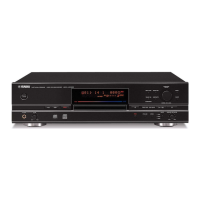
CDR-HD1000
Compact Disc Recorder
OWNERS MANUAL
UB
TEXT/TIME MODE/SET
MULTI JOG
DIGITAL REC LEVEL
PUSH ENTER
TRACK NO.
FINALIZE ERASE
BOOKMARK
COMPLETE
MENU
CLEAR
MIN MAX
OPTICAL
ANALOG REC LEVEL
INPUT
REC
COAXIAL
ANALOG

Table of Contents

Other manuals for Yamaha CDR-HD1000

Questions and Answers

  • M
    Michele JosephAug 15, 2025
    Why is my Yamaha CDR-HD1000 Recording Equipment remote control not working?
    • J
      James IngramAug 15, 2025
      If your Yamaha Recording Equipment's remote control isn't working, try these steps: * Replace the batteries with new ones. * Ensure you're within a 6-meter range and 60-degree angle. * Make sure the remote control sensor isn't exposed to strong lighting.
  • T
    Theresa JacksonAug 18, 2025
    Why can't other CD players play discs recorded on my Yamaha CDR-HD1000 Recording Equipment?
    • J
      jjenningsAug 18, 2025
      If a CD-R or CD-RW recorded with your Yamaha Recording Equipment can't be played on another CD or DVD player, it could be due to compatibility issues. Use a CD or DVD player compatible with CD-R or CD-RW discs. Also, ensure the disc has been finalized.
  • M
    Michelle MooreAug 21, 2025
    What to do if Yamaha CDR-HD1000 Recording Equipment remote interferes with TV?
    • S
      Sarah DavisAug 21, 2025
      If the TV doesn't function correctly when using the remote control for your Yamaha Recording Equipment, it might be interfering with the TV's remote control sensor. Try moving the Yamaha unit away from the TV or covering the TV's remote control sensor.
  • H
    Heidi JohnsAug 25, 2025
    What to do if Yamaha CDR-HD1000 playback does not start?
    • J
      Jennifer RoblesAug 25, 2025
      If playback on your Yamaha Recording Equipment doesn't start with a disc loaded, it could be due to moisture on the laser pick-up. Turn off the power and wait 20-30 minutes before trying again. Also, check if the disc is loaded upside down (label side up) or if it's dirty; clean the disc if needed.
  • K
    Kevin DavisAug 27, 2025
    How to stop Yamaha CDR-HD1000 from skipping sound?
    • J
      John AllenAug 27, 2025
      If your Yamaha Recording Equipment is skipping sound, relocate the unit to avoid vibration or impact. If the issue persists, clean the disc.
  • M
    Michael WolfeAug 30, 2025
    Why can't I record with my Yamaha CDR-HD1000?
    • A
      Andrew ReynoldsAug 31, 2025
      If recording or copying is not possible on your Yamaha Recording Equipment, ensure you're using a recordable CD that hasn't been finalized. Check that INPUT is correctly set according to the input signal. If copying from digital sources, switch to ANALOG. Also, verify there's enough space on the disc or HDD. If power was interrupted during recording of a CD-RW disc, try recording again from the beginning. Clean or replace the disc if it's dirty or damaged. For HDD, erase unused space by performing 'Pack'.
  • M
    Melissa WongSep 2, 2025
    How to fix missing track beginnings on Yamaha CDR-HD1000?
    • J
      Jeremy WatsonSep 2, 2025
      If the beginning of a track is missing during playback on your Yamaha Recording Equipment when connected digitally to an amplifier, connect to the amplifier using the ANALOG LINE OUT (PLAY) jacks.
  • R
    Ryan AdamsSep 5, 2025
    How to reduce vibration noise on Yamaha CDR-HD1000 Recording Equipment during copying?
    • M
      Mitchell JonesSep 5, 2025
      If you're experiencing vibration and rotation noise during copying with your Yamaha Recording Equipment, lower the copying speed to reduce the noise.
  • B
    Brian SerranoSep 8, 2025
    Why does Yamaha CDR-HD1000 lose sound when switching discs?
    • B
      Benjamin HowardSep 8, 2025
      If the sound is missing when your Yamaha Recording Equipment switches from one disc to another, and titles appear on the display during playback, press TEXT/TIME to switch the display to show the time.
  • S
    Scott CarterSep 12, 2025
    How to record longer than 100 minutes on Yamaha CDR-HD1000 Recording Equipment?
    • C
      Carolyn HamptonSep 12, 2025
      Continuous recording on a disc beyond 100 minutes with Yamaha Recording Equipment (HDD) is not possible because the longest recordable time for a disc is 99 minutes 59 seconds. Set the recording mode to manual or auto period recording mode to continue recording on the next disc.

Summary

IMPORTANT SAFETY INSTRUCTIONS

CAUTION (Electric Shock)

Instructions to prevent electric shock by not opening the unit.

WARNING (Rain;Moisture)

Warning to keep the unit away from rain or moisture.

CAUTION: READ THIS BEFORE OPERATING THIS UNIT

Installation Guidelines

Specifies ventilation requirements and placement away from heat sources.

Electrical Safety

Advises using correct voltage and unplugging during storms.

DISCS COMPATIBLE WITH THIS UNIT

Discs that can be used for recording

Specifies CD-R and CD-RW discs that can be used for recording.

PREPARATION - Connections

CONTROLS AND FUNCTIONS - Front Panel

CONTROLS AND FUNCTIONS - Remote Control

CONTROLS AND FUNCTIONS - Display

RULES OF DIGITAL RECORDING AND NOTES ON SYSTEM

Rules of Digital Recording

Explains the Serial Copy Management System (SCMS) rules for digital recording.

RECORDING AND COPYING - Usable Recording Media

BASIC RECORDING OPERATION - Recording from External Component to HDD

BASIC RECORDING OPERATION - Recording from External Component to CD-R;RW Disc

Selecting an Input Source

Adjusting the Recording Level

Finalization

Selecting a Disc for Recording

Setting the Recording Mode

Copying from a CD onto the HDD

<To start copying> (CD to HDD)

Copying from the HDD onto a CD-R or CD-RW Disc

<To start copying> (HDD to CD-R;RW)

Duplication of a CD

<Starting to duplicate>

Selecting a Disc to Be Copied on

Setting the Copying Mode

Copying Menu Setting

Copy Method

Copy Level

ALBUM EDITING

Album New

Edit Stored

Album Copy

Album Rename

Album Delete

Album Title

TRACK EDITING

Track Rename

Track Adjust

Track Erase

Part Erase

Track Combine

Track Divide

Add Fade In

Add Fade Out

Track Title

DISC EDITING

Disc Rename

Disc Combine

Disc Erase

Disc Divide

Disc Title

UNDO FUNCTION

ERASING A CD-RW DISC

BASIC PLAYBACK OPERATION

Playing a CD

Steps for loading a CD and starting playback.

Playing Tracks on the HDD

Steps for selecting a group and playing tracks from the HDD.

Finding the Desired Passage (Search)

Finding the Desired Group (Group Skip)

Finding the Desired Track (Track Skip)

Setting the Play Style

Random Play

Single Repeat Play

Full Repeat Play

Intro Play

Album Play

Bookmark Play

Listening with Headphones

HDD Utility

To check the HDD utility (HDD Info.)

Steps to view HDD information like total capacity and free space.

To format the HDD (HDD Format)

System Utility

To check the firmware version (Firm. Version)

Steps to check the unit's firmware version.

To initialize the setting for each item (Initialize)

DAC (Digital;Analog Converter) Mode

Display Messages

Troubleshooting

SYMPTOM

Lists symptoms like unit not turning on or playback issues.

REMEDY

Provides remedies for common unit problems.

CAUTION (Laser Safety)

Yamaha CDR-HD1000 Specifications

General IconGeneral
BrandYamaha
ModelCDR-HD1000
CategoryRecording Equipment
LanguageEnglish

Related product manuals