2 Time to Play
15
DTX500 Owner’s Manual
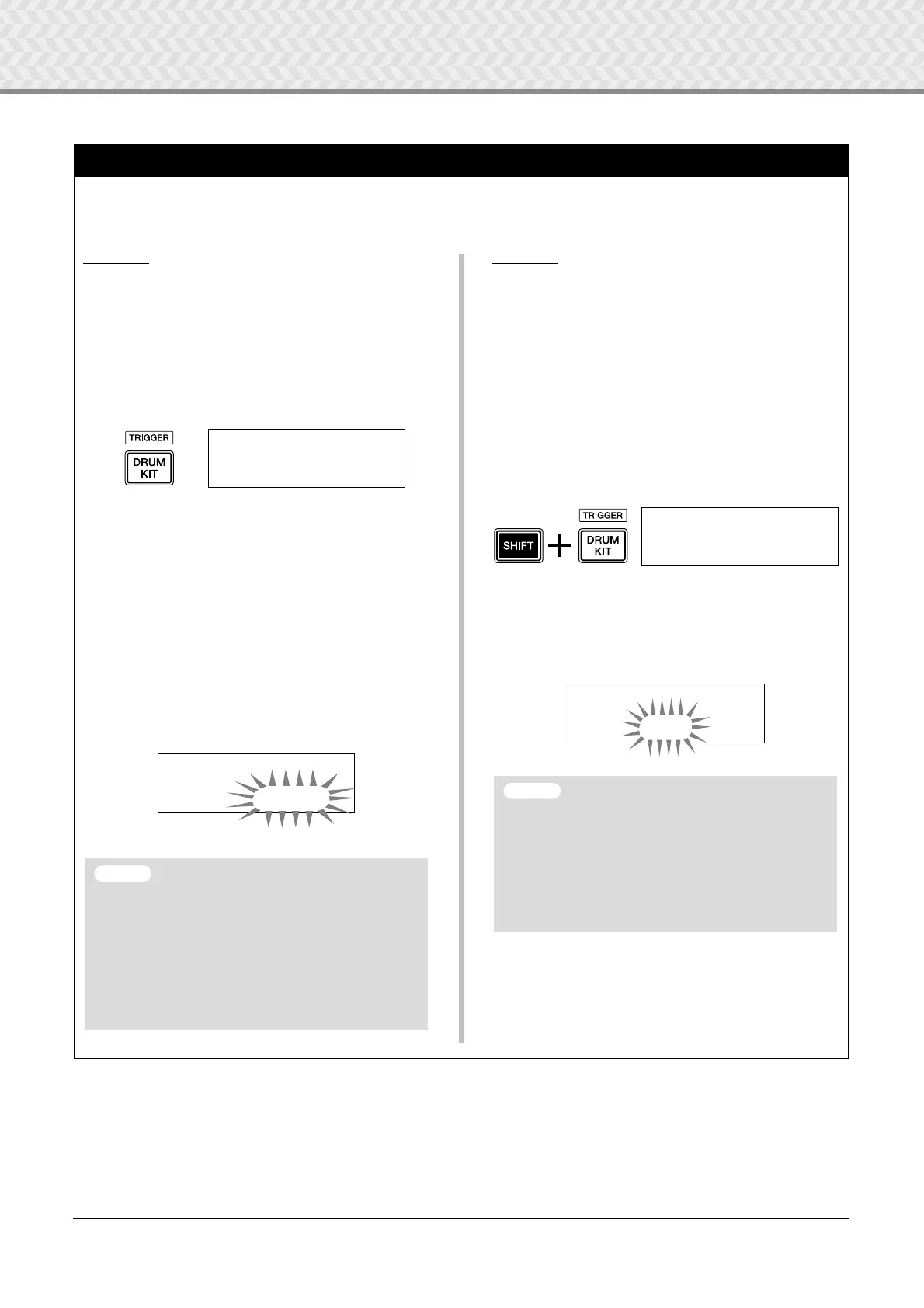
Pad Controller Settings
When a pad-controller-equipped pad (XP100SD, etc.) is connected, you can adjust the snares setting and tightness, tuning, or
tempo by rotating the pad controller knob of the pad.
Operation
In the default setting, you can adjust the snares setting
and tightness using the pad controller of the XP100SD
(the snare drum pad). To use functions other than the
snares adjustment, change the setting as follows.
1.
Press the [DRUM KIT] button to enter the Drum Kit
Select display.
2.
Next, continue pressing the [
>
] button until Page 22
of the Drum Kit Select pages is called up.
3.
Rotate the jog dial to change the value for
“
PadCtl=
”. You can select from the following func-
tions.
off
.......... No function is assigned.
snares
.... Adjusting the snares setting and tight-
ness (also affects the open rim sound)
tuning
.... Tuning adjustment (also affects the open
rim sound)
tempo
...... Adjusting the tempo
Operation
(Replacing the pad with one equipped
with pad controller)
Here’s how you can use the pad with pad controller
(XP100SD) as a snare drum.
1.
Connect the XP100SD with trigger input
1
SNARE
on the DTX500.
* The other trigger input jacks other than the
1
SNARE are
not compatible with pad-controller-equipped pads. The
pad controller will not work if this type of pad is connected
to a trigger input jack other than
1
SNARE.
2.
Press the [SHIFT] + [DRUM KIT] buttons to view the
Tr igger Setup display.
3.
Next, press the [
>
] button once to view the following
display (pad type).
Hit the snare pad to view “
ƒsnare
” in the upper half
of the display, then rotate the jog dial to set
“
Type=SN-1
.”
4.
Now you are ready to use the pad-controller-
equipped pad.
See the section “Operation” in the left column to
change the function you want to use for the pad con-
troller.
KIT1~~~_________
1~:Oak~Custom~~‚
KIT22*
”PadCtl=tuning~‚
• An asterisk “*” will appear next to “KIT22” in the
display if the data has been changed. This asterisk
will disappear after the Store operation (p. 32) is car-
ried out. If a different drum kit is selected or the
power is turned off before carrying out the Store
operation, the current settings will return to their
original condition. If you want to keep changes made
to the data, make sure to carry out the Store opera-
tion.
NOTICE
TRG1~~~ååååååååå
1~:XP Med~~~~~~‚
TRG2*~ƒsnare~~0%
”Type=SN-1~~~~~‚
• An asterisk “*” will appear next to “TRG2” in the dis-
play if the data has been changed. This asterisk will
disappear after the Store operation (p. 34) is carried
out. If a different drum kit is selected or the power is
turned off before carrying out the Store operation, the
current settings will return to their original condition.
If you want to use the selected pad again, make sure
to carry out the Store operation.
NOTICE


 To Next Page