20
DTX500 Owner’s Manual
4 Playing Along With a Song
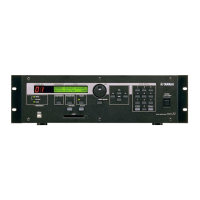
The DTX500 contains a wide variety of 63 preset songs. Try selecting among these and play
along with them—they are effective tools that help you learn how to drum and master drumming
techniques. The DTX500 conveniently lets you mute the drum part of a song and have only the
bass part sound during playback, so you can play the drum part yourself.
1
Select a Song
Select one of the DTX500’s songs and listen. The DTX500
contains 63 preset songs that, in addition to drums, include
accompaniment with keyboard, brass, and other voices.
* Preset Song List (p. 46)
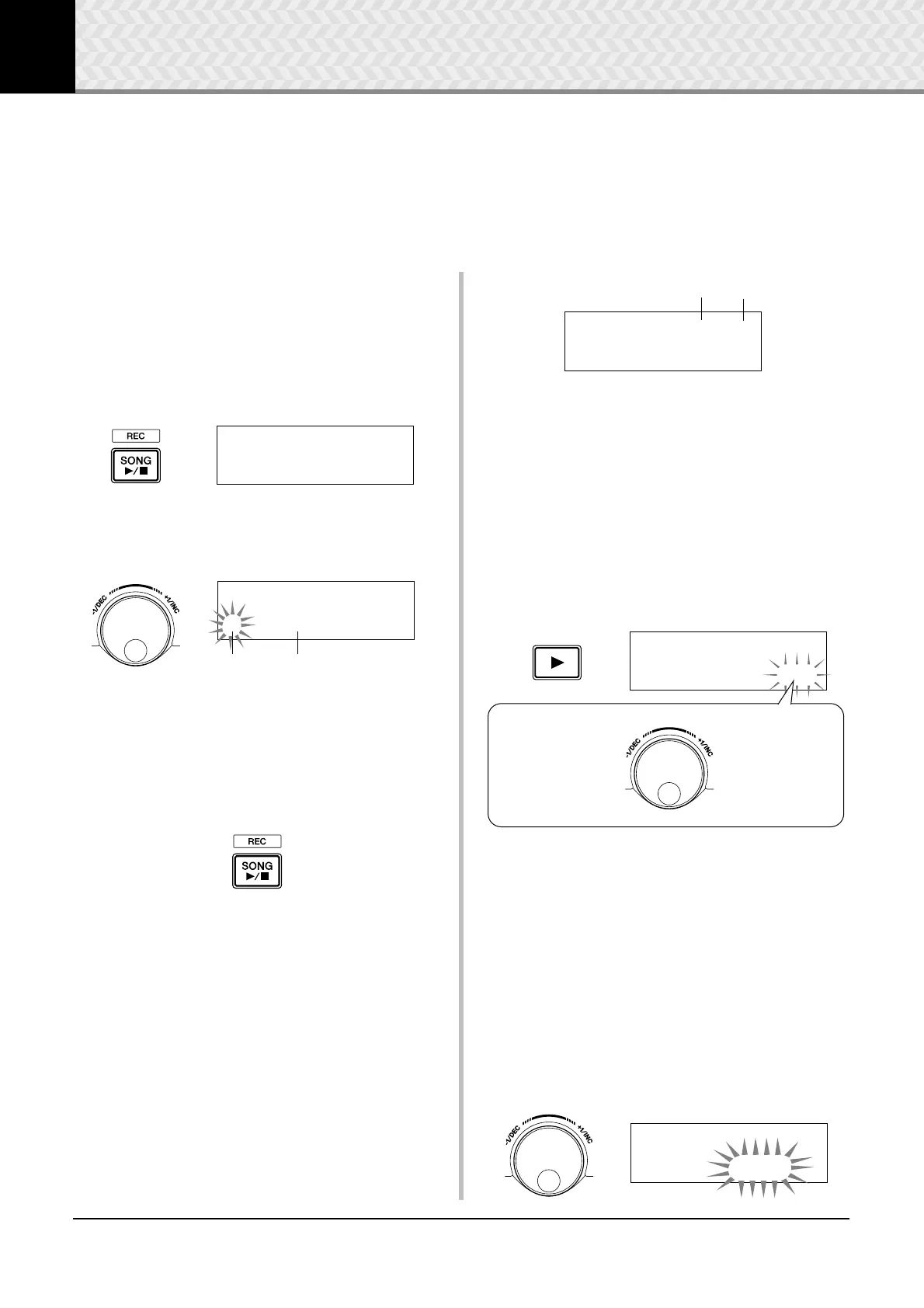
Press the [SONG >/■] button to view the Song Select dis-
play.
Make sure the song number is flashing, then use the jog dial
to select a song number (1 to 63) you want to listen to.
* When a different song is selected, the drum kit changes to
one that matches the song.
2
Listen to the Song
Press the [SONG >/■] button and after the count, the song
will start playback from the beginning.
After the song has played to the end, it will automatically
start playing from the beginning again.
Press the [SONG
>/■] button to stop playback.
* If you’ve changed the song’s tempo or its voices and want to
return to the original, re-select the song.
* If a different song is selected during song playback, the new
song will start playback from the beginning.
3
Adjust the Song’s Volume and Tempo
Use the [<]/[>] buttons to select the tempo value (the value
flashes), and then use the jog dial to set the song’s playback
tempo (q = 30–300).
Next, press the [
>] button to move the flashing cursor to the
right. The speaker icon will change to a numeric value and
flash. This determines the volume (range: 0–16) for parts
other than the drum. Rotate the jog dial and adjust the balance
between the song accompaniment and your performance.
* The tempo can also be set using the Tap Tempo function.
This lets you set the song or click’s tempo by tapping in
tempo on a pad. With this, you can conveniently set the
tempo to one that feels best to you. Refer to page 19 for more
information.
4
Mute the Drum Part
Try playing along with the song.
Press the [
>] button several times so that the “∞¢” mark
flashes in the lower right side of the display.
Next, rotate the jog dial clockwise to change the mark to
“
˚¡” in the lower right side of the display, to mute the drum
part of the song during playback.
Now play the drum part yourself.
To cancel the Drum Mute function and hear the original
drums, rotate the jog dial counterclockwise to change the
“
˚¡” mark to “∞¢” again.
* The Drum Mute setting can also be changed during song
playback.
5
Adjust the Tuning
The song’s tuning can be adjusted in increments of 10 cents.
The Tuning setting is found in the Utility pages.
First, press the [SHIFT] + [SAVE/ENTER] buttons to call up
the Utility pages. Next, press the [
>] button 7 times to view
the Master Tuning page shown below, then use the jog dial to
adjust the tuning in semitones (-24.0 to 0 to +24.0).
SONG1~~~⁄=123~÷ç
1~:Demo~1~~~~∞¢‚
Song Number
SONG1~~~⁄=123~÷ç
1~:Demo~1~~~~∞¢‚
Song Name
Tempo Song Volume
SONG1~~~⁄=130~11
1~:Demo~1~~~~∞¢‚
SONG1~~~⁄=130~÷›
1~:Demo~1~~~~∞¢‚
Rotate the jog dial
clockwise.
˚¡
Mute
(The drum part
doesn’t play.)
Rotate the jog dial
counterclockwise.
∞¢
Cancel the mute
function.
(The drum part plays.)
UTIL6~MasterTune
”~~Tune=+18.0~~‚


 To Next Page