EasyManua.ls Logo

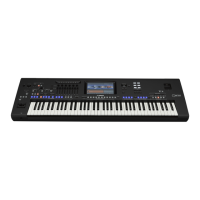
Yamaha genos - User Manual

Yamaha genos
140 pages
Print Icon
To Next Page IconTo Next Page
Loading...
EN
Owner’s Manual
Before using the instrument, be sure to read “PRECAUTIONS” on page 5.

Table of Contents

Other manuals for Yamaha genos

Questions and Answers

  • J
    julienorrisSep 7, 2025
    Why is there a strange flanging sound on my Yamaha genos Musical Instrument?
    • F
      Francis HolmesSep 7, 2025
      If a strange “flanging” or “doubling” sound occurs on your Yamaha Musical Instrument, and the sound is slightly different each time the keys are played, the RIGHT 1 and RIGHT 2 parts are set to “ON,” and both parts are set to play the same Voice. Turn off the RIGHT 2 part or change the Voice of one of the parts.
  • M
    Margaret BrownAug 22, 2025
    Why can't I select Styles from USB on Yamaha genos Musical Instrument?
    • R
      Ryan GrahamAug 22, 2025
      If the size of the Style data is large (about 120 KB or greater), the Style cannot be selected because the data is too large to be read by the instrument.
  • L
    Linda ChaseSep 4, 2025
    Why is a file not showing on my Yamaha genos Musical Instrument?
    • S
      sanchezrebeccaSep 5, 2025
      If an existing file is not shown on your Yamaha Musical Instrument: * The file extension (.MID, etc.) may have been changed or deleted. Manually rename the file, adding the appropriate extension, on a computer. * Data files with names of more than 50 characters cannot be handled by the instrument. Rename the file, reducing the number of characters to 50 or less.
  • J
    Jennifer WilsonSep 3, 2025
    How to fix low keyboard volume on Yamaha Musical Instrument?
    • H
      Holly MillerSep 3, 2025
      If the keyboard volume is lower than the Style/Song playback volume on your Yamaha Musical Instrument, the volume of the keyboard parts may be set too low. Raise the volume in the Mixer display.
  • M
    Matthew DavisSep 2, 2025
    Why does song volume vary on my Yamaha genos Musical Instrument?
    • T
      travisandersonSep 2, 2025
      The volume of MIDI Songs and Audio Songs are set independently on your Yamaha Musical Instrument. Adjust the volume in the Mixer display after selecting a Voice.
  • J
    John WilliamsonAug 31, 2025
    Why does Vocal Harmony sound distorted on my Yamaha genos?
    • M
      Matthew SchaeferAug 31, 2025
      If the Vocal Harmony effect on your Yamaha Musical Instrument sounds distorted or out-of-tune, the vocal microphone may be picking up extraneous sounds, such as the Style sound from the instrument. To remedy this: * Sing as closely to the microphone as possible. * Use a directional microphone. * Turn down the Master volume, Style volume, or Song volume control. * Separate the microphone from the external speakers as far as possible.
  • A
    Ann CamposAug 30, 2025
    Why don't all notes sound on my Yamaha genos Musical Instrument?
    • M
      Michael HernandezAug 30, 2025
      If not all simultaneously played notes sound on your Yamaha Musical Instrument, you are probably exceeding the maximum polyphony of the instrument. When the maximum polyphony is exceeded, the least important notes (such as soft notes and notes currently decaying) will stop sounding first.
  • L
    Laura NicholsAug 29, 2025
    What to do if noise when using Yamaha Musical Instrument with iPhone/iPad app?
    • C
      Chelsea CastilloAug 29, 2025
      When using your Yamaha Musical Instrument with an iPhone/iPad app, noise from the instrument’s speakers or headphones can occur. It is recommended to set “Airplane Mode” to “ON” on your iPhone/iPad in order to avoid noise caused by communication.
  • C
    Cody WoodAug 27, 2025
    Why does Style playback skip on my Yamaha genos?
    • A
      Adam MoralesAug 27, 2025
      Style playback may seem to skip when the keyboard is played on your Yamaha Musical Instrument because you are exceeding the maximum polyphony of the instrument. The instrument can play up to 256 notes at the same time—including RIGHT 1/RIGHT 2/RIGHT 3/LEFT Voices, Style, Song, and Multi Pad notes. When the maximum polyphony is exceeded, the least important notes (such as soft notes and notes currently decaying) will stop sounding first.
  • J
    Jennifer MurphyAug 26, 2025
    How to disable auto power off on Yamaha genos Musical Instrument?
    • M
      Michael RubioAug 27, 2025
      The automatic power off on your Yamaha Musical Instrument is a normal function. It is due to the Auto Power Off feature. If you want to change this, set the parameter of the Auto Power Off function.

Summary

Main Features

Compatible formats for the instrument

Lists and describes compatible file formats like GM, XG, GS, XF, SFF.

Panel Controls and Terminals

Top Panel

Overview of controls and terminals located on the top surface of the instrument.

Rear Panel and Bottom

Details connectors and controls found on the rear and bottom of the instrument.

Starting Up

Power Supply

Instructions for connecting the power cord and understanding power supply requirements.

Making Basic Settings

Guide to initial instrument setup, including language and user preferences.

Basic Operations

Display Configuration

Explains the instrument's displays, including Home, File Selection, and Menu.

File Management

Covers saving, creating folders, renaming, copying, and deleting files.

1 Playing with Styles-Setups

Setting up Styles

Steps to select a Style and turn on Auto Accompaniment (ACMP).

Setting up Keyboard Parts

Guide to combining keyboard parts (Layer, Split) and selecting Voices.

Connections-Using Your Instrument with Other Devices

Connecting a Microphone ([MIC INPUT] jack)

Details on connecting microphones for singing and recording.

Connecting USB Devices ([USB TO DEVICE] terminal)

Guide for connecting USB flash drives for data storage and transfer.

Troubleshooting

Overall

Addresses common issues like power, noise, sound quality, and display problems.

Yamaha genos Specifications

General IconGeneral
Bit rate16 bit
Pitch wheelYes
Product typeDigital synthesizer
Product colorBlack
Sound effectsChorus, Harmony, Reverberation, Synthesizer
Number of pads4
Volume controlRotary
Backlight colorBlue/Red
Keyboard number of keys76
Preset programs quantity550
Maximum polyphony (notes)256
Number of front panel sliders9
Headphone outputs1
USB ports quantity3
6.35 mm (1⁄4-inch) input2
6.35 mm (1⁄4-inch) output6
Display typeLCD
Display diagonal9 \
Power source typeAC
Weight and Dimensions IconWeight and Dimensions
Depth456 mm
WidthBlablabla mm
Height138 mm
Weight13000 g

Related product manuals