EasyManua.ls Logo

Yamaha YC61 - User Manual

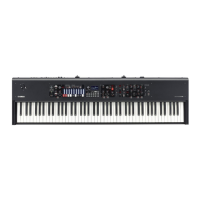
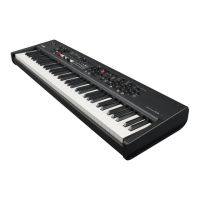
Yamaha YC61
76 pages
Print Icon
To Next Page IconTo Next Page
Loading...
EN
FR
ES
EnglishFrançaisEspañol
STAGE KEYBOARD
CLAVIER DE SCÈNE
TECLADO DE ESCENARIO

Table of Contents

Other manuals for Yamaha YC61

Questions and Answers

  • A
    Amanda ScottAug 12, 2025
    What to do if my Yamaha Electronic Keyboard sounds are distorted?
    • J
      Jason WilsonAug 12, 2025
      If the sounds from your Yamaha Electronic Keyboard are distorted, the effect settings may not be appropriate. Try changing the effect types and their settings. The distortion might also be due to the volume being set too high. Adjust the volume. If you're using external audio sources, adjust their volume or use the INPUT [GAIN] knob on the keyboard. You can also adjust the volume from the “I/O Volume” ? “USB Audio”.
  • D
    Deborah GilmoreAug 17, 2025
    How to stop my Yamaha Electronic Keyboard from turning off automatically?
    • F
      Frank WagnerAug 17, 2025
      The Yamaha Electronic Keyboard might be turning off unexpectedly because the Auto Power Off function is enabled. If you prefer, you can deactivate this function to prevent the instrument from automatically turning off.
  • A
    Anne TylerAug 23, 2025
    What to do if a sound keeps playing on my Yamaha Electronic Keyboard?
    • J
      Jessica MooreAug 23, 2025
      If a sound continues to play indefinitely on your Yamaha Electronic Keyboard, it might be due to lingering effect sounds like delay. Try lowering the [DEPTH] knob value or turning the EFFECT1/2 [ON/OFF] button or the Section [ON/OFF] switch to OFF. If another Live Set Sound is selected during a sound continues to play, press the currently selected Live Set Sound button once more.
  • W
    wmyersAug 28, 2025
    How to fix Yamaha Electronic Keyboard when it cannot save data to USB drive?
    • J
      janetboydAug 28, 2025
      If you cannot save data to the external USB flash drive from your Yamaha Electronic Keyboard, the USB flash drive might be write-protected. Unlock the write protection. If that's not the case, the USB flash drive may not be formatted properly. Format it again.
  • E
    Emily SmithSep 1, 2025
    Why is the LCD screen blank on my Yamaha Electronic Keyboard?
    • S
      samanthagibbsSep 1, 2025
      If nothing is displayed on the LCD of your Yamaha Electronic Keyboard even when the power is on, check if “Display Lights” ? “LCD SW” is set to “Off”. Set the “LCD SW” to “On”. If it’s already on, the “Display Lights” ? “LCD Contrast” value might be set too low. Adjust the contrast from “LCD Contrast”.
  • R
    robertcollinsNov 6, 2025
    Why is there no sound coming from my Yamaha Electronic Keyboard?
    • E
      Elizabeth StephensNov 6, 2025
      If your Yamaha Electronic Keyboard produces no sound, several factors could be responsible. First, ensure that external audio equipment (like amplifiers, speakers, or headphones) is correctly connected via audio cables, as this instrument lacks built-in speakers. Confirm that both the keyboard and any connected audio equipment are powered on. Check the volume levels on both the keyboard and external devices, adjusting them as needed, including trying the foot controller if connected. Ensure that the Voice Section [ON/OFF] switches are set to ON and their individual volumes are properly adjusted. Also, verify that Local Control is set to “On.” Finally, check whether an external MIDI controller has set MIDI volume or expression to a very low level; if so, select another Live Set Sound or try...

Summary

Important Safety Instructions

Precautions

Basic Safety Precautions

Essential safety warnings for power, opening, water, fire, and abnormalities.

Welcome and Main Features

Main Features Overview

Highlights key features like authentic organ sounds, piano quality, design, and interface.

Front Panel Controls

Live Set Operations

Organ Section

Keys Section

Setting Up

Factory Reset and Display Content

Factory Default Settings Reset

Procedure to restore the instrument to its original factory condition.

Saving and Loading Data

USB Data Saving and Loading

Steps for backing up and restoring settings, Live Sets, and sounds using a USB flash drive.

Using with External Devices

MIDI and External Device Connectivity

How to connect and use MIDI devices, computers, and smart devices with the YC61.

Special Operations List

MENU LIST - General Settings

SETTINGS LIST - Sound Settings

SETTINGS LIST - Master Keyboard Function

Master Keyboard Mode and Zone Settings

Enabling and configuring the YC61 as a master keyboard with multiple zones.

SETTINGS LIST - Controller Settings

Appendix - Troubleshooting

Troubleshooting Common Issues

Solutions for common problems like no sound, distorted sound, or unexpected behavior.

Appendix - Specifications

Yamaha YC61 Specifications

General IconGeneral
TypeStage Keyboard
Number of Keys61
Sound EngineAWM2
Polyphony128
EffectsReverb, Chorus, Rotary Speaker
DisplayLCD
ConnectivityUSB, MIDI, Audio In/Out, Headphone, Pedal
Power SupplyPA-150 or equivalent
Keyboard TypeWaterfall (Organ style)
Weight16 lbs

Related product manuals