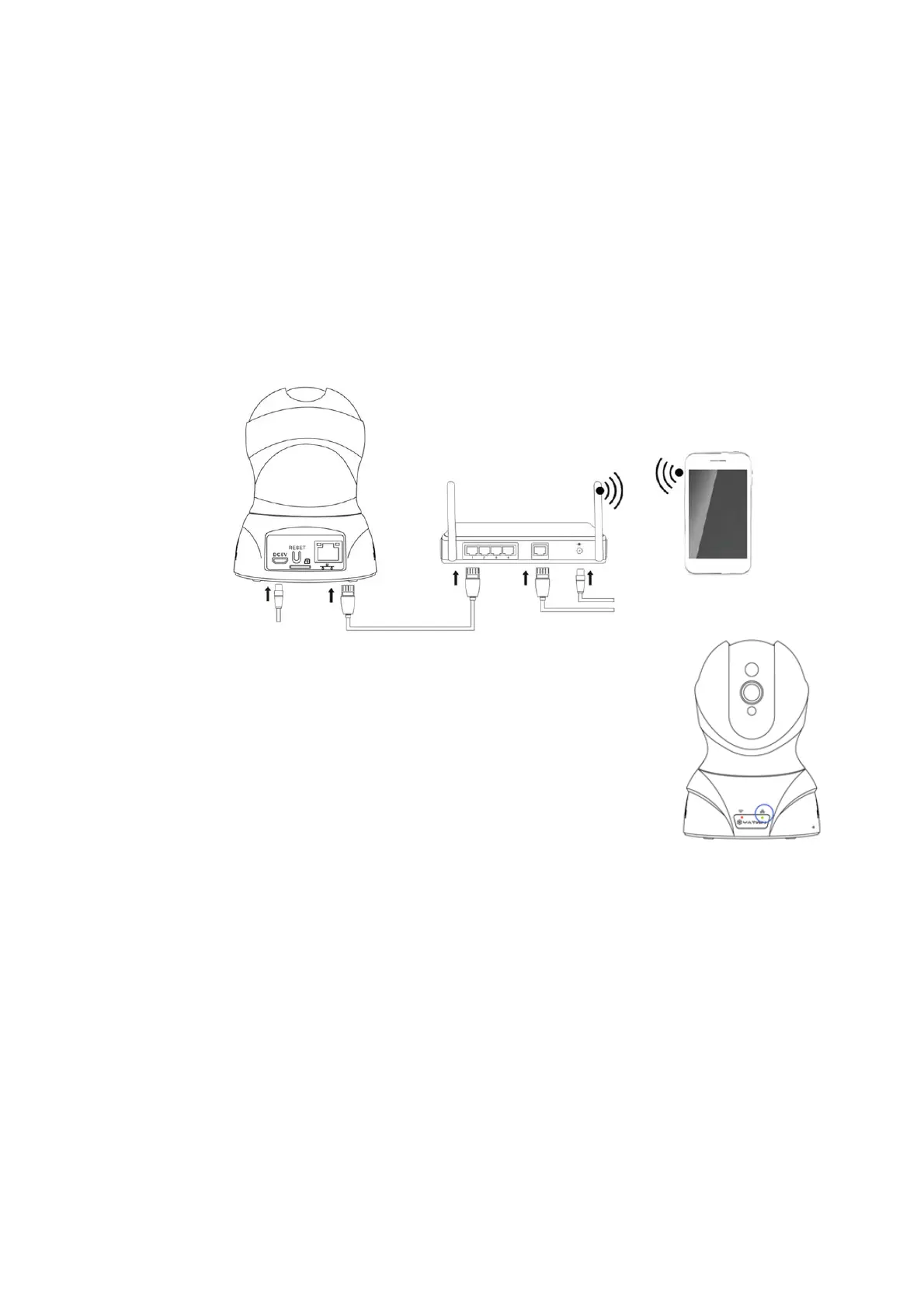
Method 1: Connect Wi-Fi over Ethernet Cable
For purposes of this guide, we will use Android, though both
apps have the similar interface. (The App Interface may differ
slightly from the screenshots below.)
(1) After connecting your camera to power supply, connect
it to router by Ethernet cable
(the network port status lights blink
yellow and green)
.
(2) Please wait a minute until the wired network
status light blinks green
(the camera is connected
to Ethernet successfully)
.
(3) Open MIPC App, login your MIPC account.
(As shown below)
Tap + on the top left corner of Device List page and
choose PTZ Cameras. Scan the QR Code on the bottom of your
camera or manually input device ID and password (default password:
admin), and then tap Add button, then change the camera default
password.


 To Next Page