EasyManua.ls Logo

Yealink CPW90-BT - User Manual

Yealink CPW90-BT
12 pages
Print Icon
To Next Page IconTo Next Page
Loading...
Bluetooth Wireless Microphones
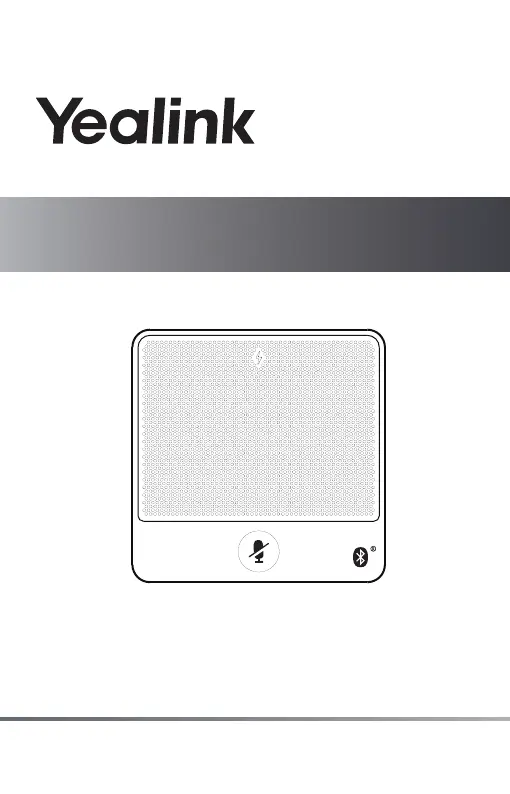
CPW90-BT
Quick Start Guide (V1.2)
www.yealink.com
English | 简体中文

Other manuals for Yealink CPW90-BT

Questions and Answers

  • D
    david45Sep 23, 2025
    Why are the time and date wrong on my Yealink Conference System?
    • R
      Ronald Harrington Jr.Sep 23, 2025
      If the time and date are wrong on your Yealink Conference System, it may be because the system fails to obtain the time and date from the SNTP server automatically. Contact your network administrator. You can also manually configure the time and date.
  • C
    cwilsonAug 23, 2025
    What to do if I forget the administrator password for my Yealink CPW90-BT?
    • L
      Leslie ColonAug 25, 2025
      If you forget the administrator password for your Yealink Conference System, and cannot access the advanced settings, you will need to reset your system.
  • M
    mckeelydiaAug 25, 2025
    Why can't the far site hear me on my Yealink CPW90-BT Conference System?
    • A
      Amy LeonAug 26, 2025
      If the far site cannot hear your audio during a call using the Yealink Conference System, ensure your audio input device is correctly connected and that the speaker at the far site isn't covered or damaged. Also, check if your microphone is muted and ask the far site to verify their volume isn't set to 0.
  • F
    Francis BaileyAug 27, 2025
    Why is the voice quality poor on my Yealink Conference System?
    • S
      Stephanie FullerAug 27, 2025
      If you are experiencing poor voice quality, such as intermittent voice, echo, or other noise, with your Yealink Conference System, try adjusting your distance from the microphone. Ensure the audio pickup device is stationary. Network congestion or old cables may also be factors; contact your network administrator or replace old cables.
  • J
    Joseph PrattAug 27, 2025
    Why is the audio unclear on my Yealink CPW90-BT during a call?
    • A
      anthony69Aug 27, 2025
      If you cannot hear the audio clearly during a call on your Yealink Conference System, try adjusting the speaker volume. If the audio from the far site is muffled, they may be in a highly reverberant room—advise them to speak closer to their phone. Check your audio codec priority, enable noise suppression, and ensure the device is clean and free of dust.
  • D
    danielle39Sep 15, 2025
    Why can't I hear the ringtone on my Yealink CPW90-BT?
    • M
      Matthew ObrienSep 15, 2025
      If you cannot hear the ring tone when receiving a call on your Yealink Conference System, the volume might be set to 0. Try adjusting the volume.
  • A
    Andrew BushSep 13, 2025
    Why can't I hear audio on my Yealink CPW90-BT Conference System during a call?
    • H
      hwaltonSep 13, 2025
      If you cannot hear audio during a call on your Yealink Conference System, there are a couple of things to check. First, make sure the volume isn't set to 0. If the volume is up, the far site might have muted their microphone, so you may want to contact them to check.
  • S
    Samantha FergusonSep 14, 2025
    Why is there no picture on the monitor for my Yealink CPW90-BT?
    • H
      heather41Sep 14, 2025
      If there is no picture on the monitor connected to your Yealink Conference System, the system may be in sleep mode. Press any key on the remote control to wake up the system. Alternatively, the system may be powered off, so ensure that the system is powered on. Also, check that the HDMI cable is correctly connected to the system, according to the Quick Start Guide.
  • L
    Lynn PerrySep 5, 2025
    Why can't I hear the ring tone on my Yealink Conference System?
    • T
      Tammy CookSep 5, 2025
      If you cannot hear the ring tone when receiving a call on your Yealink Conference System, adjust the volume.
  • J
    Jill SmithSep 2, 2025
    Why can't I share content on my Yealink CPW90-BT Conference System?
    • M
      Madison NelsonSep 2, 2025
      If you cannot share content from your Yealink Conference System, ensure your PC is properly connected and turned on. If you're using a VCH50/VCH51 video conferencing hub or WPP20 wireless presentation pod, try replacing it. If using a WPP20, ensure it's connected to the video conferencing system to obtain the Wi-Fi profile and that the wireless AP feature of the video conferencing system is enabled.

Summary

Working with the Video Conferencing System

Pairing with the Video Conferencing System

Procedure for pairing Bluetooth wireless microphones with a video conferencing system.

Unbinding the Paired Bluetooth Wireless Microphones

Procedure to unbind previously paired Bluetooth wireless microphones.

Finding the Paired Bluetooth Wireless Microphones

Procedure to locate paired Bluetooth wireless microphones.

Working with Microsoft Teams System;Zoom Rooms System

Pairing with the UVC80;UVC50

Procedure for pairing microphones with UVC80/UVC50 cameras.

Unpairing with the UVC80;UVC50 Camera

Procedure to unpair microphones from UVC80/UVC50 cameras.

Muting or Unmuting the Wireless Microphones

LED Instruction

Safety Instructions and Precautions

General Safety Requirements

General safety guidelines for installation, operation, and handling.

Environmental Requirements

Guidelines for proper device placement and environmental conditions.

Operating Requirements

Instructions for safe operation, including child safety and accessory use.

Battery Safety

Important safety precautions for handling and charging the battery.

Troubleshooting and Regulatory Information

Troubleshooting Common Issues

Solutions for common problems like power supply and connectivity.

FCC and IC Statements

Compliance statements regarding FCC and Industry Canada regulations.

About Yealink and Technical Support

About Yealink

Overview of Yealink as a global provider of collaboration solutions.

Technical Support Resources

Information on accessing Yealink WIKI and Ticketing system for support.

Yealink CPW90-BT Specifications

General IconGeneral
ConnectivityBluetooth
Wireless TechnologyBluetooth 5.0
Charging Time3 hours
MicrophoneBuilt-in microphone
Battery TypeLithium-ion
Charging InterfaceUSB Type-C
Compatible DevicesYealink conference phones, PC, mobile devices
CompatibilityYealink CP960/CP965 Conference Phone

Related product manuals