Need help?
Do you have a question about the Yealink MVC640-C4-F13 and is the answer not in the manual?
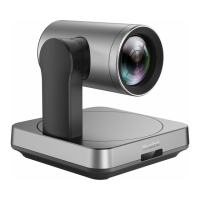
Details the components included in the UVC84 package, such as cables, power adapter, and mounting hardware.
Lists the components included in the MCore Pro package, such as cables, power adapter, and mounting hardware.
Details the components included in the MTouch E2 package, such as cables, power adapter, and mounting hardware.
Lists the components included in the CPW65 package, including microphones, charging cradle, and cables.
Details the components of the MSpeaker II package, including audio cable, power adapter, and silicone pad.
Lists the components included in the WPP30 package, such as USB cables and a quick start guide.
Provides guidance on mounting MCore Pro, MTouch E2, and UVC84 components for system installation.
Instructions for connecting the various components of the MVC640-C4-F13 system.
Details the initial setup process, including powering on the MCore Pro and the operating system loading.
Describes how to connect and use the WPP30 for wireless screen sharing.
Instructions on how to access and adjust the camera position settings.
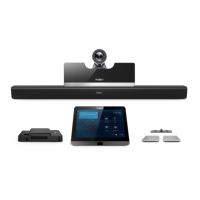
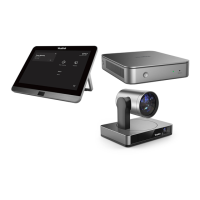
The Yealink MVC640-C4-F13 is a comprehensive video conferencing solution designed for Microsoft Teams Rooms, offering a seamless and integrated experience for modern workspaces. This system is built around a core set of components, each contributing to its overall functionality and ease of use.
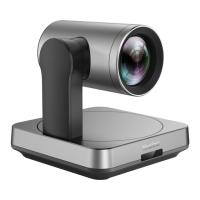
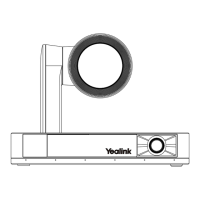
At its heart, the MVC640-C4-F13 system includes the UVC84 camera, a high-quality video capture device that ensures clear and detailed visuals for all participants. The UVC84 is designed for flexible deployment, capable of being placed on a flat surface, mounted on top of a display, affixed to a wall, or even installed on the ceiling or a TV mount. This versatility allows it to adapt to various room layouts and sizes, ensuring optimal camera angles for different conferencing scenarios. The camera's position can be easily controlled through the system's interface, allowing users to adjust the view as needed during a meeting.
The MCore Pro is the central processing unit of the system, running the Microsoft Windows 10 IoT Enterprise Edition operating system. It serves as the hub for all connected devices and manages the Microsoft Teams conference system application. The MCore Pro offers multiple mounting options, including wall mounting, TV mounting, or sticking to a table, providing flexibility in its physical integration into the meeting room. Upon initial setup, the MCore Pro requires a display and a mouse for configuration, after which the MTouch E2 can be used for system login and settings.
The MTouch E2 is an intuitive touch panel that acts as the primary control interface for the MVC640-C4-F13 system. It allows users to manage meetings, adjust settings, and control various aspects of the conference experience with ease. The MTouch E2 can be placed on a table for convenient access or mounted on a wall, depending on the room's design and user preference. Its user-friendly interface simplifies the process of initiating and managing video conferences, making it accessible even for those new to the system.
Audio is a critical component of any conferencing solution, and the MVC640-C4-F13 addresses this with the CPW65 package, which includes DECT microphones and a charging cradle. These wireless microphones provide excellent audio pickup, ensuring that all voices in the room are heard clearly. The wireless nature of the CPW65 allows for flexible placement of microphones around the meeting table, accommodating different group sizes and table configurations without the clutter of cables. The charging cradle ensures that the microphones are always ready for use, simplifying maintenance.
For enhanced audio output, the system incorporates the MSpeaker II, which delivers clear and powerful sound to fill the meeting room. The MSpeaker II is designed to integrate seamlessly with the overall system, providing an immersive audio experience that complements the high-quality video.
Wireless content sharing is a key feature of the MVC640-C4-F13, facilitated by the WPP30. This device allows users to share their screen content from a PC with a simple press of a button. To use the WPP30, it is first paired with the MTouch E2, indicated by an orange LED during pairing and a green breathing light upon successful connection. Once paired, the WPP30 connects to a USB-A/USB-C port on a PC, enabling instant screen sharing. This feature streamlines presentations and collaborative work, eliminating the need for complex cable connections.
The initial setup process for the MVC640-C4-F13 is straightforward. When starting the system for the first time, a mouse is required to complete the initial configuration, with a wireless mouse and keyboard kit being recommended for convenience. After initialization, the MTouch E2 takes over for system login and settings. Users will navigate through EULA acceptance, account login (supporting Microsoft Teams Rooms or Skype for Business accounts), advanced domain configuration, and finally, a setup wizard completion.
The system is designed to be highly adaptable to various environments. It requires a display with a resolution of 1080p or higher and an HDMI port. For PC connectivity, a device with an HDMI or USB-C (supporting DP protocol) port is needed. A CAT5e or higher Ethernet cable is essential for network connectivity, and standard HDMI cables are used for display connections. If PoE (Power over Ethernet) is utilized for speakers or cameras, a PoE+ switch is required.
Maintenance of the MVC640-C4-F13 system is simplified by its modular design and clear instructions provided in the quick start guides for each component. The charging cradle for the CPW65 microphones ensures they are always powered, reducing the need for manual battery management. The robust construction of all components is designed for long-term reliability in a professional conferencing environment. The system's integrated nature means that updates and management can often be handled centrally through the MCore Pro and MTouch E2 interface.
In summary, the Yealink MVC640-C4-F13 offers a comprehensive, user-friendly, and flexible video conferencing solution for Microsoft Teams Rooms. Its combination of high-quality video, clear audio, intuitive control, and seamless content sharing capabilities makes it an ideal choice for enhancing collaboration and communication in modern meeting spaces. The system's thoughtful design, from flexible mounting options to simplified setup and maintenance, ensures a smooth and efficient conferencing experience for all users.
 General
| Compatibility | Microsoft Teams, Zoom, Skype for Business |
|---|---|
| Microsoft Teams Rooms | Yes |
| RAM | 8GB |
| Video Resolution | 4K (3840 x 2160) |
| Connection Type | USB |
| Operating System | Windows |
| Connectivity | Wi-Fi, Bluetooth |
| Power Supply | AC 100~240V |


 To Next Page