EasyManua.ls Logo

Yealink MVC500 - User Manual

Yealink MVC500
16 pages
Print Icon
To Next Page IconTo Next Page
Loading...
Yealink Network Technology CO., LTD
Yealink MVC800&MVC500&MVC300 for Microsoft Teams Rooms System
Quick Start Guide(V1.5)
V32.35
English | 简体中文

Other manuals for Yealink MVC500

Questions and Answers

  • L
    lawrenceliAug 9, 2025
    What to do if there is no content displayed on the second display with Yealink MVC500?
    • H
      Heidi HaleAug 9, 2025
      If you are not seeing content on the second display, first make sure that both displays are securely connected to the HDMI ports on the back of the MCore/Mini-PC. Also, verify that the Dual Monitor mode is enabled. If the issue persists, try restarting the device; after restarting, it will automatically launch the Teams Room Systems app.
  • C
    Christian HodgesAug 15, 2025
    Why I cannot control the camera on my Yealink MVC500?
    • K
      Kristina SpencerAug 15, 2025
      If you cannot control the camera of your Yealink Conference System, it might be because the tracking mode is enabled. To regain manual control, enable the manual control mode. Refer to 'Enabling Manual Control Mode' for instructions.
  • C
    Cory SantanaAug 21, 2025
    How to fix the issue when the System Camera of Yealink MVC300/MVC300 is not available?
    • M
      Maria WarnerAug 21, 2025
      If the system camera of your Yealink MVC300/MVC300 is not available, check whether you have set the UVC30 camera as the content camera.
  • E
    Edward FloresAug 27, 2025
    Why is the room not enabled for Teams meetings on my Yealink MVC500?
    • L
      Lucas SantosAug 27, 2025
      To use Teams meetings on your Yealink Conference System, you must first enable Teams meeting mode on your system.
  • K
    kelly21Sep 2, 2025
    What to do if there is no content displayed on the second display of my Yealink MVC500 Conference System?
    • B
      Brian HaleSep 2, 2025
      If no content appears on the second display, verify that both displays are securely connected to the HDMI ports located on the rear of the MCore. Also, make sure that the Dual Monitor mode is activated within the Device settings. If the issue persists, try restarting the device.

Summary

Package Contents

MVC800 Package Components

Details the components included in the Yealink MVC800 system package.

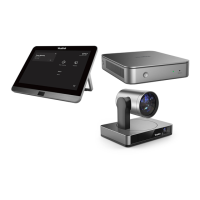
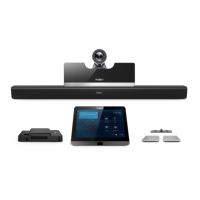
MVC500 Package Components

Details the components included in the Yealink MVC500 system package.

MVC300 Package Components

Details the components included in the Yealink MVC300 system package.

System Connection Diagrams

MVC800 & MVC500 Connection Guide

Illustrates the connection setup for Yealink MVC800 and MVC500 systems.

MVC300 Connection Guide

Illustrates the connection setup for the Yealink MVC300 system.

Wireless Content Sharing

Using WPP20 for Presentation Sharing

Explains how to use the WPP20 wireless presentation pod for content sharing.

System Software Updates

Enabling Automatic Windows Updates

Steps to configure automatic system software updates via Windows Update.

Manual Windows Update Procedures

Instructions for manually updating system software using Windows Update.

Camera Control Features

UVC30 Room Auto-framing Control

How to enable/disable auto-framing for the UVC30 Room camera.

Camera Position Adjustment

Guidance on controlling camera zoom, pan, and tilt for UVC80/UVC50/UVC30.

Reset Camera to Home Position

Steps to reset the camera position to its default home state.

Regulatory and Safety Information

Operating Conditions and Warranty

Covers operating temperatures, humidity, and product warranty details.

General Safety Instructions

Essential safety precautions for using the Yealink device.

Product Symbols and Meanings

Explains the meaning of symbols like DC, WEEE, and RoHS found on the product.

Yealink MVC500 Specifications

General IconGeneral
BrandYealink
ModelMVC500
CategoryConference System
LanguageEnglish

Related product manuals