EasyManua.ls Logo

Yealink MVC640 - User Manual

Yealink MVC640
28 pages
Print Icon
To Next Page IconTo Next Page
Loading...
1
Quick Sta
MVC640 for Microso Teams Rooms System
1
Minimum Requirements
A display connected to MCore Pro (not included).
A Microsoft Teams Rooms or Skype® for Business account (not included).
Wired network environment (not included).
2
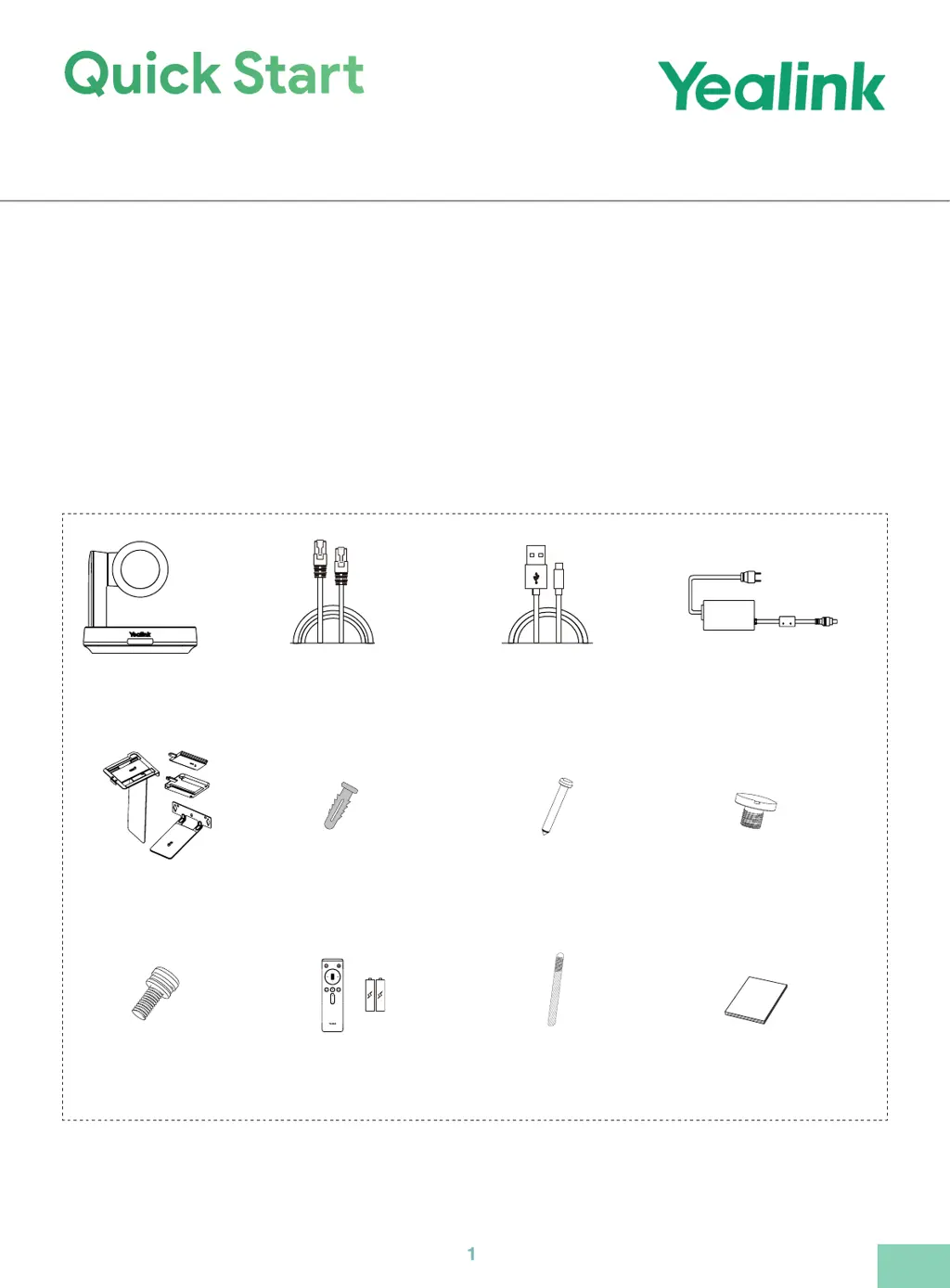
Package Contents
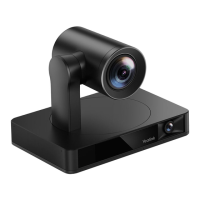
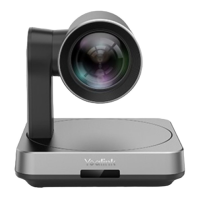
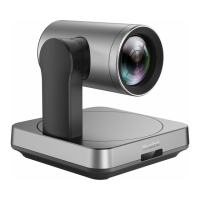
UVC84
Mounting Bracket
φ
6 * 30 mm, white, Polyamide 4*30 FAHOZN3+
(+)
M3*5.8KM0ZN3+ VCR20 Remote Control Quick Start Guide
1/4'' -20 UNC
CAT5e UTP (RJ45 - RJ45) Cable USB 2.0 (A - B) Cable Power Adapter (48V/0.7A)
(7.5m, 24.60ft) (2.5m, 8.20ft)
(20 * 200 mm)
(3.5m, 11.48ft)
× 4 × 5
× 5
× 2
× 4
UVC84 Package
Cable Ties
EN

Other manuals for Yealink MVC640

Questions and Answers

  • C
    crystaljacksonJul 30, 2025
    What to do if there is no content displayed on the second display with Yealink Conference System?
    • P
      Peter JohnsonJul 30, 2025
      If you are not seeing content on the second display, first make sure that both displays are securely connected to the HDMI ports on the back of the MCore/Mini-PC. Also, verify that the Dual Monitor mode is enabled. If the issue persists, try restarting the device; after restarting, it will automatically launch the Teams Room Systems app.
  • T
    Travis MooreAug 6, 2025
    Why I cannot control the camera on my Yealink MVC640 Conference System?
    • N
      Nicholas FordAug 7, 2025
      If you cannot control the camera of your Yealink Conference System, it might be because the tracking mode is enabled. To regain manual control, enable the manual control mode. Refer to 'Enabling Manual Control Mode' for instructions.
  • S
    Samantha FlowersAug 13, 2025
    How to fix the issue when the System Camera of Yealink MVC300/MVC300 is not available?
    • S
      sherrybartonAug 13, 2025
      If the system camera of your Yealink MVC300/MVC300 is not available, check whether you have set the UVC30 camera as the content camera.
  • Q
    qmartinezAug 21, 2025
    Why is the room not enabled for Teams meetings on my Yealink Conference System?
    • R
      Robyn LutzAug 21, 2025
      To use Teams meetings on your Yealink Conference System, you must first enable Teams meeting mode on your system.

Summary

Minimum System Requirements

Product Package Contents

System Installation Guide

System Connection Diagram

System Initial Setup Wizard

Key Product Features

Wireless Screen Sharing Setup

Connect and use WPP30 for wireless screen sharing.

UVC84 Camera Position Control

Access and manage UVC84 camera settings via the interface.

Yealink MVC640 Specifications

General IconGeneral
BluetoothYes
Pan range-100 - 100 °
Product typeGroup video conferencing system
Product colorBlack, Grey
Tilt angle range-45 - 90 °
Number of persons- person(s)
Signal-to-Noise Ratio (SNR)63 dB
Processor familyIntel® Core™ i5
Computer system typeMini PC
Operating system installedWindows 10 IoT Enterprise
Internal memory8000 MB
Storage media typeSSD
Total storage capacity128 GB
Ethernet LAN data rates10, 100, 1000 Mbit/s
USB connector typeUSB Type-A, USB Type-B
Ethernet LAN (RJ-45) ports1
HDMI output ports quantity2
USB 3.2 Gen 1 (3.1 Gen 1) Type-A ports quantity4
Telepresence-
Display diagonal8 \
Touchscreen typeCapacitive
Display resolution1280 x 800 pixels
Megapixel- MP
Camera typeSingle camera
Digital zoom3 x
Optical zoom12 x
Focus adjustmentAuto
Image sensor size- \
Focal length range3.9 - 46.8 mm
Aperture range (F-F)1.6 - 2.8
Camera shutter speed1/60 - 1/10000 s
Minimum illumination0.1 lx
Diagonal field of view80 °
Vertical field of view45 °
Horizontal field of view73 °
Maximum frame rate30 fps
Speaker power10 W
Frequency range100 - 20000 Hz
Microphone pick-up range6 m
Output voltage Total Harmonic Distortion (THD)1 %
Number of microphone arrays3
Current0.7 A
AC input voltage100-240 V
DC input voltage48 V
Power source typeAC
Harmonized System (HS) code85176990
Weight and Dimensions IconWeight and Dimensions
Weight7600 g

Related product manuals