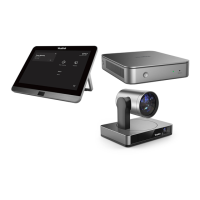
This document serves as a Quick Start Guide for the Yealink MVC Series, specifically focusing on the Microsoft Teams Rooms System. It provides detailed information on the package contents, connection procedures, and basic operational and maintenance features for various models within the series, including MVC900, MVC800, MVC500, and MVC300.
The Yealink MVC Series is designed to facilitate seamless video conferencing and collaboration within Microsoft Teams Rooms environments. The system integrates various components to deliver a comprehensive meeting experience, encompassing high-quality audio, video, and content sharing capabilities.
Function Description
The core function of the Yealink MVC Series is to provide a dedicated and optimized solution for Microsoft Teams Rooms. This system enables users to conduct video conferences, share content, and manage meetings efficiently within a Teams environment. It supports a range of room sizes and configurations, from small huddle spaces to large conference rooms, by offering different models with varying camera and microphone setups.
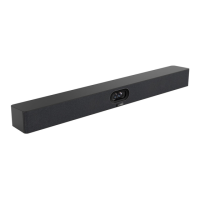
The system typically includes a Mini-PC as the central processing unit, running the Microsoft Teams Rooms application. This Mini-PC connects to a touch console (MTouch) for intuitive control, cameras (UVC series) for video capture, microphones (VCM series or CP900) for audio input, and speakers (MSpeaker) for audio output. A Camera-Hub or MShare is often used to centralize connections and facilitate content sharing.
Usage Features
The Yealink MVC Series offers a user-friendly interface and a variety of features to enhance the meeting experience:
-
Intuitive Control with MTouch: The MTouch touch console serves as the primary interface for managing meetings. Users can initiate calls, join scheduled meetings, control camera settings, manage participants, and share content directly from the touch console. Its design aims for simplicity and ease of use, mirroring the Microsoft Teams interface.
-
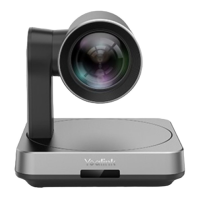
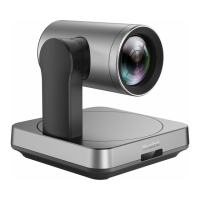
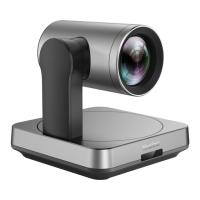
High-Quality Video Conferencing: The system incorporates Yealink UVC series cameras (UVC80, UVC50, UVC30) that provide high-definition video capture. These cameras often feature wide-angle lenses to capture all participants in the room and may include advanced functionalities like auto-framing.
-
Auto-Framing: For models equipped with compatible cameras, the auto-framing feature automatically adjusts the camera's pan, tilt, and zoom to frame all participants in the room. This ensures that everyone is visible without manual intervention, providing a more natural and engaging meeting experience. This feature can be enabled or disabled via the MTouch console.
-
Manual Camera Control: When auto-framing is disabled, users can manually control the camera's pan, tilt, and zoom functions from the MTouch console. This allows for precise adjustments to focus on specific individuals or areas of the room as needed. The camera can also be reset to its home position.
-
Crystal-Clear Audio: The system utilizes Yealink VCM series microphones (VCM34) or the CP900 speakerphone, designed to capture voices clearly while minimizing background noise. The MSpeaker soundbar provides robust audio output, ensuring that remote participants are heard distinctly. The VCM34 microphones are often daisy-chained to cover larger meeting spaces.
-
Seamless Content Sharing: The MShare content sharing box or the WPP20 wireless presentation pod enables easy sharing of content from laptops or other devices.
- Wired Content Sharing: The MShare connects to the Mini-PC and provides HDMI and Mini-DP inputs for wired content sharing. Users simply connect their device to the MShare using the provided cables to display their screen on the meeting display.
- Wireless Content Sharing with WPP20: For a cable-free experience, the Yealink WPP20 wireless presentation pod can be used. After connecting the WPP20 to the MShare and then to a PC, users can wirelessly share their screen. The WPP20's LED indicator confirms successful pairing.
-
Flexible Connectivity: The system is designed with various connection options, including USB, Ethernet, HDMI, and RCA, to integrate all components effectively. The use of CAT5e cables for connecting cameras, microphones, and the MTouch console simplifies cable management and allows for longer distances between components.
-
Scalability: The MVC series offers different models and component configurations to suit various room sizes. For instance, the MVC900 package includes multiple UVC80 cameras and VCM34 microphones to cover larger spaces, while the MVC300 is designed for smaller rooms with a single UVC30 camera and CP900 speakerphone. Additional VCM34 microphones can be added to expand audio coverage.
Maintenance Features
Maintaining the Yealink MVC Series system is streamlined through integrated software update mechanisms and clear guidance for accessory installation:
-
System Software Upgrades via Windows Update: The system software, including Windows, Camera-Hub/UVC series firmware, MTouch, and MShare firmware, can be automatically updated through Windows Update. This ensures that the system always runs on the latest software versions, benefiting from new features, security patches, and performance improvements.
- Automatic Downloads: Users can enable automatic downloads of updates, even over metered data connections, to ensure the system is always current without manual intervention.
- Manual Updates: For more control, updates can also be performed manually. This involves navigating to the Windows Update settings or using Device Manager to update specific device drivers. This flexibility allows administrators to schedule updates during off-peak hours or to address specific issues.
-
Administrator Access for Configuration and Maintenance: Access to system settings and administrative functions is protected by an administrator password (default: sfb). This ensures that only authorized personnel can make changes to the system configuration, manage updates, or troubleshoot issues.
-
Quick Start Guides for Installation: The documentation emphasizes referring to the Quick Start Guide for corresponding accessories for detailed installation and deployment information. This includes guidance for installing the Mini-PC package, Camera-Hub, or UVC30 Room camera, ensuring proper setup and functionality.
-
Network Considerations: The guide explicitly warns against connecting the system's switch to the internet, as this can cause network abnormalities. This highlights a crucial network configuration detail to ensure stable operation. It also notes that switches and Ethernet cables should be purchased separately, allowing for customization based on specific network infrastructure requirements.
-
Initial Configuration with USB Hub and Mouse: For the first-time setup, the system requires a USB hub to connect a mouse to complete the initial configuration. This step is essential for navigating the Windows interface and setting up the Microsoft Teams Rooms application. The recommendation to use a wireless mouse and keyboard kit further simplifies this initial setup process.
-
Compatibility: The software upgrade process is specifically supported by the 64-bit Windows 10 operating system, ensuring that users are aware of the necessary operating environment for system maintenance.
In summary, the Yealink MVC Series provides a robust and adaptable solution for Microsoft Teams Rooms, offering high-quality audio and video, flexible content sharing, and user-friendly controls, all supported by straightforward maintenance procedures.


 To Next Page

 General